Browse templates for your Pictory 3 video and use their scene layouts as a starting point in Claude, ChatGPT, or Muse.
Start with a design you like, then make it your own. Choose a template for a training video,
product story, explainer, or another topic. Your assistant adapts it to your content and
uses its layouts to arrange the scenes.Templates are optional and available for Pictory 3 videos. They work with Claude,
ChatGPT, and Muse. You do not need an API key or an API subscription. Your assistant checks
your account before planning the video. Pictory 2 accounts use the standard video workflow.
What Is a Template Layout?
A template gives your video an overall design and a suggested way to tell the story.
A layout describes how a scene is arranged: where the headline sits, how much space the
image takes, and how text and other details fit together.Your assistant uses the selected template’s available layouts to suit each part of your
story. It replaces the example words and media with your content while following the
template’s design. The result is an adaptation, rather than an identical copy of the preview.
Choose a Template in Your Chat
Use Pictory to make a video welcoming new employees. Show me training templates first.
1
Tell your assistant what you want to make
Include the topic and audience. If you have not said whether you want a template,
your assistant asks early in the conversation. You can also say “continue without
a template” and describe your own design.Making a video from your own recording? Upload the recording first. Your assistant
asks about a template after that.
2
Browse the choices
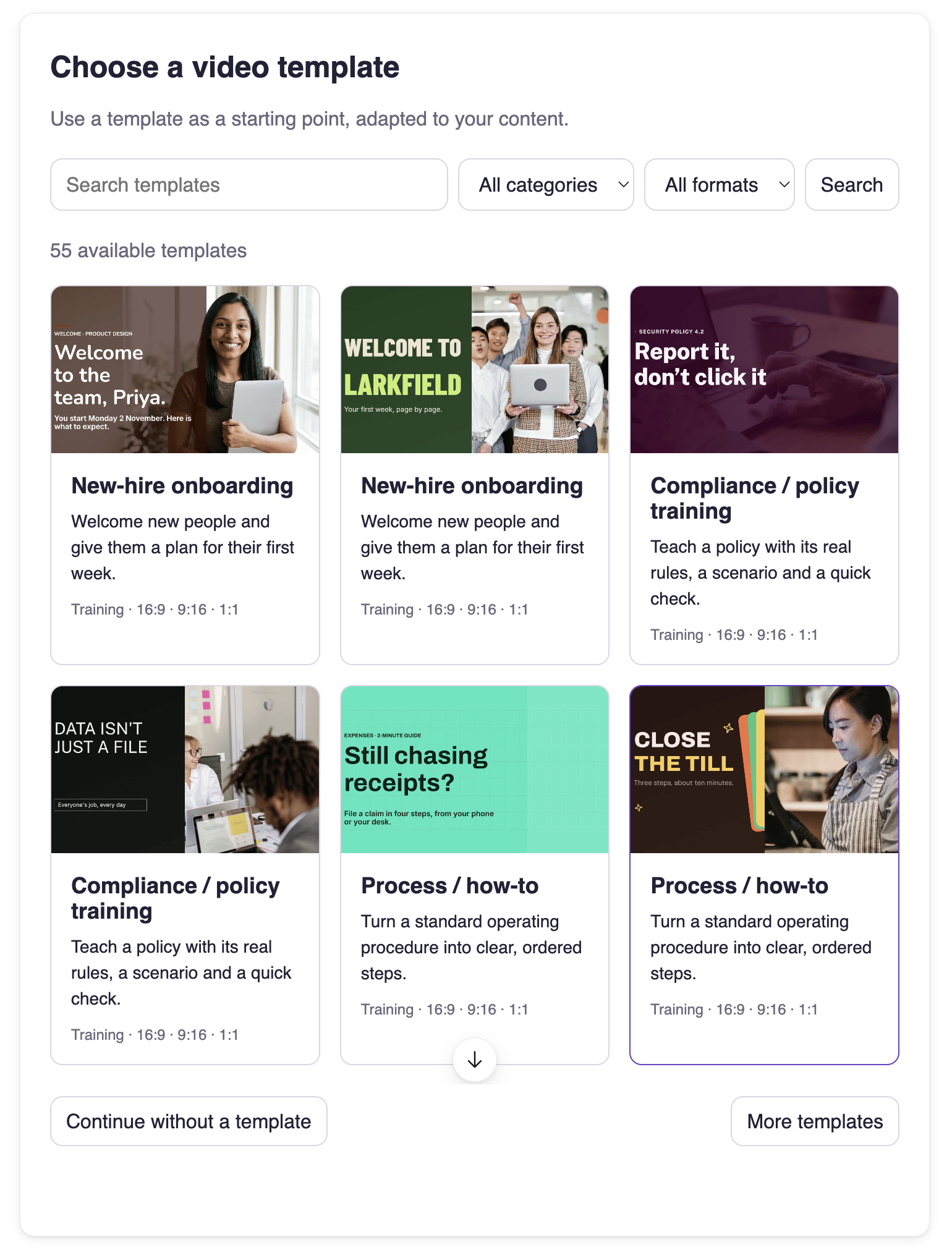
Type a name or topic in Search templates. You can also choose a category, or a
format (the video shape), then select Search.Each card shows a template’s name, description, category, and available shapes. Select
More templates to see more choices. To design the video without one, select
Continue without a template.
The template panel in the chat. Search or filter the templates, then open one, or continue without a template.
3
Choose your template
Open a template to see its details and any available preview. Choose a supported
shape and color option, then select Use this template. Shapes can include
horizontal (16:9), vertical (9:16), and square (1:1), depending on the template.
4
Make it your video
Agree on the story, brand kit, narration, music, and media. Your assistant asks only
for choices you have not already made. It uses the selected template and scene
layouts to design your content around the video’s timing.
5
Review the result
Watch the preview and ask for any changes. Your video is already saved as a
Pictory 3 project, so you can open the project link to keep editing in Pictory.
The assistant shows the render cost and waits for your confirmation before
making the finished video.
Choose by Name, Too
You do not have to open the picker if you already know the template you want:
Use the Course lesson / micro-learning template for a short lesson on strong passwords.
Many templates come in two versions with the same name, such as New-hire onboarding.
Each version has its own design. If more than one template has the name you give, your
assistant shows the matches and asks which one you mean. If it cannot find the name, it
helps you choose another available template.
No template panel in your chat? Your assistant can show a list of names and descriptions,
with thumbnail or preview links when available. Reply with your choice and continue in the
same conversation. The panel is not required.
Keep the Design Consistent
The assistant reads the selected template’s design guidance and the details of the layouts
it uses. These help it follow the same text placement, image treatment, fonts, and visual
patterns across scenes. Some templates have fewer design details or preview examples.
Your assistant explains those limits rather than promising an exact match.Where a template offers a Brand kit color option, choose a Pictory 3 brand kit to use it.
Other color options, such as Original, Midnight, or Sand, use the template’s own
colors and fonts. You can still give explicit
preferences, such as a larger headline or a different image.When you return to a saved project, share its project link. The assistant reads the saved
design before making your requested edits. You do not need to choose the template again.
What It Costs
Browsing templates, viewing their details, and reading layouts do not use credits or create
a video. Choosing a template does not automatically generate media or narration. Voice-over,
AI media, transcription, and rendering follow their usual credit or allowance rules. See
credits and rendering.
Try These Requests
“Show me templates for a vertical product introduction.”
“Use the New-hire onboarding template. Show me the choices if there is more than one.”
“Keep this template’s design, but use our product photos and approved script.”
“Continue without a template. Use a clean design with large headings.”
Troubleshooting
My Assistant Does Not Offer Templates
Cause: Your account uses Pictory 2, or you are editing a saved project. Templates are
offered only when you start a new Pictory 3 video.Resolution:
To edit a saved project, share its project link. The assistant keeps the project’s
saved design.
On a Pictory 2 account, contact Pictory support to enable Pictory 3. After this
one-way move, you cannot switch back to Pictory 2.
The Template Panel Does Not Appear
Cause: Your chat does not show panels, as in Claude Code, or your connection was set up
before templates were released.Resolution:
Ask your assistant to list the templates in the chat, then reply with your choice.
Cause: Many templates come in two versions with the same name. Each version has its
own design.Resolution: Compare the descriptions and previews, then tell your assistant which one
you want. For example, say “the second one” or describe the design you prefer.
Next Steps
Pictory 3 videos
What Pictory 3 accounts can create, and how render credits work
Everything you can do
The full list of Pictory features in your assistant
Was this page helpful?
{"docsConfig":{"theme":"mint","$schema":"https://mintlify.com/docs.json","name":"PictoryAI","colors":{"primary":"#842CFE","light":"#E4D0FF","dark":"#663399"},"logo":{"light":"https://mintcdn.com/pictory/rWdYILumD1sss1Ie/logo/pictory-logo.png?fit=max\u0026auto=format\u0026n=rWdYILumD1sss1Ie\u0026q=85\u0026s=26f687935ddb24220c55014e6b5ac5de","dark":"https://mintcdn.com/pictory/rWdYILumD1sss1Ie/logo/pictory-logo.png?fit=max\u0026auto=format\u0026n=rWdYILumD1sss1Ie\u0026q=85\u0026s=26f687935ddb24220c55014e6b5ac5de"},"favicon":"https://mintcdn.com/pictory/rWdYILumD1sss1Ie/pictory-octopus-logo.png?fit=max\u0026auto=format\u0026n=rWdYILumD1sss1Ie\u0026q=85\u0026s=bb67b7656488123aa973f893f3d23ec5","navbar":{"links":[{"href":"mailto:support@pictory.ai","label":"Support"}],"primary":{"type":"button","label":"Pictory App","href":"https://app.pictory.ai"}},"footer":{"socials":{"x":"https://x.com/pictoryai","linkedin":"https://www.linkedin.com/company/pictory","instagram":"https://www.instagram.com/pictoryai","youtube":"https://www.youtube.com/@Pictory","facebook":"https://www.facebook.com/groups/863439644603943?sorting_setting=CHRONOLOGICAL","reddit":"https://www.reddit.com/r/Pictory_Community","discord":"https://discord.gg/ugdAVjht"}},"contextual":{"options":["copy","view","chatgpt","claude","perplexity","mcp","cursor","vscode"],"display":"header"},"styling":{"latex":false},"navigation":{"pages":[]}},"deployment":{"deploymentMetadataValue":{"subdomain":"pictory","hasAudioNarration":false,"actualSubdomain":"pictory","customDomains":["docs.pictory.ai"],"gitSource":{"type":"github","owner":"pictoryai","repo":"public-api-documents","deployBranch":"main","contentDirectory":"","isPrivate":true,"mountPath":"","label":""},"feedback":{"thumbs":true},"entitlements":{"AI_CHAT":{"status":"ENABLED"},"CONTEXTUAL_FEEDBACK":{"status":"ENABLED"},"CODE_SNIPPET_FEEDBACK":{"status":"ENABLED"},"WEB_MCP":{"status":"ENABLED"},"NARRATION":{"status":"ENABLED"}},"buildId":"6b09d48e3c7e932fb4633bfc","clientVersion":"0.0.4342","searchFilterCounts":[{"language":"default","tag":"Developer Guide","count":58},{"language":"default","tag":"API Reference","count":57},{"language":"default","tag":"AI Studio","count":16},{"language":"default","tag":"Pictory for Claude","count":10},{"language":"default","tag":"Advanced Features","count":10},{"language":"default","tag":"Integration","count":8},{"language":"default","tag":"MCP Server","count":7},{"language":"default","tag":"Getting Started","count":7},{"language":"default","tag":"Music Search","count":6},{"language":"default","tag":"AI-Generated Visuals","count":6}]},"assistantConfig":{"enableAskAiButton":true,"enableStarterQuestions":false,"enableAskAiSearchBar":false,"deflection":{"enabled":true,"email":"support@pictory.ai","showHelpButton":true}},"basePath":"","hasChatPermissions":true,"hasWebMcpPermissions":true,"toggles":[{"name":"kill-isr","enabled":true,"variant":{"name":"disabled","enabled":false,"feature_enabled":true},"impressionData":false},{"name":"custom-rbac-roles","enabled":true,"variant":{"name":"disabled","enabled":false,"feature_enabled":true},"impressionData":false},{"name":"agent-mintlify-slack","enabled":true,"variant":{"name":"disabled","enabled":false,"feature_enabled":true},"impressionData":false},{"name":"agent-integrations-settings","enabled":true,"variant":{"name":"disabled","enabled":false,"feature_enabled":true},"impressionData":false},{"name":"rbac-expansion","enabled":true,"variant":{"name":"disabled","enabled":false,"feature_enabled":true},"impressionData":false},{"name":"automations-pr-grouping","enabled":true,"variant":{"name":"disabled","enabled":false,"feature_enabled":true},"impressionData":false},{"name":"custom-prefix","enabled":true,"variant":{"name":"disabled","enabled":false,"feature_enabled":true},"impressionData":false},{"name":"analytics-v7","enabled":true,"variant":{"name":"disabled","enabled":false,"feature_enabled":true},"impressionData":false},{"name":"user-flows-analytics","enabled":true,"variant":{"name":"disabled","enabled":false,"feature_enabled":true},"impressionData":false},{"name":"no-publish-flow","enabled":true,"variant":{"name":"disabled","enabled":false,"feature_enabled":true},"impressionData":false},{"name":"snapshot-serving-live","enabled":true,"variant":{"name":"disabled","enabled":false,"feature_enabled":true},"impressionData":false},{"name":"stripTemperatureMiddleware","enabled":true,"variant":{"name":"disabled","enabled":false,"feature_enabled":true},"impressionData":false},{"name":"support-platform-pylon-zendesk","enabled":true,"variant":{"name":"disabled","enabled":false,"feature_enabled":true},"impressionData":false},{"name":"snapshot-serving","enabled":true,"variant":{"name":"disabled","enabled":false,"feature_enabled":true},"impressionData":false},{"name":"instant-rollback","enabled":true,"variant":{"name":"disabled","enabled":false,"feature_enabled":true},"impressionData":false},{"name":"granular-notifications-server","enabled":true,"variant":{"name":"disabled","enabled":false,"feature_enabled":true},"impressionData":false},{"name":"granular-notifications","enabled":true,"variant":{"name":"disabled","enabled":false,"feature_enabled":true},"impressionData":false},{"name":"automations-fable","enabled":true,"variant":{"name":"disabled","enabled":false,"feature_enabled":true},"impressionData":false},{"name":"fixed-ai-action-pricing","enabled":true,"variant":{"name":"disabled","enabled":false,"feature_enabled":true},"impressionData":false},{"name":"site-roles","enabled":true,"variant":{"name":"disabled","enabled":false,"feature_enabled":true},"impressionData":false},{"name":"automation-resolve-merge-conflict","enabled":true,"variant":{"name":"disabled","enabled":false,"feature_enabled":true},"impressionData":false},{"name":"scoped-publishing","enabled":true,"variant":{"name":"disabled","enabled":false,"feature_enabled":true},"impressionData":false},{"name":"mintql","enabled":true,"variant":{"name":"disabled","enabled":false,"feature_enabled":true},"impressionData":false},{"name":"page-level-analytics","enabled":true,"variant":{"name":"disabled","enabled":false,"feature_enabled":true},"impressionData":false},{"name":"editor-version-history-v2","enabled":true,"variant":{"name":"disabled","enabled":false,"feature_enabled":true},"impressionData":false},{"name":"billing-page-v2","enabled":true,"variant":{"name":"disabled","enabled":false,"feature_enabled":true},"impressionData":false},{"name":"full-page-search","enabled":true,"variant":{"name":"disabled","enabled":false,"feature_enabled":true},"impressionData":false},{"name":"workspace-projects","enabled":true,"variant":{"name":"disabled","enabled":false,"feature_enabled":true},"impressionData":false},{"name":"fork-pr-previews","enabled":true,"variant":{"name":"disabled","enabled":false,"feature_enabled":true},"impressionData":false},{"name":"revalidation-jwt","enabled":true,"variant":{"name":"disabled","enabled":false,"feature_enabled":true},"impressionData":false},{"name":"hobby-abuse-scan","enabled":true,"variant":{"name":"disabled","enabled":false,"feature_enabled":true},"impressionData":false},{"name":"dashboard-inbox","enabled":true,"variant":{"name":"disabled","enabled":false,"feature_enabled":true},"impressionData":false},{"name":"turbopuffer-dual-write","enabled":true,"variant":{"name":"disabled","enabled":false,"feature_enabled":true},"impressionData":false},{"name":"approve-review-flow","enabled":true,"variant":{"name":"disabled","enabled":false,"feature_enabled":true},"impressionData":false},{"name":"editor-metadata","enabled":true,"variant":{"name":"disabled","enabled":false,"feature_enabled":true},"impressionData":false},{"name":"turbopuffer-serve","enabled":true,"variant":{"name":"disabled","enabled":false,"feature_enabled":true},"impressionData":false},{"name":"live-agents","enabled":true,"variant":{"name":"disabled","enabled":false,"feature_enabled":true},"impressionData":false},{"name":"starter-pricing","enabled":true,"variant":{"name":"control","enabled":true,"payload":{"type":"string","value":"control"},"feature_enabled":true},"impressionData":false},{"name":"llms-txt-v2","enabled":true,"variant":{"name":"disabled","enabled":false,"feature_enabled":true},"impressionData":false},{"name":"wildcard-email-auth","enabled":true,"variant":{"name":"disabled","enabled":false,"feature_enabled":true},"impressionData":false}],"starterQuestions":[],"googleFontsInlined":false},"customCss":[]}
{"page":{"pagePath":"claude-mcp/templates","slug":"/claude-mcp/templates","pageMetadata":{"title":"Choose a Video Template","description":"Browse templates for your Pictory 3 video and use their scene layouts as a starting point in Claude, ChatGPT, or Muse.","icon":"table-columns","href":"/claude-mcp/templates"},"description":{"compiledSource":"\"use strict\";\nconst {jsx: _jsx} = arguments[0];\nconst {useMDXComponents: _provideComponents} = arguments[0];\nfunction _createMdxContent(props) {\n const _components = {\n p: \"p\",\n ..._provideComponents(),\n ...props.components\n };\n return _jsx(_components.p, {\n children: \"Browse templates for your Pictory 3 video and use their scene layouts as a starting point in Claude, ChatGPT, or Muse.\"\n });\n}\nfunction MDXContent(props = {}) {\n const {wrapper: MDXLayout} = {\n ..._provideComponents(),\n ...props.components\n };\n return MDXLayout ? _jsx(MDXLayout, {\n ...props,\n children: _jsx(_createMdxContent, {\n ...props\n })\n }) : _createMdxContent(props);\n}\nreturn {\n default: MDXContent\n};\n","frontmatter":{},"scope":{}},"pageType":"default","mdx":{"mdxSource":{"compiledSource":"\"use strict\";const{Fragment:_Fragment,jsx:_jsx,jsxs:_jsxs}=arguments[0];const{useMDXComponents:_provideComponents}=arguments[0];function _createMdxContent(props){const _components={a:`a`,blockquote:`blockquote`,em:`em`,li:`li`,ol:`ol`,p:`p`,strong:`strong`,ul:`ul`,..._provideComponents(),...props.components},{Accordion,AccordionGroup,Card,CardGroup,Frame,Heading,Note,OptimizedImage,Step,Steps}=_components;if(!Accordion)_missingMdxReference(`Accordion`,true);if(!AccordionGroup)_missingMdxReference(`AccordionGroup`,true);if(!Card)_missingMdxReference(`Card`,true);if(!CardGroup)_missingMdxReference(`CardGroup`,true);if(!Frame)_missingMdxReference(`Frame`,true);if(!Heading)_missingMdxReference(`Heading`,true);if(!Note)_missingMdxReference(`Note`,true);if(!OptimizedImage)_missingMdxReference(`OptimizedImage`,true);if(!Step)_missingMdxReference(`Step`,true);if(!Steps)_missingMdxReference(`Steps`,true);return _jsxs(_Fragment,{children:[_jsx(_components.p,{children:`Start with a design you like, then make it your own. Choose a template for a training video,\nproduct story, explainer, or another topic. Your assistant adapts it to your content and\nuses its layouts to arrange the scenes.`}),`\n`,_jsxs(_components.p,{children:[_jsx(_components.strong,{children:`Templates are optional and available for Pictory 3 videos.`}),` They work with Claude,\nChatGPT, and Muse. You do not need an API key or an API subscription. Your assistant checks\nyour account before planning the video. Pictory 2 accounts use the standard video workflow.`]}),`\n`,_jsx(Heading,{level:`2`,id:`what-is-a-template-layout`,children:`What Is a Template Layout?`}),`\n`,_jsxs(_components.p,{children:[`A `,_jsx(_components.strong,{children:`template`}),` gives your video an overall design and a suggested way to tell the story.\nA `,_jsx(_components.strong,{children:`layout`}),` describes how a scene is arranged: where the headline sits, how much space the\nimage takes, and how text and other details fit together.`]}),`\n`,_jsx(_components.p,{children:`Your assistant uses the selected template’s available layouts to suit each part of your\nstory. It replaces the example words and media with your content while following the\ntemplate’s design. The result is an adaptation, rather than an identical copy of the preview.`}),`\n`,_jsx(Heading,{level:`2`,id:`choose-a-template-in-your-chat`,children:`Choose a Template in Your Chat`}),`\n`,_jsxs(_components.blockquote,{children:[`\n`,_jsx(_components.p,{children:`Use Pictory to make a video welcoming new employees. Show me training templates first.`}),`\n`]}),`\n`,_jsxs(Steps,{children:[_jsxs(Step,{title:`Tell your assistant what you want to make`,children:[_jsx(_components.p,{children:`Include the topic and audience. If you have not said whether you want a template,\nyour assistant asks early in the conversation. You can also say “continue without\na template” and describe your own design.`}),_jsx(_components.p,{children:`Making a video from your own recording? Upload the recording first. Your assistant\nasks about a template after that.`})]}),_jsxs(Step,{title:`Browse the choices`,children:[_jsxs(_components.p,{children:[`Type a name or topic in `,_jsx(_components.strong,{children:`Search templates`}),`. You can also choose a category, or a\nformat (the video shape), then select `,_jsx(_components.strong,{children:`Search`}),`.`]}),_jsxs(_components.p,{children:[`Each card shows a template’s name, description, category, and available shapes. Select\n`,_jsx(_components.strong,{children:`More templates`}),` to see more choices. To design the video without one, select\n`,_jsx(_components.strong,{children:`Continue without a template`}),`.`]}),_jsx(Frame,{caption:`The template panel in the chat. Search or filter the templates, then open one, or continue without a template.`,children:_jsx(OptimizedImage,{src:`https://mintcdn.com/pictory/RcrW6Q0_m5pDP5kJ/images/claude-mcp/template-picker.png?fit=max\u0026auto=format\u0026n=RcrW6Q0_m5pDP5kJ\u0026q=85\u0026s=c1dc536cc5024c5e966dcc6375fb6238`,alt:`The Choose a video template panel, with a search box, category and format filters, a Search button, six template cards that each show a name, description, category, and shapes, and the Continue without a template and More templates buttons`,style:{maxWidth:`560px`},\"data-og-width\":`1540`,width:`1540`,\"data-og-height\":`2030`,height:`2030`,\"data-path\":`images/claude-mcp/template-picker.png`,\"data-optimize\":`true`,\"data-opv\":`3`,srcset:`https://mintcdn.com/pictory/RcrW6Q0_m5pDP5kJ/images/claude-mcp/template-picker.png?w=280\u0026fit=max\u0026auto=format\u0026n=RcrW6Q0_m5pDP5kJ\u0026q=85\u0026s=1a424b8f45d5fe1164745112873548db 280w, https://mintcdn.com/pictory/RcrW6Q0_m5pDP5kJ/images/claude-mcp/template-picker.png?w=560\u0026fit=max\u0026auto=format\u0026n=RcrW6Q0_m5pDP5kJ\u0026q=85\u0026s=b4071bae5a71d893abb1628766da68d1 560w, https://mintcdn.com/pictory/RcrW6Q0_m5pDP5kJ/images/claude-mcp/template-picker.png?w=840\u0026fit=max\u0026auto=format\u0026n=RcrW6Q0_m5pDP5kJ\u0026q=85\u0026s=8e970c0351937a945c10d36cf2274e6b 840w, https://mintcdn.com/pictory/RcrW6Q0_m5pDP5kJ/images/claude-mcp/template-picker.png?w=1100\u0026fit=max\u0026auto=format\u0026n=RcrW6Q0_m5pDP5kJ\u0026q=85\u0026s=b3c7d783d10837f726765e8110039634 1100w, https://mintcdn.com/pictory/RcrW6Q0_m5pDP5kJ/images/claude-mcp/template-picker.png?w=1650\u0026fit=max\u0026auto=format\u0026n=RcrW6Q0_m5pDP5kJ\u0026q=85\u0026s=97968932166879a325f72d1186efa4cf 1650w, https://mintcdn.com/pictory/RcrW6Q0_m5pDP5kJ/images/claude-mcp/template-picker.png?w=2500\u0026fit=max\u0026auto=format\u0026n=RcrW6Q0_m5pDP5kJ\u0026q=85\u0026s=5634fc9d346880c26815fe86c7cebe1b 2500w`})})]}),_jsx(Step,{title:`Choose your template`,children:_jsxs(_components.p,{children:[`Open a template to see its details and any available preview. Choose a supported\nshape and color option, then select `,_jsx(_components.strong,{children:`Use this template`}),`. Shapes can include\nhorizontal (16:9), vertical (9:16), and square (1:1), depending on the template.`]})}),_jsx(Step,{title:`Make it your video`,children:_jsx(_components.p,{children:`Agree on the story, brand kit, narration, music, and media. Your assistant asks only\nfor choices you have not already made. It uses the selected template and scene\nlayouts to design your content around the video’s timing.`})}),_jsx(Step,{title:`Review the result`,children:_jsx(_components.p,{children:`Watch the preview and ask for any changes. Your video is already saved as a\nPictory 3 project, so you can open the project link to keep editing in Pictory.\nThe assistant shows the render cost and waits for your confirmation before\nmaking the finished video.`})})]}),`\n`,_jsx(Heading,{level:`2`,id:`choose-by-name-too`,children:`Choose by Name, Too`}),`\n`,_jsx(_components.p,{children:`You do not have to open the picker if you already know the template you want:`}),`\n`,_jsxs(_components.blockquote,{children:[`\n`,_jsx(_components.p,{children:`Use the Course lesson / micro-learning template for a short lesson on strong passwords.`}),`\n`]}),`\n`,_jsxs(_components.p,{children:[`Many templates come in two versions with the same name, such as `,_jsx(_components.strong,{children:`New-hire onboarding`}),`.\nEach version has its own design. If more than one template has the name you give, your\nassistant shows the matches and asks which one you mean. If it cannot find the name, it\nhelps you choose another available template.`]}),`\n`,_jsx(Note,{children:_jsxs(_components.p,{children:[_jsx(_components.strong,{children:`No template panel in your chat?`}),` Your assistant can show a list of names and descriptions,\nwith thumbnail or preview links when available. Reply with your choice and continue in the\nsame conversation. The panel is not required.`]})}),`\n`,_jsx(Heading,{level:`2`,id:`keep-the-design-consistent`,children:`Keep the Design Consistent`}),`\n`,_jsx(_components.p,{children:`The assistant reads the selected template’s design guidance and the details of the layouts\nit uses. These help it follow the same text placement, image treatment, fonts, and visual\npatterns across scenes. Some templates have fewer design details or preview examples.\nYour assistant explains those limits rather than promising an exact match.`}),`\n`,_jsxs(_components.p,{children:[`Where a template offers a `,_jsx(_components.strong,{children:`Brand kit`}),` color option, choose a Pictory 3 brand kit to use it.\nOther color options, such as `,_jsx(_components.strong,{children:`Original`}),`, `,_jsx(_components.strong,{children:`Midnight`}),`, or `,_jsx(_components.strong,{children:`Sand`}),`, use the template’s own\ncolors and fonts. You can still give explicit\npreferences, such as a larger headline or a different image.`]}),`\n`,_jsx(_components.p,{children:`When you return to a saved project, share its project link. The assistant reads the saved\ndesign before making your requested edits. You do not need to choose the template again.`}),`\n`,_jsx(Heading,{level:`2`,id:`what-it-costs`,children:`What It Costs`}),`\n`,_jsxs(_components.p,{children:[`Browsing templates, viewing their details, and reading layouts do not use credits or create\na video. Choosing a template does not automatically generate media or narration. Voice-over,\nAI media, transcription, and rendering follow their usual credit or allowance rules. See\n`,_jsx(_components.a,{href:`/claude-mcp/motion-graphics#credits-and-rendering`,children:`credits and rendering`}),`.`]}),`\n`,_jsx(Heading,{level:`2`,id:`try-these-requests`,children:`Try These Requests`}),`\n`,_jsxs(_components.ul,{children:[`\n`,_jsx(_components.li,{children:_jsx(_components.em,{children:`“Show me templates for a vertical product introduction.”`})}),`\n`,_jsx(_components.li,{children:_jsx(_components.em,{children:`“Use the New-hire onboarding template. Show me the choices if there is more than one.”`})}),`\n`,_jsx(_components.li,{children:_jsx(_components.em,{children:`“Keep this template’s design, but use our product photos and approved script.”`})}),`\n`,_jsx(_components.li,{children:_jsx(_components.em,{children:`“Continue without a template. Use a clean design with large headings.”`})}),`\n`]}),`\n`,_jsx(Heading,{level:`2`,id:`troubleshooting`,children:`Troubleshooting`}),`\n`,_jsxs(AccordionGroup,{children:[_jsxs(Accordion,{title:`My Assistant Does Not Offer Templates`,id:`my-assistant-does-not-offer-templates`,children:[_jsxs(_components.p,{children:[_jsx(_components.strong,{children:`Cause:`}),` Your account uses Pictory 2, or you are editing a saved project. Templates are\noffered only when you start a new Pictory 3 video.`]}),_jsx(_components.p,{children:_jsx(_components.strong,{children:`Resolution:`})}),_jsxs(_components.ol,{children:[`\n`,_jsx(_components.li,{children:`To edit a saved project, share its project link. The assistant keeps the project’s\nsaved design.`}),`\n`,_jsx(_components.li,{children:`On a Pictory 2 account, contact Pictory support to enable Pictory 3. After this\none-way move, you cannot switch back to Pictory 2.`}),`\n`]})]}),_jsxs(Accordion,{title:`The Template Panel Does Not Appear`,id:`the-template-panel-does-not-appear`,children:[_jsxs(_components.p,{children:[_jsx(_components.strong,{children:`Cause:`}),` Your chat does not show panels, as in Claude Code, or your connection was set up\nbefore templates were released.`]}),_jsx(_components.p,{children:_jsx(_components.strong,{children:`Resolution:`})}),_jsxs(_components.ol,{children:[`\n`,_jsx(_components.li,{children:`Ask your assistant to list the templates in the chat, then reply with your choice.`}),`\n`,_jsxs(_components.li,{children:[`If your assistant cannot find any templates, update your connection. In Claude, follow\nthe `,_jsx(_components.a,{href:`/claude-mcp/claude-app#get-the-new-features-existing-users`,children:`update steps`}),`. In\nChatGPT, follow `,_jsx(_components.a,{href:`/chatgpt/connect-chatgpt#get-new-features`,children:`Get New Features`}),`. In Muse,\nfollow `,_jsx(_components.a,{href:`/muse/connect-muse#get-new-features`,children:`Get New Features`}),`.`]}),`\n`,_jsx(_components.li,{children:`Start a new chat and ask again.`}),`\n`]})]}),_jsxs(Accordion,{title:`Two Templates Have the Same Name`,id:`two-templates-have-the-same-name`,children:[_jsxs(_components.p,{children:[_jsx(_components.strong,{children:`Cause:`}),` Many templates come in two versions with the same name. Each version has its\nown design.`]}),_jsxs(_components.p,{children:[_jsx(_components.strong,{children:`Resolution:`}),` Compare the descriptions and previews, then tell your assistant which one\nyou want. For example, say “the second one” or describe the design you prefer.`]})]})]}),`\n`,_jsx(Heading,{level:`2`,id:`next-steps`,children:`Next Steps`}),`\n`,_jsxs(CardGroup,{cols:2,children:[_jsx(Card,{title:`Pictory 3 videos`,icon:`wand-magic-sparkles`,href:`/claude-mcp/motion-graphics`,children:_jsx(_components.p,{children:`What Pictory 3 accounts can create, and how render credits work`})}),_jsx(Card,{title:`Everything you can do`,icon:`server`,href:`/claude-mcp/overview#everything-you-can-do`,children:_jsx(_components.p,{children:`The full list of Pictory features in your assistant`})})]})]})}function MDXContent(props={}){const{wrapper:MDXLayout}={..._provideComponents(),...props.components};return MDXLayout?_jsx(MDXLayout,{...props,children:_jsx(_createMdxContent,{...props})}):_createMdxContent(props)}return{default:MDXContent};function _missingMdxReference(id,component){throw new Error(`Expected `+(component?`component`:`object`)+\" `\"+id+\"` to be defined: you likely forgot to import, pass, or provide it.\")}","frontmatter":{},"scope":{"config":{},"pageMetadata":{"title":"Choose a Video Template","description":"Browse templates for your Pictory 3 video and use their scene layouts as a starting point in Claude, ChatGPT, or Muse.","icon":"table-columns","href":"/claude-mcp/templates"}}},"mdxSourceWithNoJs":null},"mdxExtracts":{"tableOfContents":[{"title":"What Is a Template Layout?","slug":"what-is-a-template-layout","depth":2,"children":[]},{"title":"Choose a Template in Your Chat","slug":"choose-a-template-in-your-chat","depth":2,"children":[]},{"title":"Choose by Name, Too","slug":"choose-by-name-too","depth":2,"children":[]},{"title":"Keep the Design Consistent","slug":"keep-the-design-consistent","depth":2,"children":[]},{"title":"What It Costs","slug":"what-it-costs","depth":2,"children":[]},{"title":"Try These Requests","slug":"try-these-requests","depth":2,"children":[]},{"title":"Troubleshooting","slug":"troubleshooting","depth":2,"children":[]},{"title":"Next Steps","slug":"next-steps","depth":2,"children":[]}],"codeExamples":{}},"jsLinks":[],"subdomain":"pictory","siteName":"PictoryAI","title":"Choose a Video Template - PictoryAI","contextualStarterQuestions":[],"navMaps":{"firstHrefInVersion":{},"firstHrefInLanguage":{}},"lastModified":"2026-11-27T19:05:56.670Z","originalFileLocation":"claude-mcp/templates.mdx"},"headHtml":"\u003cscript data-mint-head>(function(){var d=document.documentElement,p=null;if(!p){try{p=localStorage.getItem(\"isDarkMode\")}catch(e){}if(p==='true')p='dark';else if(p==='false')p='light';if(p!=='light'\u0026\u0026p!=='dark'\u0026\u0026p!=='system')p=\"system\"}var r=p==='system'?(matchMedia(\"(prefers-color-scheme: dark)\").matches?'dark':'light'):p;d.classList.remove(r==='dark'?'light':'dark');d.classList.add(r);d.setAttribute(\"data-theme-preference\",p)})();\u003c/script>\u003cmeta data-mint-head name=\"description\" content=\"Browse templates for your Pictory 3 video and use their scene layouts as a starting point in Claude, ChatGPT, or Muse.\">\u003cmeta data-mint-head name=\"application-name\" content=\"PictoryAI\">\u003cmeta data-mint-head name=\"generator\" content=\"Mintlify\">\u003clink data-mint-head rel=\"icon\" type=\"image/png\" sizes=\"192x192\" href=\"/mintlify-assets/_mintlify/favicons/pictory/Ee49WLQkj1gxdfWt/_generated/favicon/android-chrome-192x192.png\" media=\"(prefers-color-scheme: light)\">\u003clink data-mint-head rel=\"apple-touch-icon\" type=\"image/png\" sizes=\"180x180\" href=\"/mintlify-assets/_mintlify/favicons/pictory/Ee49WLQkj1gxdfWt/_generated/favicon/apple-touch-icon.png\">\u003clink data-mint-head rel=\"icon\" type=\"image/png\" sizes=\"16x16\" href=\"/mintlify-assets/_mintlify/favicons/pictory/Ee49WLQkj1gxdfWt/_generated/favicon/favicon-16x16.png\" media=\"(prefers-color-scheme: light)\">\u003clink data-mint-head rel=\"icon\" type=\"image/png\" sizes=\"32x32\" href=\"/mintlify-assets/_mintlify/favicons/pictory/Ee49WLQkj1gxdfWt/_generated/favicon/favicon-32x32.png\" media=\"(prefers-color-scheme: light)\">\u003clink data-mint-head rel=\"shortcut icon\" type=\"image/x-icon\" href=\"/mintlify-assets/_mintlify/favicons/pictory/Ee49WLQkj1gxdfWt/_generated/favicon/favicon.ico\" media=\"(prefers-color-scheme: light)\">\u003clink data-mint-head rel=\"icon\" type=\"image/png\" sizes=\"192x192\" href=\"/mintlify-assets/_mintlify/favicons/pictory/Ee49WLQkj1gxdfWt/_generated/favicon-dark/android-chrome-192x192.png\" media=\"(prefers-color-scheme: dark)\">\u003clink data-mint-head rel=\"icon\" type=\"image/png\" sizes=\"16x16\" href=\"/mintlify-assets/_mintlify/favicons/pictory/Ee49WLQkj1gxdfWt/_generated/favicon-dark/favicon-16x16.png\" media=\"(prefers-color-scheme: dark)\">\u003clink data-mint-head rel=\"icon\" type=\"image/png\" sizes=\"32x32\" href=\"/mintlify-assets/_mintlify/favicons/pictory/Ee49WLQkj1gxdfWt/_generated/favicon-dark/favicon-32x32.png\" media=\"(prefers-color-scheme: dark)\">\u003clink data-mint-head rel=\"shortcut icon\" type=\"image/x-icon\" href=\"/mintlify-assets/_mintlify/favicons/pictory/Ee49WLQkj1gxdfWt/_generated/favicon-dark/favicon.ico\" media=\"(prefers-color-scheme: dark)\">\u003cmeta data-mint-head property=\"og:title\" content=\"Choose a Video Template - PictoryAI\">\u003cmeta data-mint-head property=\"og:description\" content=\"Browse templates for your Pictory 3 video and use their scene layouts as a starting point in Claude, ChatGPT, or Muse.\">\u003cmeta data-mint-head property=\"og:site_name\" content=\"PictoryAI\">\u003cmeta data-mint-head property=\"og:url\" content=\"https://docs.pictory.ai/claude-mcp/templates\">\u003cmeta data-mint-head property=\"og:type\" content=\"website\">\u003cmeta data-mint-head property=\"og:image\" content=\"https://pictory.mintlify.site/_mintlify/api/og/v2?division=Getting+Started\u0026amp;title=Choose+a+Video+Template\u0026amp;description=Browse+templates+for+your+Pictory+3+video+and+use+their+scene+layouts+as+a+starting+point+in+Claude%2C+ChatGPT%2C+or+Muse.\u0026amp;theme=e9327af610811cfc6f69c09c\u0026amp;signature=304153a88f986609c7517c8107496a7eac1e8717238ccb8f034acce10b50a1af\">\u003cmeta data-mint-head property=\"og:image:width\" content=\"1200\">\u003cmeta data-mint-head property=\"og:image:height\" content=\"630\">\u003cmeta data-mint-head name=\"twitter:card\" content=\"summary_large_image\">\u003cmeta data-mint-head name=\"twitter:title\" content=\"Choose a Video Template - PictoryAI\">\u003cmeta data-mint-head name=\"twitter:description\" content=\"Browse templates for your Pictory 3 video and use their scene layouts as a starting point in Claude, ChatGPT, or Muse.\">\u003cmeta data-mint-head name=\"twitter:image\" content=\"https://pictory.mintlify.site/_mintlify/api/og/v2?division=Getting+Started\u0026amp;title=Choose+a+Video+Template\u0026amp;description=Browse+templates+for+your+Pictory+3+video+and+use+their+scene+layouts+as+a+starting+point+in+Claude%2C+ChatGPT%2C+or+Muse.\u0026amp;theme=e9327af610811cfc6f69c09c\u0026amp;signature=304153a88f986609c7517c8107496a7eac1e8717238ccb8f034acce10b50a1af\">\u003cmeta data-mint-head name=\"twitter:image:width\" content=\"1200\">\u003cmeta data-mint-head name=\"twitter:image:height\" content=\"630\">\u003cmeta data-mint-head name=\"msapplication-config\" content=\"/mintlify-assets/_mintlify/favicons/pictory/Ee49WLQkj1gxdfWt/_generated/favicon/browserconfig.xml\">\u003cmeta data-mint-head name=\"apple-mobile-web-app-title\" content=\"PictoryAI\">\u003cmeta data-mint-head name=\"msapplication-TileColor\" content=\"#842CFE\">\u003clink data-mint-head rel=\"canonical\" href=\"https://docs.pictory.ai/claude-mcp/templates\">\u003clink data-mint-head rel=\"alternate\" type=\"application/xml\" href=\"/sitemap.xml\">\u003clink data-mint-head rel=\"alternate\" type=\"text/markdown\" href=\"/claude-mcp/templates.md\">\u003cscript data-mint-head type=\"application/ld+json\">{\"@context\":\"https://schema.org\",\"@graph\":[{\"@type\":\"Organization\",\"@id\":\"https://docs.pictory.ai/#organization\",\"name\":\"PictoryAI\",\"url\":\"https://docs.pictory.ai\",\"logo\":{\"@type\":\"ImageObject\",\"url\":\"https://mintcdn.com/pictory/rWdYILumD1sss1Ie/logo/pictory-logo.png?fit=max\u0026auto=format\u0026n=rWdYILumD1sss1Ie\u0026q=85\u0026s=26f687935ddb24220c55014e6b5ac5de\"}},{\"@type\":\"WebSite\",\"@id\":\"https://docs.pictory.ai#website\",\"name\":\"PictoryAI\",\"url\":\"https://docs.pictory.ai\",\"publisher\":{\"@id\":\"https://docs.pictory.ai/#organization\"}},{\"@type\":\"WebPage\",\"@id\":\"https://docs.pictory.ai/claude-mcp/templates#webpage\",\"url\":\"https://docs.pictory.ai/claude-mcp/templates\",\"name\":\"Choose a Video Template\",\"description\":\"Browse templates for your Pictory 3 video and use their scene layouts as a starting point in Claude, ChatGPT, or Muse.\",\"dateModified\":\"2026-11-27T19:05:56.670Z\",\"isPartOf\":{\"@id\":\"https://docs.pictory.ai#website\"},\"breadcrumb\":{\"@id\":\"https://docs.pictory.ai/claude-mcp/templates#breadcrumb\"}},{\"@type\":\"BreadcrumbList\",\"@id\":\"https://docs.pictory.ai/claude-mcp/templates#breadcrumb\",\"itemListElement\":[{\"@type\":\"ListItem\",\"position\":1,\"name\":\"Getting Started\",\"item\":\"https://docs.pictory.ai/claude/overview\"},{\"@type\":\"ListItem\",\"position\":2,\"name\":\"Choose a Video Template\",\"item\":\"https://docs.pictory.ai/claude-mcp/templates\"}]},{\"@type\":[\"Article\",\"TechArticle\"],\"@id\":\"https://docs.pictory.ai/claude-mcp/templates#article\",\"headline\":\"Choose a Video Template\",\"name\":\"Choose a Video Template\",\"description\":\"Browse templates for your Pictory 3 video and use their scene layouts as a starting point in Claude, ChatGPT, or Muse.\",\"url\":\"https://docs.pictory.ai/claude-mcp/templates\",\"mainEntityOfPage\":{\"@id\":\"https://docs.pictory.ai/claude-mcp/templates#webpage\"},\"dateModified\":\"2026-11-27T19:05:56.670Z\",\"publisher\":{\"@id\":\"https://docs.pictory.ai/#organization\"},\"isPartOf\":{\"@id\":\"https://docs.pictory.ai#website\"}}]}\u003c/script>\u003cscript data-mint-head type=\"application/ld+json\">{\"@context\":\"https://schema.org\",\"@type\":\"WebSite\",\"name\":\"PictoryAI\",\"publisher\":{\"@type\":\"Organization\",\"name\":\"PictoryAI\"},\"provider\":{\"@type\":\"Organization\",\"name\":\"Mintlify\",\"url\":\"https://mintlify.com\"}}\u003c/script>","agentPointerHref":"/claude-mcp/templates.md","siteName":"PictoryAI","nav":{"global":null,"tabs":[{"tab":"Developer Guide","pages":[{"title":"Developer Guide","href":""}]},{"tab":"API Reference","pages":[{"title":"API Reference","href":"/api-reference"}]},{"tab":"Pictory for Claude","groups":[{"group":"Getting Started","pages":[{"title":"Pictory for Claude","icon":"sparkles","href":"/claude/overview"},{"title":"Create and Edit Pictory 3 Videos","description":"Create animated videos with your Pictory 3 account, review the preview, and confirm the render cost. No API key or API subscription needed.","icon":"wand-magic-sparkles","href":"/claude-mcp/motion-graphics"},{"title":"Choose a Video Template","icon":"table-columns","href":"/claude-mcp/templates"},{"title":"New: Create Videos from Audio Recordings","description":"Upload a podcast episode, a talk, or a voice memo. Claude turns it into a Pictory 3 video, with your own recording as the voice-over. Available for Pictory 3 accounts.","icon":"microphone","href":"/claude-mcp/audio-to-video"},{"title":"New: Upload Your Own Images and Videos","icon":"cloud-arrow-up","href":"/claude-mcp/upload-media"}]},{"group":"MCP Server","pages":[{"title":"Pictory MCP Server","icon":"plug","href":"/claude-mcp/overview"},{"title":"Connect from Claude","icon":"comments","href":"/claude-mcp/claude-app"},{"title":"Connect from Claude Code","icon":"terminal","href":"/claude-mcp/claude-code"}]},{"group":"Text-to-Video Skill","pages":[{"title":"Install \u0026 Configure","icon":"download","href":"/claude-skills/text-to-video-setup"},{"title":"Create Videos with the Skill","icon":"clapperboard","href":"/claude-skills/text-to-video-usage"}]}]},{"tab":"Pictory for ChatGPT","pages":[{"title":"Pictory for ChatGPT","href":"/chatgpt/overview"}]},{"tab":"Pictory for Muse","pages":[{"title":"Pictory for Muse","href":"/muse/overview"}]},{"tab":"Integration","pages":[{"title":"Integration","href":"/integrations/storyboard-video-preview/embed-preview-player"}]},{"tab":"Changelog","pages":[{"title":"Changelog","href":"/changelog"}]}]},"basePath":"","title":"Choose a Video Template - PictoryAI","deploymentId":"dpl_QQ3G2kinQNQFFK6Sh8dmX2teK74w","buildId":"dpl_QQ3G2kinQNQFFK6Sh8dmX2teK74w","dynamics":["07c022d89b","a74be98ba7"],"chunks":["Frame-CUYDhsh7.js","DynamicMarkdown-D8KwOkxZ.js","zoom-image-lightbox-lceUjs6n.js","lightbox-handle-r17bVUz3.js"]}