
Already using Pictory in Claude? You need to update your connection to see this feature.
Disconnect the Pictory connector, remove it, then add it again and sign in. Start a new chat
after that. Your videos and projects stay in your Pictory account. Follow the
update steps.
What this does
Claude can use a file that is already online, such as a public link to an image. You can also upload a file from your computer while you chat. The file is sent to Pictory, and Claude receives a link to it. Claude then uses that link in your video. You can use an uploaded file in these ways:- As the picture or clip in a scene. For example, your product photo as the background of scene 2, or your own video clip as the opening scene.
- As a reference for AI-generated images. Upload a photo of your product or a person, and ask Claude to generate AI images that look like it.
- As the first frame of an AI-generated video. Upload an image, and ask Claude to generate a short clip that starts from that image.
What the upload panel looks like
When you ask Claude to use your own file, it opens this panel in the chat: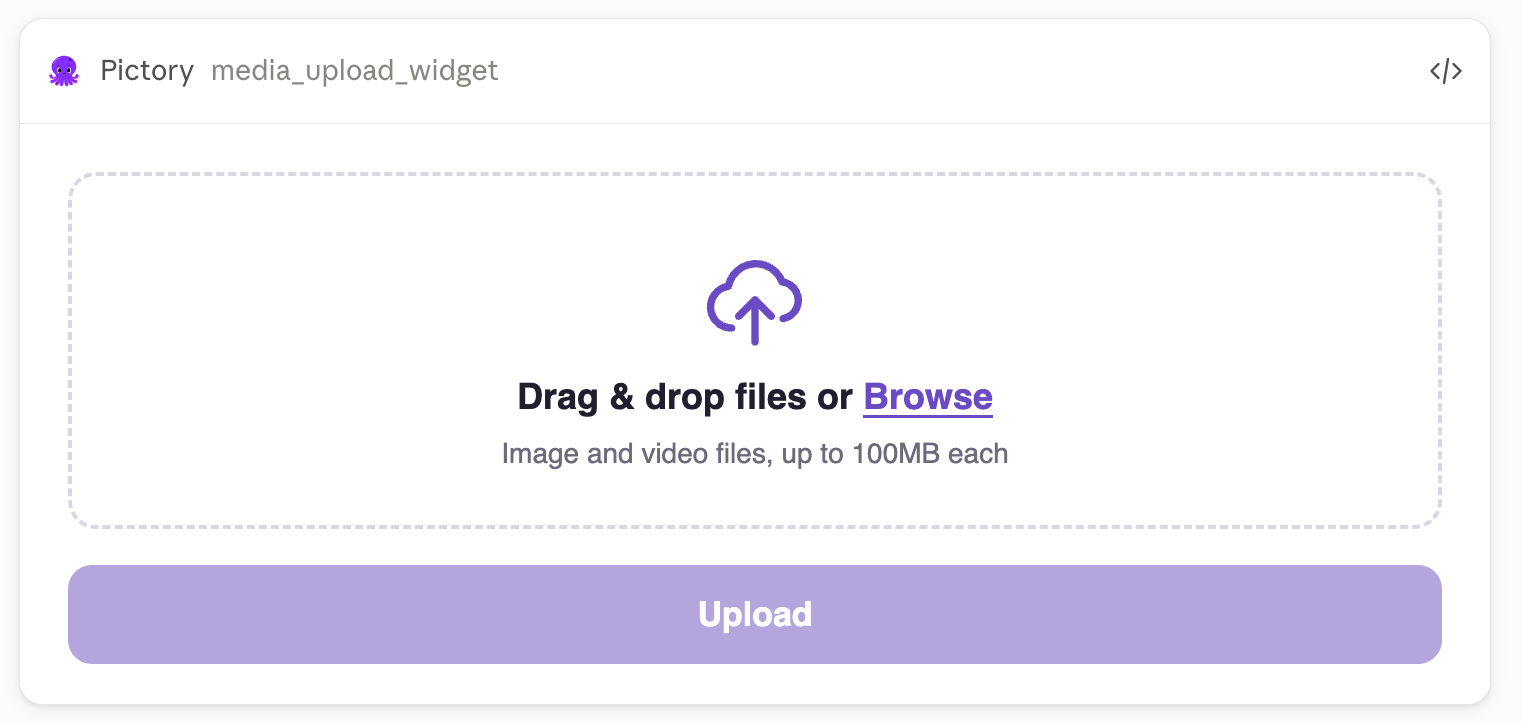
The upload panel inside the Claude chat. Drag files onto it, or select Browse to pick them.
How to upload a file
1
Ask Claude to use your file
Say what you want to do with it. For example:
Use my product photo as the background of the first scene.
I want to upload a logo and generate AI images in the same style.
Here is a clip I recorded. Use it as the opening scene.Claude opens the upload panel in the chat.
2
Add your file to the panel
Drag the file onto the dashed area, or select Browse and pick it from your computer. You
can add more than one file. Each file appears in a list in the panel with its size.Added the wrong file? Select Remove next to it before you upload.
3
Select Upload
The panel shows a progress bar for each file. A large video takes longer. Select Cancel
on a file if you change your mind while it uploads.
4
Let Claude take it from there
When the upload finishes, the panel sends the file’s link to Claude as a message. Claude
confirms what it received and continues with your video. You do not need to copy or paste
anything.
What happens to the file
Where the file is kept depends on your Pictory account.Good to know
- Images work as references, videos do not. You can give an uploaded image to the AI image and AI video tools as a reference or first frame. A video clip can only be used as scene media.
- Say that you have a photo when you ask for AI images. Claude then opens the upload panel before generating, so the images match your file.
- Pictory 3.0 videos use the file as media in a scene. Motion Graphics scenes are built from animated text and graphics. Your image or clip supports a scene; it does not replace the animated design.
- A file already online does not need uploading. If your image is already on a public web page, give Claude the link instead.
- In Claude Code, share a link instead. The upload panel appears in Claude on the web and in the Claude desktop app. Claude Code does not show panels, so give Claude a public link to the file instead.
Troubleshooting
Claude Does Not Offer an Upload Panel
Claude Does Not Offer an Upload Panel
Cause: Your connection was set up before this feature was released, or the chat started
before the connector was updated.Resolution:
- Follow the update steps to disconnect, remove, and add the connector again.
- Start a new chat and ask again.
The Panel Appears but Says It Cannot Connect
The Panel Appears but Says It Cannot Connect
Cause: The panel could not reach the Pictory connector, for example because the chat
lost its connection. The Upload button stays grayed out until the panel connects.Resolution:
- Ask Claude to open the upload panel again.
- If it still cannot connect, share a public link to the file instead.
My File Is Refused
My File Is Refused
Cause: The file is larger than 100 MB, or it is not an image or video.Resolution:
- Check the file type. Audio files and documents cannot be uploaded here.
- Shorten or compress a large video so it is under 100 MB, then try again.
The Upload Stops Partway Through
The Upload Stops Partway Through
Cause: The internet connection dropped while the file was being sent.Resolution:
- Check your internet connection.
- Ask Claude to open a fresh upload panel, add the file again, and select Upload.
I Cannot Find the File in Pictory
I Cannot Find the File in Pictory
Cause: Only Pictory 3.0 accounts save uploads to the media library. On a Pictory 2.0
account, the file is stored for use in your videos but does not appear in a library.Resolution:
- On Pictory 3.0, open the media library and look under Uploads.
- On Pictory 2.0, ask Claude for the file’s link, and give it to Claude again when you need it.
Next Steps
Motion graphics videos
Use your uploaded images and clips in animated scenes on Pictory 3.0
Pictory MCP Server
Everything you can ask Claude to do with your Pictory account