
Before you start
Two things must be in place, or the connection fails at sign-in.- A Pictory account. This is what you sign in with when authorizing the connector.
- A purchased Pictory API subscription. The connector runs on Pictory’s API, so an active API subscription on that account is required. A standard Pictory plan on its own is not enough.
Register the connector
Open Settings, then Connectors
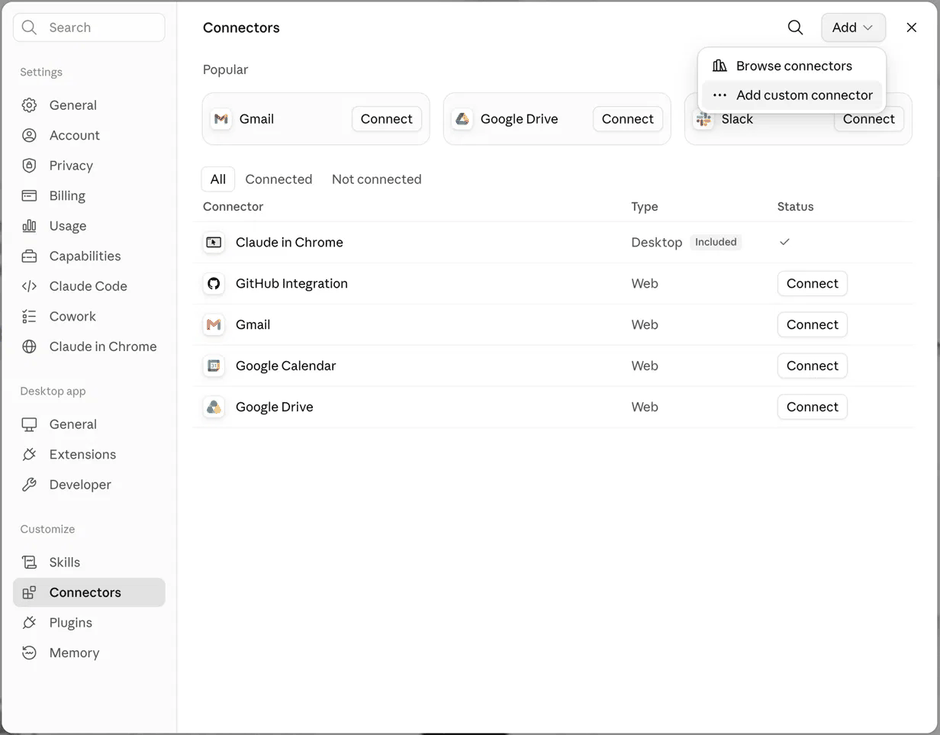
Settings, then Connectors. Add, then Add custom connector.
Name the connector and give it the server URL
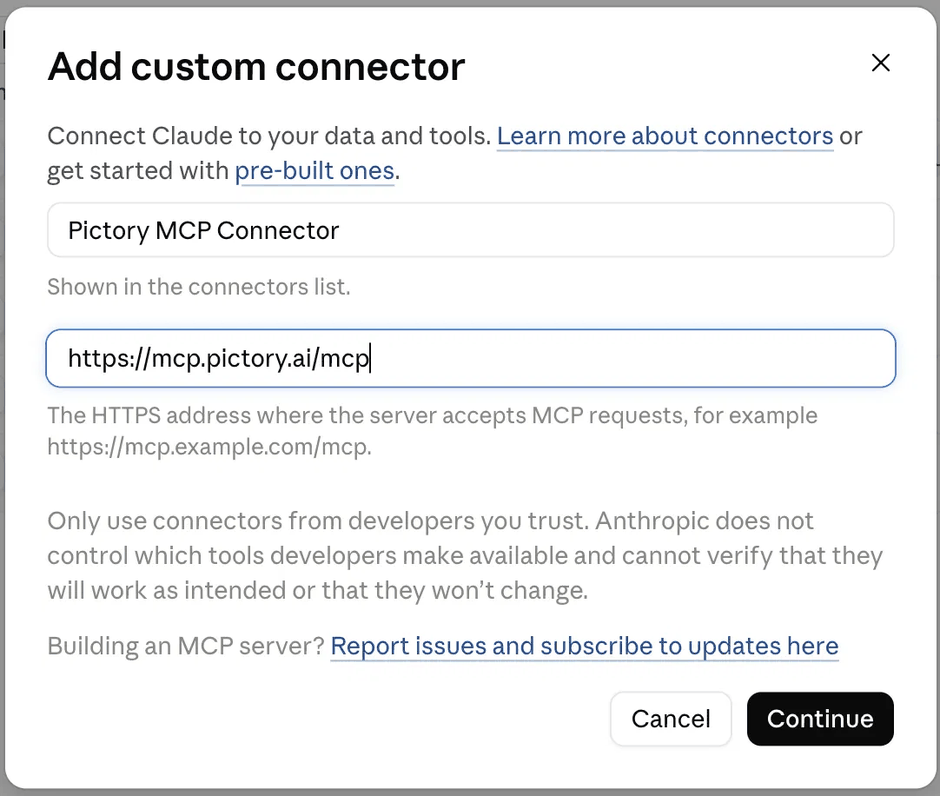
The name is a label only. The URL is what matters.
Accept the detected authentication settings
- Authentication: Always required. Every user signs in through Pictory’s OAuth flow before any tool can run.
- OAuth client: No client ID, register one automatically. Claude registers a client with Pictory as users connect.
- Additional request headers: leave empty. Pictory needs none.
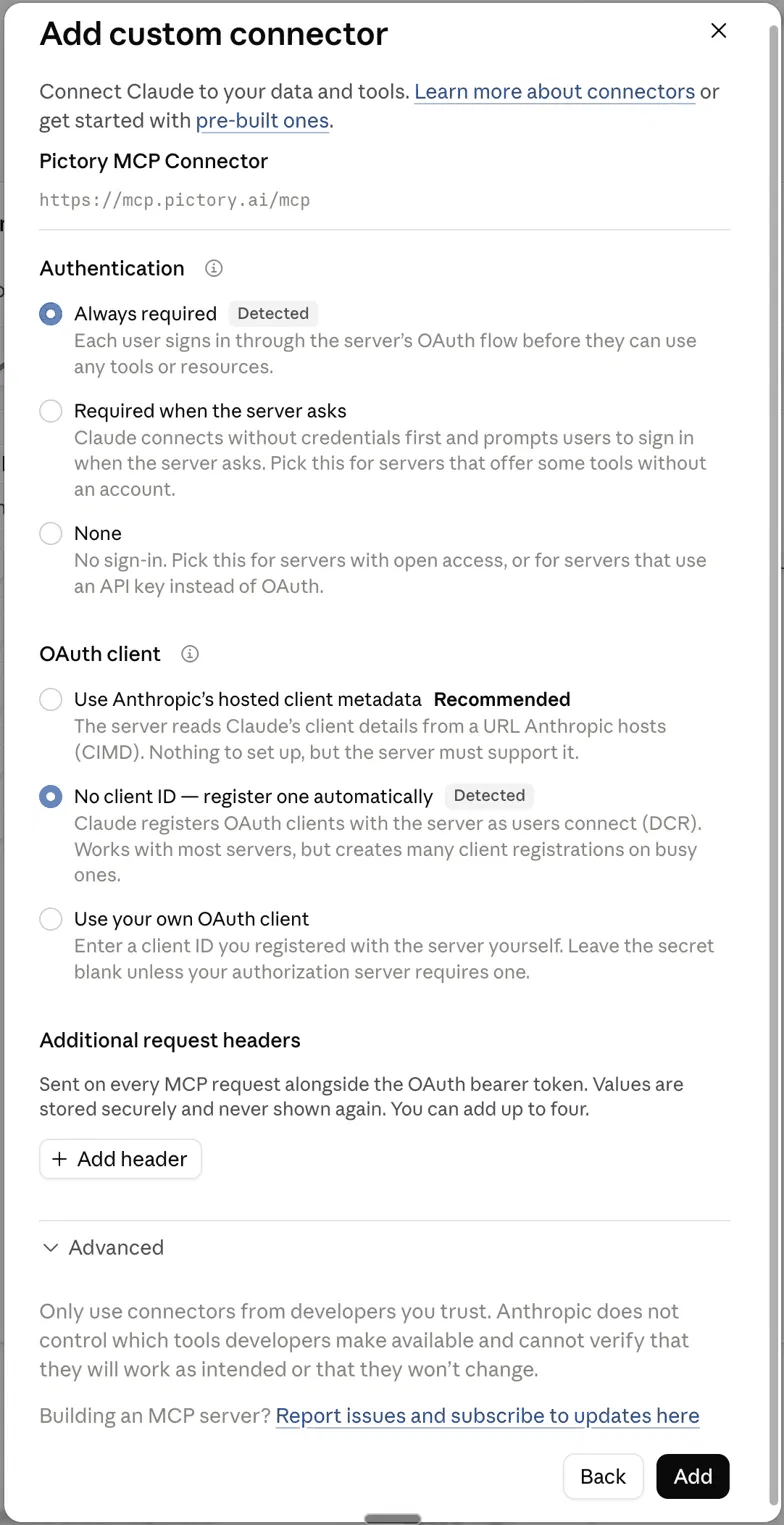
Both required settings arrive pre-selected and marked Detected.
Connect your Pictory account
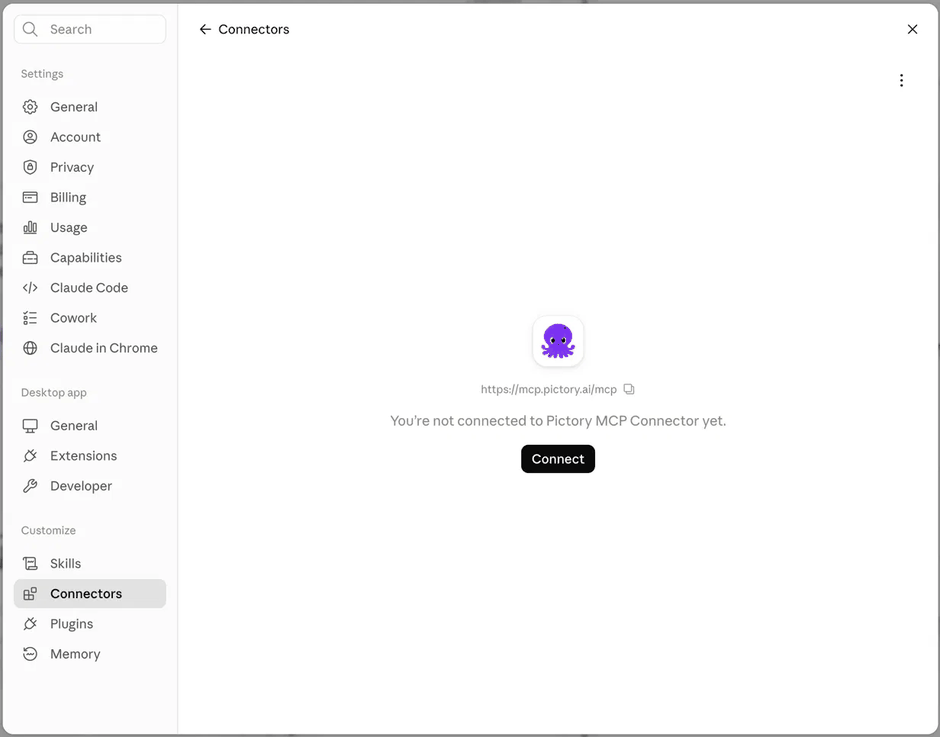
The connector exists but has not been authorized yet.
Confirm in the browser
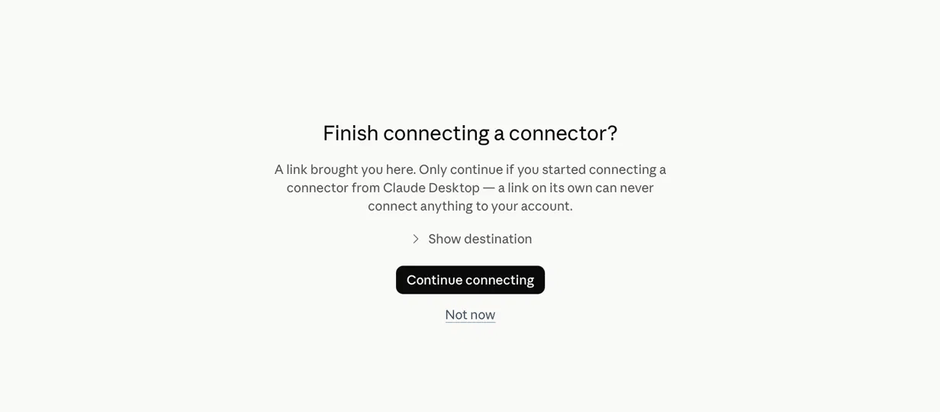
The browser confirmation that completes the OAuth handoff.
Sign in to Pictory
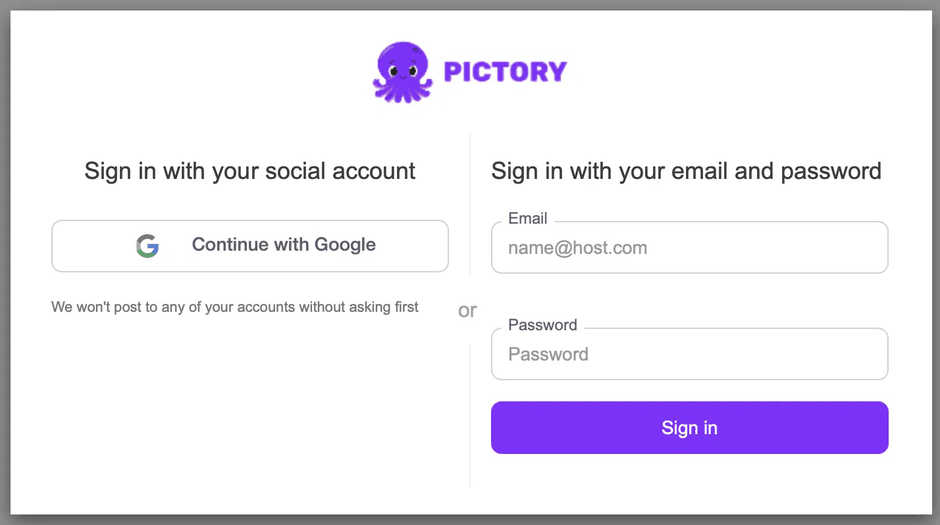
Sign in with Google, or with your Pictory email and password.
Make your first video
Ask in plain language. A request such as “Create a 5-scene video showing how to brew the perfect cup of coffee, from grinding fresh beans to enjoying the final cup, with each scene clearly showing and explaining the step” is enough to start. Claude then asks for the decisions that have no safe default. Who designs the scenes. The first and most consequential choice. It decides what you supply and how much control you keep. Both modes are described on the Pictory MCP Server page.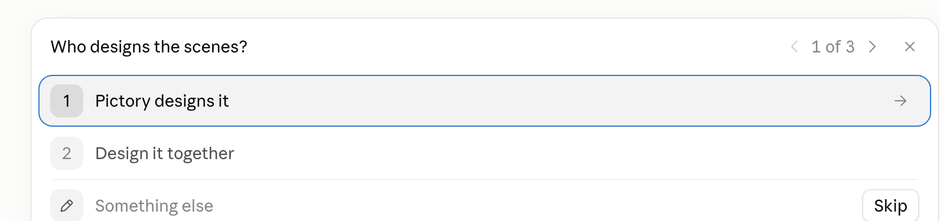
The design mode question, asked first because it has no default.
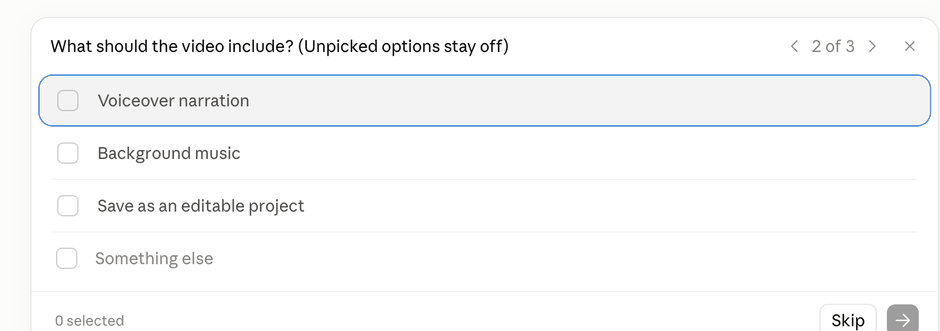
Narration, music and saving the project are each opt-in.
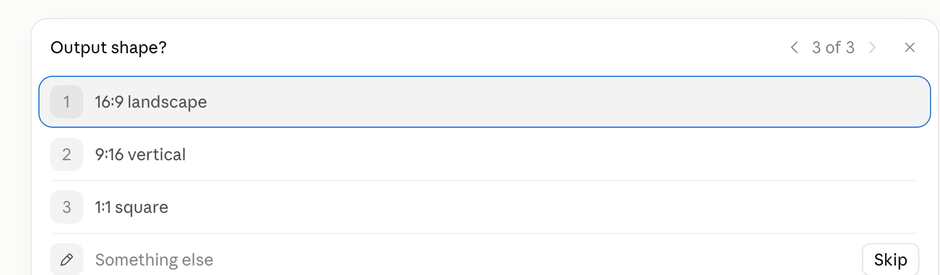
The output shape, which also follows from where the video will be published.
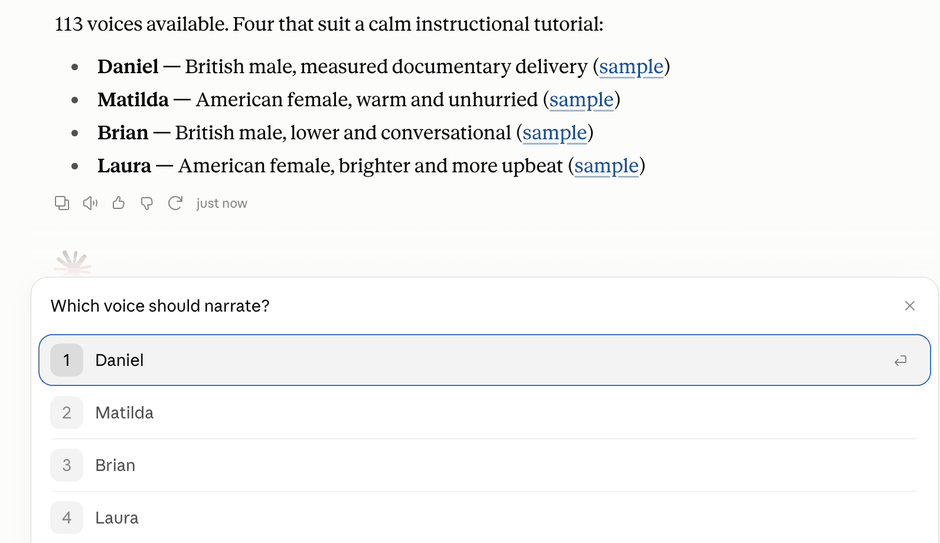
Premium voices on the account, with a sample for each.
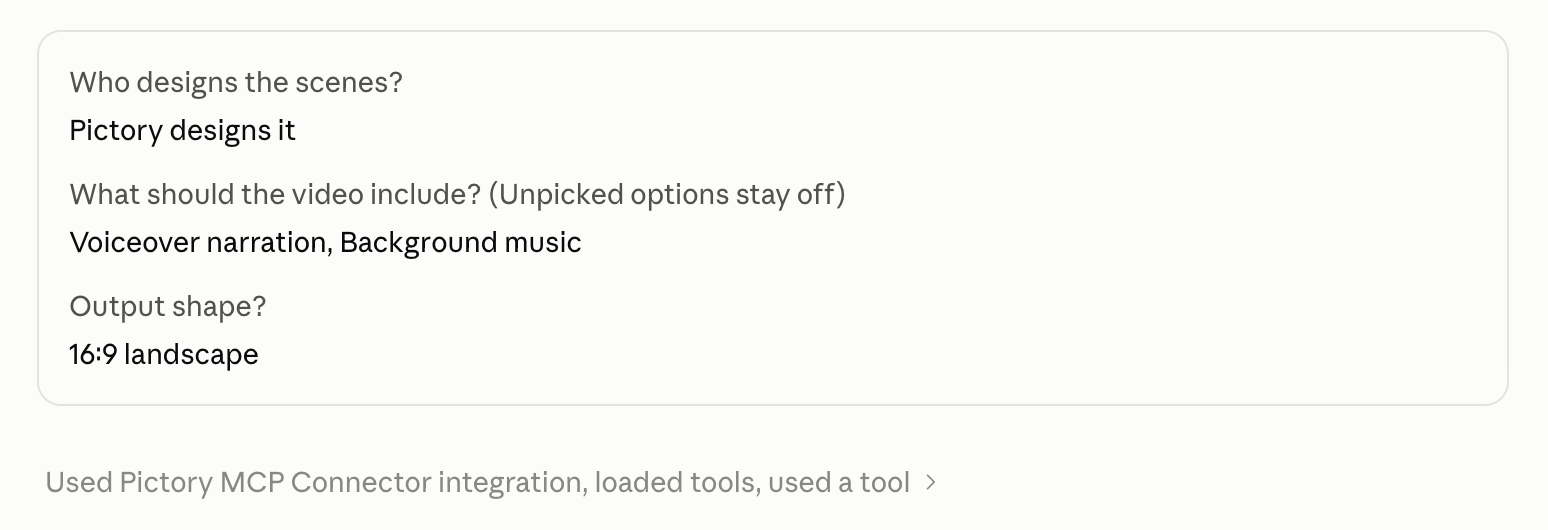
The choices confirmed back before any render is spent.
What you get back
Rendering takes 5–15 minutes. The finished job returns the MP4, a watch link, an embed link, the narration audio, and subtitles in both SRT and VTT.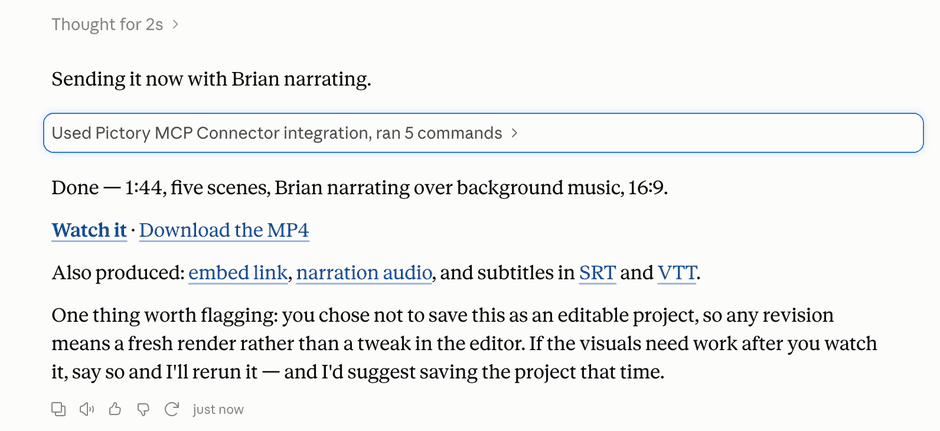
A finished job: the video, its links, the narration audio and both subtitle formats.
On desktop, mobile and in Claude Code
A connector added on the web is available in the Claude desktop and mobile apps for the same account with no further setup. Claude Code signed in to the same account also lists it:claude mcp list shows it under the name you gave the connector, prefixed claude.ai, and its
tools are available in every session. Only a machine that is not signed in to claude.ai needs
the Claude Code setup.
Managing the connection
- Refresh the tools. Claude reads the server’s tool list when a conversation starts. If a newly announced tool is missing, start a new chat. If it is still missing, disconnect and reconnect the connector in Settings, Connectors.
- Sign in again. Choose Disconnect on the connector, then Connect, and sign in.
- Remove it. Choose Remove on the connector. Videos already created stay on your Pictory account.
Troubleshooting
The Sign-In Page Shows an Error Instead of a Login Form
The Sign-In Page Shows an Error Instead of a Login Form
- Add the server through Settings, Connectors in Claude, not by opening the server URL in a browser.
- Choose Connect on the connector and sign in from there.
Connected, but Claude Says It Has No Pictory Tools
Connected, but Claude Says It Has No Pictory Tools
- Open the tools menu in the message box and switch the connector on.
- Start a new chat.
Every Request Fails After Signing In
Every Request Fails After Signing In
- Check the API subscription at app.pictory.ai. A standard Pictory plan on its own is not enough.
- Disconnect and reconnect the connector to sign in again.