Add the Pictory MCP server to ChatGPT as a plugin, sign in once with your Pictory account, and start creating videos in your chats.
This page adds the Pictory MCP server to ChatGPT as a custom MCP server. You do this once.
After you sign in, Pictory appears in your installed plugins, and you can use it in your chats.
Use the Pictory account where you want your videos and projects to be saved.You do not need an API key or an API subscription. You sign in with your Pictory account.
A Pictory account. You sign in with it when you connect the plugin.
An active subscription or eligible Free Trial. Available video minutes, voice-over
usage, and AI Credits depend on the account or team you connect.
A ChatGPT account that can add custom MCP servers. In a work or school workspace, your
admin may need to allow custom MCP servers.
In the sidebar on the left, select the Plugins icon. It looks like an @ sign.
The Plugins icon in the ChatGPT sidebar.
2
Start adding a custom MCP server
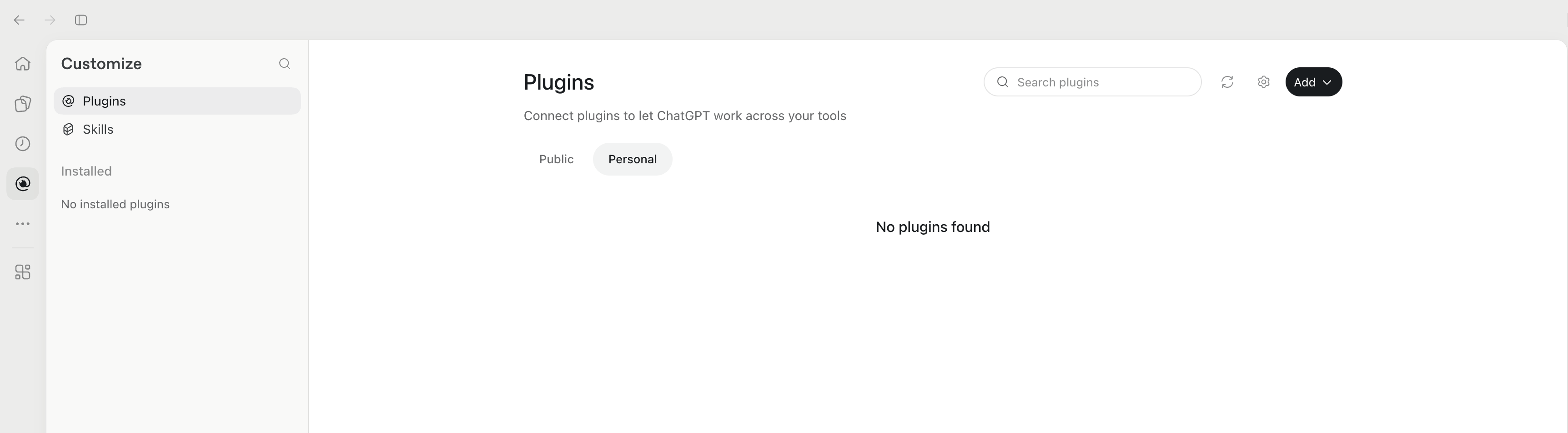
The Customize page opens with Plugins selected.
Select the Personal tab. Plugins that you add yourself appear here.
Select Add in the top-right corner.
Select Add custom MCP server from the menu.
The Add custom MCP server dialog opens.
The Plugins page. Select Add in the top-right corner.
The Add menu. Select Add custom MCP server.
3
Enter the server details
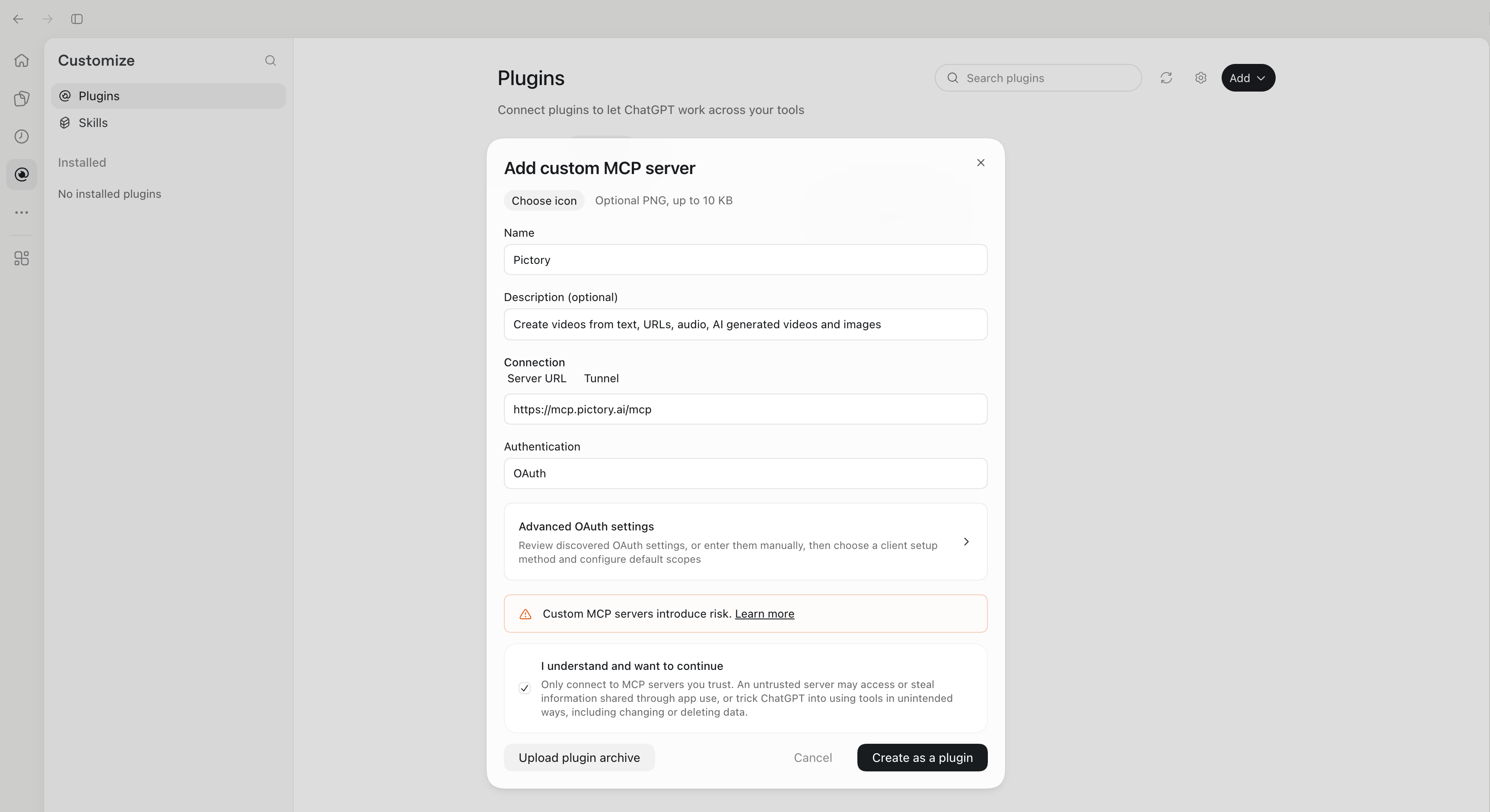
Fill in the dialog as follows:
Field
What to enter
Icon
Optional. Select Choose icon to add a PNG image up to 10 KB. If you skip it, ChatGPT shows a default icon.
Name
Pictory. This is the name you see in ChatGPT when you pick the plugin in a chat.
Description (optional)
Recommended. A short note about the plugin. For example: Create videos from text, URLs, audio, AI generated videos and images. It appears next to the name when you choose Pictory in a chat. This helps you tell the plugin apart from other Pictory entries.
Connection
Select Server URL, then enter https://mcp.pictory.ai/mcp. Do not use Tunnel.
Authentication
Select OAuth. You sign in with your Pictory account in a later step.
Then finish the dialog:
Leave Advanced OAuth settings as they are. ChatGPT finds Pictory’s sign-in settings
by itself.
Read the warning. ChatGPT shows it for every custom MCP server.
Check that the URL is exactly https://mcp.pictory.ai/mcp.
Select the I understand and want to continue check box.
Select Create as a plugin. You do not need Upload plugin archive.
The Add custom MCP server dialog, filled in for Pictory.
4
Connect Pictory
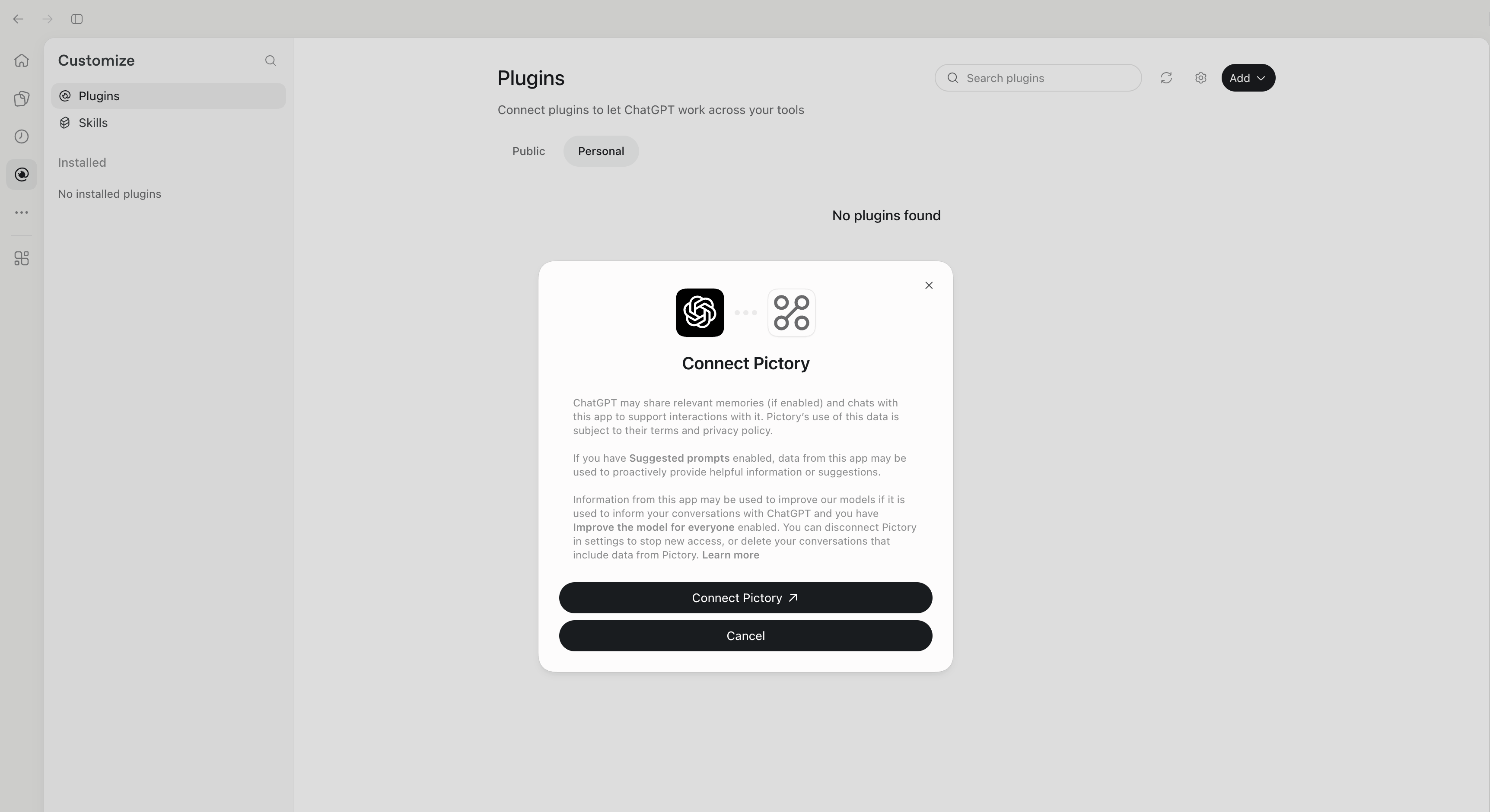
ChatGPT asks you to connect Pictory. The dialog explains what ChatGPT may share with
Pictory while you use it.Select Connect Pictory. The Pictory sign-in page opens in a new window.
Select Connect Pictory to open the Pictory sign-in page.
5
Sign in to Pictory
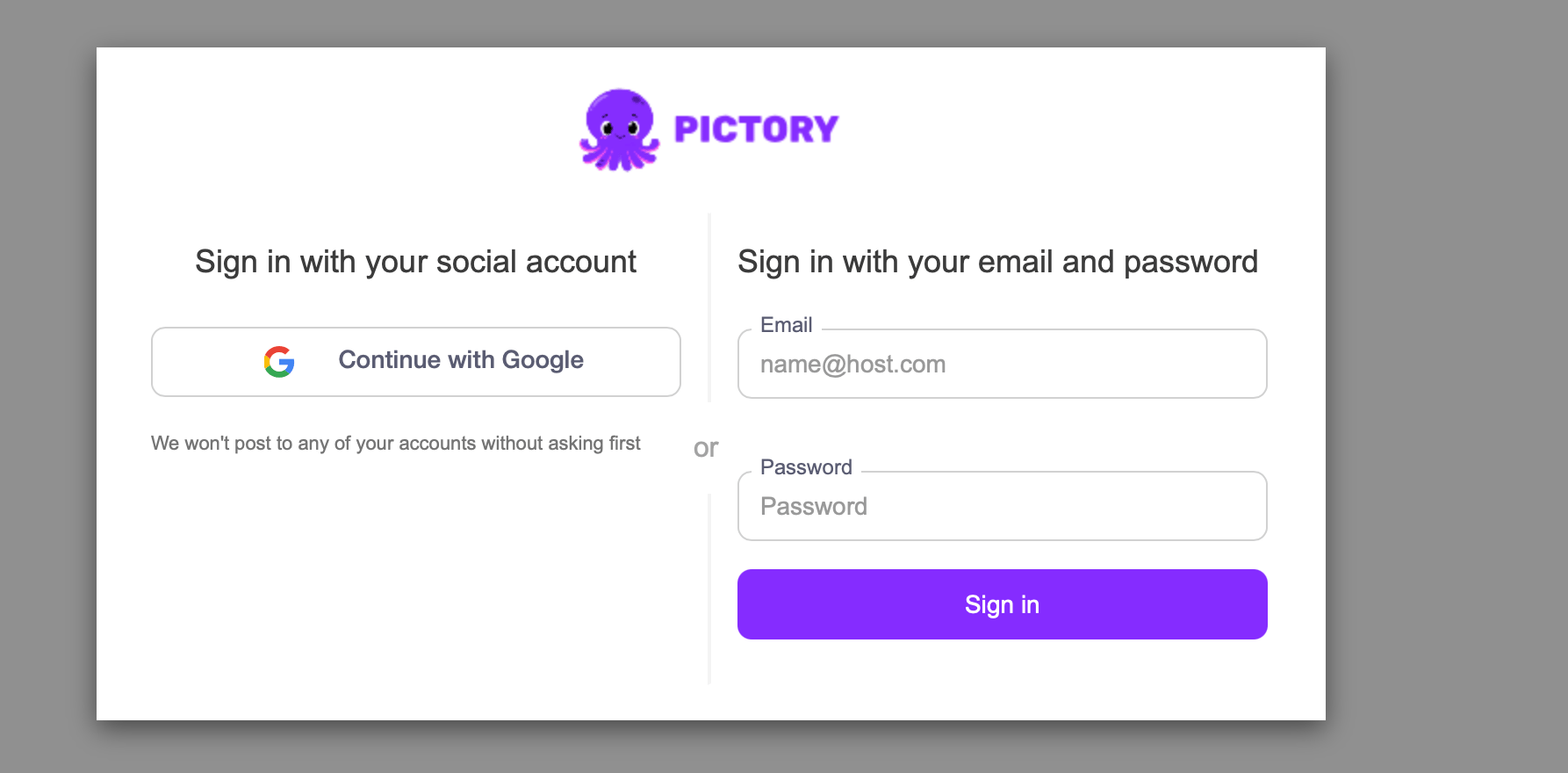
Choose one way to sign in:
Select Continue with Google.
Enter your Pictory email and password, then select Sign in.
Sign in with Google, or with your Pictory email and password.
6
Close the sign-in window
When sign-in succeeds, the window shows Authentication complete. You may close this
window. Close it and go back to ChatGPT.
Sign-in is complete. You can close this window.
7
Check that Pictory is installed
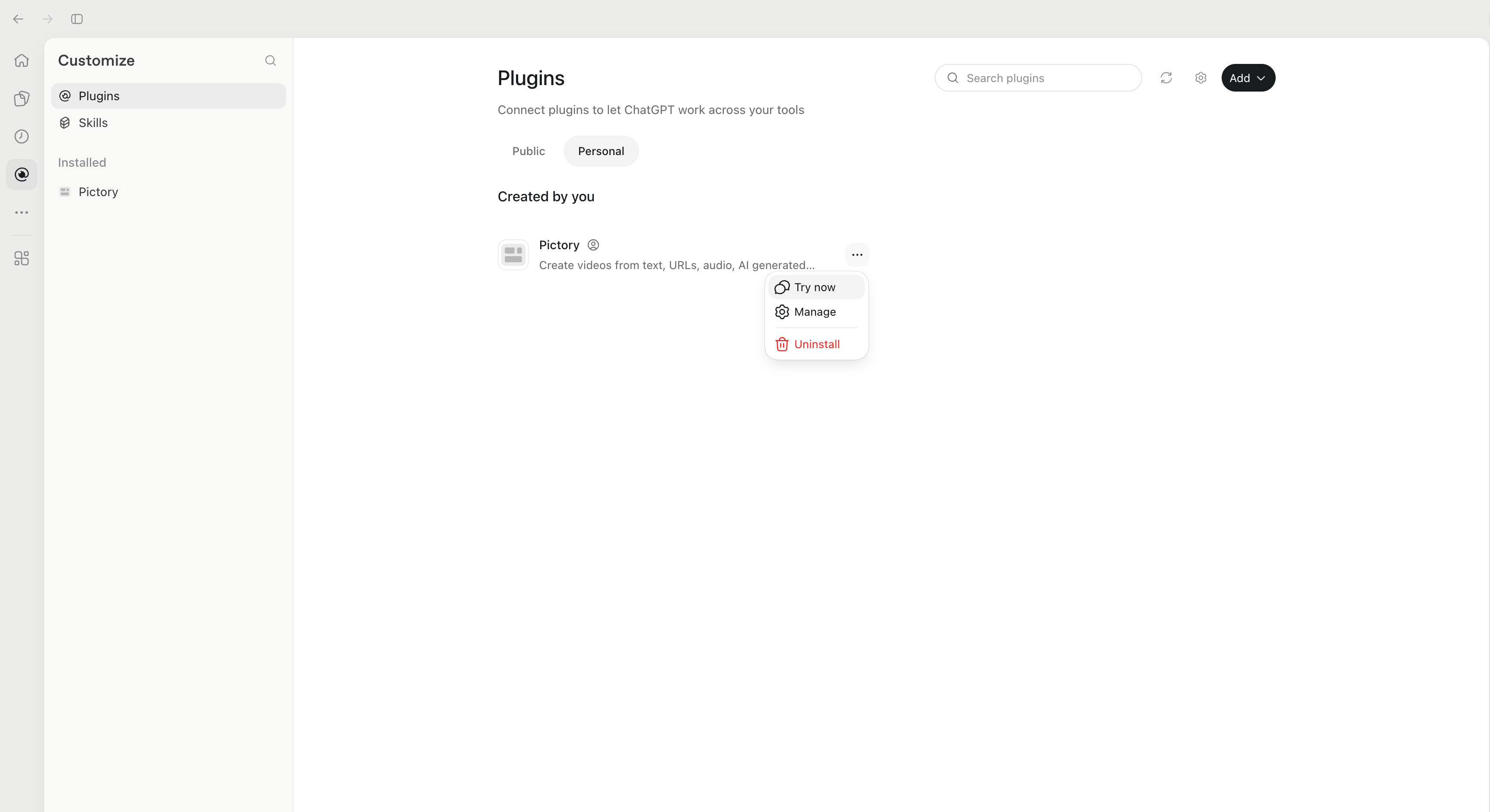
Pictory now appears in two places on the Plugins page:
Under Installed, in the panel on the left.
Under Created by you, on the Personal tab.
If Pictory does not appear, select the refresh button in the top-right corner, next to the
search box. ChatGPT reloads the list of plugins.Select … next to Pictory to open its menu. Select Try now to start a chat with
Pictory.
Pictory is installed. Its menu has Try now, Manage, and Uninstall.
Which account is billed. Usage comes from the Pictory account or team you signed in with.
Your plan sets the available video minutes, voice-over usage, and AI Credits.
Choose Pictory in a chat, ask for what you want, and see what you get back
Pictory MCP Server
Every tool, video type, and option available through your connection
Was this page helpful?
{"docsConfig":{"theme":"mint","$schema":"https://mintlify.com/docs.json","name":"PictoryAI","colors":{"primary":"#842CFE","light":"#E4D0FF","dark":"#663399"},"logo":{"light":"https://mintcdn.com/pictory/rWdYILumD1sss1Ie/logo/pictory-logo.png?fit=max\u0026auto=format\u0026n=rWdYILumD1sss1Ie\u0026q=85\u0026s=26f687935ddb24220c55014e6b5ac5de","dark":"https://mintcdn.com/pictory/rWdYILumD1sss1Ie/logo/pictory-logo.png?fit=max\u0026auto=format\u0026n=rWdYILumD1sss1Ie\u0026q=85\u0026s=26f687935ddb24220c55014e6b5ac5de"},"favicon":"https://mintcdn.com/pictory/rWdYILumD1sss1Ie/pictory-octopus-logo.png?fit=max\u0026auto=format\u0026n=rWdYILumD1sss1Ie\u0026q=85\u0026s=bb67b7656488123aa973f893f3d23ec5","navbar":{"links":[{"href":"mailto:support@pictory.ai","label":"Support"}],"primary":{"type":"button","label":"Pictory App","href":"https://app.pictory.ai"}},"footer":{"socials":{"x":"https://x.com/pictoryai","linkedin":"https://www.linkedin.com/company/pictory","instagram":"https://www.instagram.com/pictoryai","youtube":"https://www.youtube.com/@Pictory","facebook":"https://www.facebook.com/groups/863439644603943?sorting_setting=CHRONOLOGICAL","reddit":"https://www.reddit.com/r/Pictory_Community","discord":"https://discord.gg/ugdAVjht"}},"contextual":{"options":["copy","view","chatgpt","claude","perplexity","mcp","cursor","vscode"],"display":"header"},"styling":{"latex":false},"navigation":{"pages":[]}},"deployment":{"deploymentMetadataValue":{"subdomain":"pictory","hasAudioNarration":false,"actualSubdomain":"pictory","customDomains":["docs.pictory.ai"],"gitSource":{"type":"github","owner":"pictoryai","repo":"public-api-documents","deployBranch":"main","contentDirectory":"","isPrivate":true,"mountPath":"","label":""},"chroma":{"liveDeploymentHistoryId":"6ae25328830df12299ad7da6","collectionId":"d37e3f28-573f-4810-a069-9535effac1af","schemaVersion":"v3","latestBuiltDeploymentHistoryId":"6ae25328830df12299ad7da6"},"feedback":{"thumbs":true},"entitlements":{"AI_CHAT":{"status":"ENABLED"},"CONTEXTUAL_FEEDBACK":{"status":"ENABLED"},"CODE_SNIPPET_FEEDBACK":{"status":"ENABLED"},"WEB_MCP":{"status":"ENABLED"},"NARRATION":{"status":"ENABLED"}},"buildId":"6aea70ebf65ade4ca97574aa","clientVersion":"0.0.4054","searchFilterCounts":[{"language":"default","tag":"Developer Guide","count":58},{"language":"default","tag":"API Reference","count":57},{"language":"default","tag":"AI Studio","count":16},{"language":"default","tag":"Advanced Features","count":10},{"language":"default","tag":"Integration","count":8},{"language":"default","tag":"Pictory for Claude","count":8},{"language":"default","tag":"Music Search","count":6},{"language":"default","tag":"AI-Generated Visuals","count":6},{"language":"default","tag":"AWS Integration","count":5},{"language":"default","tag":"Pictory Jobs","count":5}]},"assistantConfig":{"enableAskAiButton":true,"enableStarterQuestions":false,"enableAskAiSearchBar":false,"deflection":{"enabled":true,"email":"support@pictory.ai","showHelpButton":true}},"basePath":"","hasChatPermissions":true,"hasWebMcpPermissions":true,"toggles":[{"name":"kill-isr","enabled":true,"variant":{"name":"disabled","enabled":false,"feature_enabled":true},"impressionData":false},{"name":"agent-mintlify-slack","enabled":true,"variant":{"name":"disabled","enabled":false,"feature_enabled":true},"impressionData":false},{"name":"agent-integrations-settings","enabled":true,"variant":{"name":"disabled","enabled":false,"feature_enabled":true},"impressionData":false},{"name":"automations-pr-grouping","enabled":true,"variant":{"name":"disabled","enabled":false,"feature_enabled":true},"impressionData":false},{"name":"custom-prefix","enabled":true,"variant":{"name":"disabled","enabled":false,"feature_enabled":true},"impressionData":false},{"name":"analytics-v7","enabled":true,"variant":{"name":"disabled","enabled":false,"feature_enabled":true},"impressionData":false},{"name":"user-flows-analytics","enabled":true,"variant":{"name":"disabled","enabled":false,"feature_enabled":true},"impressionData":false},{"name":"no-publish-flow","enabled":true,"variant":{"name":"disabled","enabled":false,"feature_enabled":true},"impressionData":false},{"name":"workos-onboarding","enabled":true,"variant":{"name":"disabled","enabled":false,"feature_enabled":true},"impressionData":false},{"name":"llms-txt-v2","enabled":true,"variant":{"name":"disabled","enabled":false,"feature_enabled":true},"impressionData":false},{"name":"snapshot-serving-live","enabled":true,"variant":{"name":"disabled","enabled":false,"feature_enabled":true},"impressionData":false},{"name":"stripTemperatureMiddleware","enabled":true,"variant":{"name":"disabled","enabled":false,"feature_enabled":true},"impressionData":false},{"name":"support-platform-pylon-zendesk","enabled":true,"variant":{"name":"disabled","enabled":false,"feature_enabled":true},"impressionData":false},{"name":"snapshot-serving","enabled":true,"variant":{"name":"disabled","enabled":false,"feature_enabled":true},"impressionData":false},{"name":"instant-rollback","enabled":true,"variant":{"name":"disabled","enabled":false,"feature_enabled":true},"impressionData":false},{"name":"granular-notifications-server","enabled":true,"variant":{"name":"disabled","enabled":false,"feature_enabled":true},"impressionData":false},{"name":"granular-notifications","enabled":true,"variant":{"name":"disabled","enabled":false,"feature_enabled":true},"impressionData":false},{"name":"automations-fable","enabled":true,"variant":{"name":"disabled","enabled":false,"feature_enabled":true},"impressionData":false},{"name":"fixed-ai-action-pricing","enabled":true,"variant":{"name":"disabled","enabled":false,"feature_enabled":true},"impressionData":false},{"name":"automation-resolve-merge-conflict","enabled":true,"variant":{"name":"disabled","enabled":false,"feature_enabled":true},"impressionData":false},{"name":"scoped-publishing","enabled":true,"variant":{"name":"disabled","enabled":false,"feature_enabled":true},"impressionData":false},{"name":"mintql","enabled":true,"variant":{"name":"disabled","enabled":false,"feature_enabled":true},"impressionData":false},{"name":"page-level-analytics","enabled":true,"variant":{"name":"disabled","enabled":false,"feature_enabled":true},"impressionData":false},{"name":"editor-version-history-v2","enabled":true,"variant":{"name":"disabled","enabled":false,"feature_enabled":true},"impressionData":false},{"name":"billing-page-v2","enabled":true,"variant":{"name":"disabled","enabled":false,"feature_enabled":true},"impressionData":false},{"name":"full-page-search","enabled":true,"variant":{"name":"disabled","enabled":false,"feature_enabled":true},"impressionData":false},{"name":"workspace-projects","enabled":true,"variant":{"name":"disabled","enabled":false,"feature_enabled":true},"impressionData":false},{"name":"assistant-v5","enabled":true,"variant":{"name":"disabled","enabled":false,"feature_enabled":true},"impressionData":false},{"name":"byok-sep-25","enabled":true,"variant":{"name":"disabled","enabled":false,"feature_enabled":true},"impressionData":false},{"name":"fork-pr-previews","enabled":true,"variant":{"name":"disabled","enabled":false,"feature_enabled":true},"impressionData":false},{"name":"revalidation-jwt","enabled":true,"variant":{"name":"disabled","enabled":false,"feature_enabled":true},"impressionData":false},{"name":"vite-origin","enabled":true,"variant":{"name":"disabled","enabled":false,"feature_enabled":true},"impressionData":false},{"name":"billing-updated-9-15","enabled":true,"variant":{"name":"disabled","enabled":false,"feature_enabled":true},"impressionData":false},{"name":"workos-sso-scim","enabled":true,"variant":{"name":"disabled","enabled":false,"feature_enabled":true},"impressionData":false},{"name":"hobby-abuse-scan","enabled":true,"variant":{"name":"disabled","enabled":false,"feature_enabled":true},"impressionData":false},{"name":"dashboard-inbox","enabled":true,"variant":{"name":"disabled","enabled":false,"feature_enabled":true},"impressionData":false},{"name":"workos-signup","enabled":true,"variant":{"name":"disabled","enabled":false,"feature_enabled":true},"impressionData":false},{"name":"turbopuffer-dual-write","enabled":true,"variant":{"name":"disabled","enabled":false,"feature_enabled":true},"impressionData":false},{"name":"workos-enabled","enabled":true,"variant":{"name":"disabled","enabled":false,"feature_enabled":true},"impressionData":false},{"name":"approve-review-flow","enabled":true,"variant":{"name":"disabled","enabled":false,"feature_enabled":true},"impressionData":false},{"name":"sso-setup-deadline-banner","enabled":true,"variant":{"name":"disabled","enabled":false,"feature_enabled":true},"impressionData":false}],"googleFontsInlined":false},"customCss":[],"page":{"pagePath":"chatgpt/connect-chatgpt","slug":"/chatgpt/connect-chatgpt","pageMetadata":{"title":"Connect from ChatGPT","description":"Add the Pictory MCP server to ChatGPT as a plugin, sign in once with your Pictory account, and start creating videos in your chats.","icon":"plug","href":"/chatgpt/connect-chatgpt"},"description":{"compiledSource":"\"use strict\";\nconst {jsx: _jsx} = arguments[0];\nconst {useMDXComponents: _provideComponents} = arguments[0];\nfunction _createMdxContent(props) {\n const _components = {\n p: \"p\",\n ..._provideComponents(),\n ...props.components\n };\n return _jsx(_components.p, {\n children: \"Add the Pictory MCP server to ChatGPT as a plugin, sign in once with your Pictory account, and start creating videos in your chats.\"\n });\n}\nfunction MDXContent(props = {}) {\n const {wrapper: MDXLayout} = {\n ..._provideComponents(),\n ...props.components\n };\n return MDXLayout ? _jsx(MDXLayout, {\n ...props,\n children: _jsx(_createMdxContent, {\n ...props\n })\n }) : _createMdxContent(props);\n}\nreturn {\n default: MDXContent\n};\n","frontmatter":{},"scope":{}},"pageType":"default","mdx":{"mdxSource":{"compiledSource":"\"use strict\";const{Fragment:_Fragment,jsx:_jsx,jsxs:_jsxs}=arguments[0];const{useMDXComponents:_provideComponents}=arguments[0];function _createMdxContent(props){const _components={a:`a`,code:`code`,li:`li`,ol:`ol`,p:`p`,strong:`strong`,tbody:`tbody`,td:`td`,th:`th`,thead:`thead`,tr:`tr`,ul:`ul`,..._provideComponents(),...props.components},{Accordion,AccordionGroup,Card,CardGroup,Frame,Heading,Info,OptimizedImage,Step,Steps,Table}=_components;if(!Accordion)_missingMdxReference(`Accordion`,true);if(!AccordionGroup)_missingMdxReference(`AccordionGroup`,true);if(!Card)_missingMdxReference(`Card`,true);if(!CardGroup)_missingMdxReference(`CardGroup`,true);if(!Frame)_missingMdxReference(`Frame`,true);if(!Heading)_missingMdxReference(`Heading`,true);if(!Info)_missingMdxReference(`Info`,true);if(!OptimizedImage)_missingMdxReference(`OptimizedImage`,true);if(!Step)_missingMdxReference(`Step`,true);if(!Steps)_missingMdxReference(`Steps`,true);if(!Table)_missingMdxReference(`Table`,true);return _jsxs(_Fragment,{children:[_jsx(_components.p,{children:`This page adds the Pictory MCP server to ChatGPT as a custom MCP server. You do this once.\nAfter you sign in, Pictory appears in your installed plugins, and you can use it in your chats.`}),`\n`,_jsx(Heading,{level:`2`,id:`before-you-start`,children:`Before You Start`}),`\n`,_jsx(_components.p,{children:`Use the Pictory account where you want your videos and projects to be saved.`}),`\n`,_jsxs(_components.p,{children:[_jsx(_components.strong,{children:`You do not need an API key or an API subscription.`}),` You sign in with your Pictory account.`]}),`\n`,_jsxs(_components.ul,{children:[`\n`,_jsxs(_components.li,{children:[_jsx(_components.strong,{children:`A Pictory account.`}),` You sign in with it when you connect the plugin.`]}),`\n`,_jsxs(_components.li,{children:[_jsx(_components.strong,{children:`An active subscription or eligible Free Trial.`}),` Available video minutes, voice-over\nusage, and AI Credits depend on the account or team you connect.`]}),`\n`,_jsxs(_components.li,{children:[_jsx(_components.strong,{children:`A ChatGPT account that can add custom MCP servers.`}),` In a work or school workspace, your\nadmin may need to allow custom MCP servers.`]}),`\n`]}),`\n`,_jsx(Heading,{level:`2`,id:`register-the-pictory-mcp-server`,children:`Register the Pictory MCP Server`}),`\n`,_jsxs(Steps,{children:[_jsxs(Step,{title:`Open Plugins in ChatGPT`,children:[_jsxs(_components.p,{children:[`In the sidebar on the left, select the `,_jsx(_components.strong,{children:`Plugins`}),` icon. It looks like an `,_jsx(_components.strong,{children:`@`}),` sign.`]}),_jsx(Frame,{caption:`The Plugins icon in the ChatGPT sidebar.`,children:_jsx(OptimizedImage,{src:`https://mintcdn.com/pictory/l2SkllNpxXDkx6L0/images/chatgpt-mcp/sidebar-plugins-icon.png?fit=max\u0026auto=format\u0026n=l2SkllNpxXDkx6L0\u0026q=85\u0026s=a0c5d2800a74984d2cff76cd9f687cea`,alt:`The ChatGPT sidebar with the Plugins icon highlighted`,style:{width:`54px`},\"data-og-width\":`108`,width:`108`,\"data-og-height\":`580`,height:`580`,\"data-path\":`images/chatgpt-mcp/sidebar-plugins-icon.png`,\"data-optimize\":`true`,\"data-opv\":`3`,srcset:`https://mintcdn.com/pictory/l2SkllNpxXDkx6L0/images/chatgpt-mcp/sidebar-plugins-icon.png?w=280\u0026fit=max\u0026auto=format\u0026n=l2SkllNpxXDkx6L0\u0026q=85\u0026s=d97da5cff6128c364c29bccf70e6988b 280w, https://mintcdn.com/pictory/l2SkllNpxXDkx6L0/images/chatgpt-mcp/sidebar-plugins-icon.png?w=560\u0026fit=max\u0026auto=format\u0026n=l2SkllNpxXDkx6L0\u0026q=85\u0026s=17f29b1344926c5095c815d11ee782a8 560w, https://mintcdn.com/pictory/l2SkllNpxXDkx6L0/images/chatgpt-mcp/sidebar-plugins-icon.png?w=840\u0026fit=max\u0026auto=format\u0026n=l2SkllNpxXDkx6L0\u0026q=85\u0026s=a95cc1fdfe02a676ea1f8634c291cb5f 840w, https://mintcdn.com/pictory/l2SkllNpxXDkx6L0/images/chatgpt-mcp/sidebar-plugins-icon.png?w=1100\u0026fit=max\u0026auto=format\u0026n=l2SkllNpxXDkx6L0\u0026q=85\u0026s=4830a5158ff1325fd2113eba9c56c434 1100w, https://mintcdn.com/pictory/l2SkllNpxXDkx6L0/images/chatgpt-mcp/sidebar-plugins-icon.png?w=1650\u0026fit=max\u0026auto=format\u0026n=l2SkllNpxXDkx6L0\u0026q=85\u0026s=9437c84b57412b12a6200adaba3d9430 1650w, https://mintcdn.com/pictory/l2SkllNpxXDkx6L0/images/chatgpt-mcp/sidebar-plugins-icon.png?w=2500\u0026fit=max\u0026auto=format\u0026n=l2SkllNpxXDkx6L0\u0026q=85\u0026s=41c61389ee2d0466276e07306b81adc8 2500w`})})]}),_jsxs(Step,{title:`Start adding a custom MCP server`,children:[_jsxs(_components.p,{children:[`The `,_jsx(_components.strong,{children:`Customize`}),` page opens with `,_jsx(_components.strong,{children:`Plugins`}),` selected.`]}),_jsxs(_components.ol,{children:[`\n`,_jsxs(_components.li,{children:[`Select the `,_jsx(_components.strong,{children:`Personal`}),` tab. Plugins that you add yourself appear here.`]}),`\n`,_jsxs(_components.li,{children:[`Select `,_jsx(_components.strong,{children:`Add`}),` in the top-right corner.`]}),`\n`,_jsxs(_components.li,{children:[`Select `,_jsx(_components.strong,{children:`Add custom MCP server`}),` from the menu.`]}),`\n`]}),_jsxs(_components.p,{children:[`The `,_jsx(_components.strong,{children:`Add custom MCP server`}),` dialog opens.`]}),_jsx(Frame,{caption:`The Plugins page. Select Add in the top-right corner.`,children:_jsx(OptimizedImage,{src:`https://mintcdn.com/pictory/l2SkllNpxXDkx6L0/images/chatgpt-mcp/plugins-page.png?fit=max\u0026auto=format\u0026n=l2SkllNpxXDkx6L0\u0026q=85\u0026s=3307f7669419a1f7febab9367a87dbfa`,alt:`The ChatGPT Plugins page with the Personal tab selected and the Add button in the top-right corner`,\"data-og-width\":`3448`,width:`3448`,\"data-og-height\":`952`,height:`952`,\"data-path\":`images/chatgpt-mcp/plugins-page.png`,\"data-optimize\":`true`,\"data-opv\":`3`,srcset:`https://mintcdn.com/pictory/l2SkllNpxXDkx6L0/images/chatgpt-mcp/plugins-page.png?w=280\u0026fit=max\u0026auto=format\u0026n=l2SkllNpxXDkx6L0\u0026q=85\u0026s=79a1e16657a02257af7b1cee7d0b7b70 280w, https://mintcdn.com/pictory/l2SkllNpxXDkx6L0/images/chatgpt-mcp/plugins-page.png?w=560\u0026fit=max\u0026auto=format\u0026n=l2SkllNpxXDkx6L0\u0026q=85\u0026s=987092e323539068b017a38530b449d1 560w, https://mintcdn.com/pictory/l2SkllNpxXDkx6L0/images/chatgpt-mcp/plugins-page.png?w=840\u0026fit=max\u0026auto=format\u0026n=l2SkllNpxXDkx6L0\u0026q=85\u0026s=da1afed3cdf0a6588f434c0521881016 840w, https://mintcdn.com/pictory/l2SkllNpxXDkx6L0/images/chatgpt-mcp/plugins-page.png?w=1100\u0026fit=max\u0026auto=format\u0026n=l2SkllNpxXDkx6L0\u0026q=85\u0026s=d0114ec8df8708fc5bdc7ae49d732dd9 1100w, https://mintcdn.com/pictory/l2SkllNpxXDkx6L0/images/chatgpt-mcp/plugins-page.png?w=1650\u0026fit=max\u0026auto=format\u0026n=l2SkllNpxXDkx6L0\u0026q=85\u0026s=179df7ff1d769b46a985facfaba83407 1650w, https://mintcdn.com/pictory/l2SkllNpxXDkx6L0/images/chatgpt-mcp/plugins-page.png?w=2500\u0026fit=max\u0026auto=format\u0026n=l2SkllNpxXDkx6L0\u0026q=85\u0026s=90ca7f3b1a8fb74f6d1772bfc913984e 2500w`})}),_jsx(Frame,{caption:`The Add menu. Select Add custom MCP server.`,children:_jsx(OptimizedImage,{src:`https://mintcdn.com/pictory/l2SkllNpxXDkx6L0/images/chatgpt-mcp/add-menu.png?fit=max\u0026auto=format\u0026n=l2SkllNpxXDkx6L0\u0026q=85\u0026s=2e7a6fa5c1fe8f6670ed84e145ef0856`,alt:`The Add menu on the ChatGPT Plugins page, with the options Create plugin, Add a marketplace, Upload plugin archive, Add custom MCP server, and Record a skill`,\"data-og-width\":`1360`,width:`1360`,\"data-og-height\":`480`,height:`480`,\"data-path\":`images/chatgpt-mcp/add-menu.png`,\"data-optimize\":`true`,\"data-opv\":`3`,srcset:`https://mintcdn.com/pictory/l2SkllNpxXDkx6L0/images/chatgpt-mcp/add-menu.png?w=280\u0026fit=max\u0026auto=format\u0026n=l2SkllNpxXDkx6L0\u0026q=85\u0026s=0947c0c1d1a133bd81ae0aa3c63e5920 280w, https://mintcdn.com/pictory/l2SkllNpxXDkx6L0/images/chatgpt-mcp/add-menu.png?w=560\u0026fit=max\u0026auto=format\u0026n=l2SkllNpxXDkx6L0\u0026q=85\u0026s=43a65bc3f17e279e4dbf3e6e1e5312cc 560w, https://mintcdn.com/pictory/l2SkllNpxXDkx6L0/images/chatgpt-mcp/add-menu.png?w=840\u0026fit=max\u0026auto=format\u0026n=l2SkllNpxXDkx6L0\u0026q=85\u0026s=bf82b3e1339e4f062de66eeef96f5f19 840w, https://mintcdn.com/pictory/l2SkllNpxXDkx6L0/images/chatgpt-mcp/add-menu.png?w=1100\u0026fit=max\u0026auto=format\u0026n=l2SkllNpxXDkx6L0\u0026q=85\u0026s=09a625e91a88e9b32d95ae911ebd1090 1100w, https://mintcdn.com/pictory/l2SkllNpxXDkx6L0/images/chatgpt-mcp/add-menu.png?w=1650\u0026fit=max\u0026auto=format\u0026n=l2SkllNpxXDkx6L0\u0026q=85\u0026s=e30ff4dc3bac8176a338baf3f83f236e 1650w, https://mintcdn.com/pictory/l2SkllNpxXDkx6L0/images/chatgpt-mcp/add-menu.png?w=2500\u0026fit=max\u0026auto=format\u0026n=l2SkllNpxXDkx6L0\u0026q=85\u0026s=114c31f66cafd5fa9f5c7f956c6bd76e 2500w`})})]}),_jsxs(Step,{title:`Enter the server details`,children:[_jsx(_components.p,{children:`Fill in the dialog as follows:`}),_jsxs(Table,{children:[_jsx(_components.thead,{children:_jsxs(_components.tr,{children:[_jsx(_components.th,{children:`Field`}),_jsx(_components.th,{children:`What to enter`})]})}),_jsxs(_components.tbody,{children:[_jsxs(_components.tr,{children:[_jsx(_components.td,{children:`Icon`}),_jsxs(_components.td,{children:[`Optional. Select `,_jsx(_components.strong,{children:`Choose icon`}),` to add a PNG image up to 10 KB. If you skip it, ChatGPT shows a default icon.`]})]}),_jsxs(_components.tr,{children:[_jsx(_components.td,{children:`Name`}),_jsxs(_components.td,{children:[_jsx(_components.code,{children:`Pictory`}),`. This is the name you see in ChatGPT when you pick the plugin in a chat.`]})]}),_jsxs(_components.tr,{children:[_jsx(_components.td,{children:`Description (optional)`}),_jsxs(_components.td,{children:[`Recommended. A short note about the plugin. For example: `,_jsx(_components.code,{children:`Create videos from text, URLs, audio, AI generated videos and images`}),`. It appears next to the name when you choose Pictory in a chat. This helps you tell the plugin apart from other Pictory entries.`]})]}),_jsxs(_components.tr,{children:[_jsx(_components.td,{children:`Connection`}),_jsxs(_components.td,{children:[`Select `,_jsx(_components.strong,{children:`Server URL`}),`, then enter `,_jsx(_components.code,{children:`https://mcp.pictory.ai/mcp`}),`. Do not use `,_jsx(_components.strong,{children:`Tunnel`}),`.`]})]}),_jsxs(_components.tr,{children:[_jsx(_components.td,{children:`Authentication`}),_jsxs(_components.td,{children:[`Select `,_jsx(_components.strong,{children:`OAuth`}),`. You sign in with your Pictory account in a later step.`]})]})]})]}),_jsx(_components.p,{children:`Then finish the dialog:`}),_jsxs(_components.ol,{children:[`\n`,_jsxs(_components.li,{children:[`Leave `,_jsx(_components.strong,{children:`Advanced OAuth settings`}),` as they are. ChatGPT finds Pictory’s sign-in settings\nby itself.`]}),`\n`,_jsx(_components.li,{children:`Read the warning. ChatGPT shows it for every custom MCP server.`}),`\n`,_jsxs(_components.li,{children:[`Check that the URL is exactly `,_jsx(_components.code,{children:`https://mcp.pictory.ai/mcp`}),`.`]}),`\n`,_jsxs(_components.li,{children:[`Select the `,_jsx(_components.strong,{children:`I understand and want to continue`}),` check box.`]}),`\n`,_jsxs(_components.li,{children:[`Select `,_jsx(_components.strong,{children:`Create as a plugin`}),`. You do not need `,_jsx(_components.strong,{children:`Upload plugin archive`}),`.`]}),`\n`]}),_jsx(Frame,{caption:`The Add custom MCP server dialog, filled in for Pictory.`,children:_jsx(OptimizedImage,{src:`https://mintcdn.com/pictory/l2SkllNpxXDkx6L0/images/chatgpt-mcp/add-custom-mcp-server.png?fit=max\u0026auto=format\u0026n=l2SkllNpxXDkx6L0\u0026q=85\u0026s=751ec30128fcc32943bc251c6e9cf1fd`,alt:`The Add custom MCP server dialog with the name Pictory, the server URL https://mcp.pictory.ai/mcp, OAuth authentication, and the confirmation check box selected`,\"data-og-width\":`3448`,width:`3448`,\"data-og-height\":`1880`,height:`1880`,\"data-path\":`images/chatgpt-mcp/add-custom-mcp-server.png`,\"data-optimize\":`true`,\"data-opv\":`3`,srcset:`https://mintcdn.com/pictory/l2SkllNpxXDkx6L0/images/chatgpt-mcp/add-custom-mcp-server.png?w=280\u0026fit=max\u0026auto=format\u0026n=l2SkllNpxXDkx6L0\u0026q=85\u0026s=de8e3a653c7b20835e3449c75349a96f 280w, https://mintcdn.com/pictory/l2SkllNpxXDkx6L0/images/chatgpt-mcp/add-custom-mcp-server.png?w=560\u0026fit=max\u0026auto=format\u0026n=l2SkllNpxXDkx6L0\u0026q=85\u0026s=44168a9ac977985345b67b170fa39a19 560w, https://mintcdn.com/pictory/l2SkllNpxXDkx6L0/images/chatgpt-mcp/add-custom-mcp-server.png?w=840\u0026fit=max\u0026auto=format\u0026n=l2SkllNpxXDkx6L0\u0026q=85\u0026s=645ca8ecfd7009d3d7749937a87f087d 840w, https://mintcdn.com/pictory/l2SkllNpxXDkx6L0/images/chatgpt-mcp/add-custom-mcp-server.png?w=1100\u0026fit=max\u0026auto=format\u0026n=l2SkllNpxXDkx6L0\u0026q=85\u0026s=a371a4a8a5ffef13e896057bf6243260 1100w, https://mintcdn.com/pictory/l2SkllNpxXDkx6L0/images/chatgpt-mcp/add-custom-mcp-server.png?w=1650\u0026fit=max\u0026auto=format\u0026n=l2SkllNpxXDkx6L0\u0026q=85\u0026s=c469ad819504ce7dce77bbf96fc83dbc 1650w, https://mintcdn.com/pictory/l2SkllNpxXDkx6L0/images/chatgpt-mcp/add-custom-mcp-server.png?w=2500\u0026fit=max\u0026auto=format\u0026n=l2SkllNpxXDkx6L0\u0026q=85\u0026s=51f02bad55496790cb40069337b8370c 2500w`})})]}),_jsxs(Step,{title:`Connect Pictory`,children:[_jsx(_components.p,{children:`ChatGPT asks you to connect Pictory. The dialog explains what ChatGPT may share with\nPictory while you use it.`}),_jsxs(_components.p,{children:[`Select `,_jsx(_components.strong,{children:`Connect Pictory`}),`. The Pictory sign-in page opens in a new window.`]}),_jsx(Frame,{caption:`Select Connect Pictory to open the Pictory sign-in page.`,children:_jsx(OptimizedImage,{src:`https://mintcdn.com/pictory/l2SkllNpxXDkx6L0/images/chatgpt-mcp/connect-pictory.png?fit=max\u0026auto=format\u0026n=l2SkllNpxXDkx6L0\u0026q=85\u0026s=be3d16d8e25131ba43ddd65bb629b339`,alt:`The Connect Pictory dialog in ChatGPT with the Connect Pictory and Cancel buttons`,\"data-og-width\":`3448`,width:`3448`,\"data-og-height\":`1880`,height:`1880`,\"data-path\":`images/chatgpt-mcp/connect-pictory.png`,\"data-optimize\":`true`,\"data-opv\":`3`,srcset:`https://mintcdn.com/pictory/l2SkllNpxXDkx6L0/images/chatgpt-mcp/connect-pictory.png?w=280\u0026fit=max\u0026auto=format\u0026n=l2SkllNpxXDkx6L0\u0026q=85\u0026s=a974d69d173f8a26e52761668519da98 280w, https://mintcdn.com/pictory/l2SkllNpxXDkx6L0/images/chatgpt-mcp/connect-pictory.png?w=560\u0026fit=max\u0026auto=format\u0026n=l2SkllNpxXDkx6L0\u0026q=85\u0026s=12c7b28a7ad2d28693e9c40c74f57843 560w, https://mintcdn.com/pictory/l2SkllNpxXDkx6L0/images/chatgpt-mcp/connect-pictory.png?w=840\u0026fit=max\u0026auto=format\u0026n=l2SkllNpxXDkx6L0\u0026q=85\u0026s=a1eb7c37a06e7dbb7a5b1df4ee025b1b 840w, https://mintcdn.com/pictory/l2SkllNpxXDkx6L0/images/chatgpt-mcp/connect-pictory.png?w=1100\u0026fit=max\u0026auto=format\u0026n=l2SkllNpxXDkx6L0\u0026q=85\u0026s=e895fb6ff21c689363209f1c11470b79 1100w, https://mintcdn.com/pictory/l2SkllNpxXDkx6L0/images/chatgpt-mcp/connect-pictory.png?w=1650\u0026fit=max\u0026auto=format\u0026n=l2SkllNpxXDkx6L0\u0026q=85\u0026s=58413d7faf5a18485adb181e9cfa6115 1650w, https://mintcdn.com/pictory/l2SkllNpxXDkx6L0/images/chatgpt-mcp/connect-pictory.png?w=2500\u0026fit=max\u0026auto=format\u0026n=l2SkllNpxXDkx6L0\u0026q=85\u0026s=0f34e079a91435b820d16556deade803 2500w`})})]}),_jsxs(Step,{title:`Sign in to Pictory`,children:[_jsx(_components.p,{children:`Choose one way to sign in:`}),_jsxs(_components.ul,{children:[`\n`,_jsxs(_components.li,{children:[`Select `,_jsx(_components.strong,{children:`Continue with Google`}),`.`]}),`\n`,_jsxs(_components.li,{children:[`Enter your Pictory email and password, then select `,_jsx(_components.strong,{children:`Sign in`}),`.`]}),`\n`]}),_jsx(Frame,{caption:`Sign in with Google, or with your Pictory email and password.`,children:_jsx(OptimizedImage,{src:`https://mintcdn.com/pictory/l2SkllNpxXDkx6L0/images/chatgpt-mcp/pictory-sign-in.png?fit=max\u0026auto=format\u0026n=l2SkllNpxXDkx6L0\u0026q=85\u0026s=92b93a1a4f1737f7379f92d2a641b249`,alt:`The Pictory sign-in page with the Continue with Google button and the email and password fields`,\"data-og-width\":`1786`,width:`1786`,\"data-og-height\":`880`,height:`880`,\"data-path\":`images/chatgpt-mcp/pictory-sign-in.png`,\"data-optimize\":`true`,\"data-opv\":`3`,srcset:`https://mintcdn.com/pictory/l2SkllNpxXDkx6L0/images/chatgpt-mcp/pictory-sign-in.png?w=280\u0026fit=max\u0026auto=format\u0026n=l2SkllNpxXDkx6L0\u0026q=85\u0026s=1be7d9582a4f799cc21e981267c3ef35 280w, https://mintcdn.com/pictory/l2SkllNpxXDkx6L0/images/chatgpt-mcp/pictory-sign-in.png?w=560\u0026fit=max\u0026auto=format\u0026n=l2SkllNpxXDkx6L0\u0026q=85\u0026s=5faa81adf60397b836079509a74a1a7c 560w, https://mintcdn.com/pictory/l2SkllNpxXDkx6L0/images/chatgpt-mcp/pictory-sign-in.png?w=840\u0026fit=max\u0026auto=format\u0026n=l2SkllNpxXDkx6L0\u0026q=85\u0026s=d16decc96850af17602664990fedacba 840w, https://mintcdn.com/pictory/l2SkllNpxXDkx6L0/images/chatgpt-mcp/pictory-sign-in.png?w=1100\u0026fit=max\u0026auto=format\u0026n=l2SkllNpxXDkx6L0\u0026q=85\u0026s=350b87b189b8f6d9892749f593c5799e 1100w, https://mintcdn.com/pictory/l2SkllNpxXDkx6L0/images/chatgpt-mcp/pictory-sign-in.png?w=1650\u0026fit=max\u0026auto=format\u0026n=l2SkllNpxXDkx6L0\u0026q=85\u0026s=8a5230a8cb96ce29a76a5a519391148a 1650w, https://mintcdn.com/pictory/l2SkllNpxXDkx6L0/images/chatgpt-mcp/pictory-sign-in.png?w=2500\u0026fit=max\u0026auto=format\u0026n=l2SkllNpxXDkx6L0\u0026q=85\u0026s=994830308b7c81cfe1f2d77255ed3895 2500w`})})]}),_jsxs(Step,{title:`Close the sign-in window`,children:[_jsxs(_components.p,{children:[`When sign-in succeeds, the window shows `,_jsx(_components.strong,{children:`Authentication complete. You may close this\nwindow.`}),` Close it and go back to ChatGPT.`]}),_jsx(Frame,{caption:`Sign-in is complete. You can close this window.`,children:_jsx(OptimizedImage,{src:`https://mintcdn.com/pictory/l2SkllNpxXDkx6L0/images/chatgpt-mcp/authentication-complete.png?fit=max\u0026auto=format\u0026n=l2SkllNpxXDkx6L0\u0026q=85\u0026s=971642402e4cad44f358762bc5bae528`,alt:`A browser window with the message Authentication complete. You may close this window.`,\"data-og-width\":`1786`,width:`1786`,\"data-og-height\":`788`,height:`788`,\"data-path\":`images/chatgpt-mcp/authentication-complete.png`,\"data-optimize\":`true`,\"data-opv\":`3`,srcset:`https://mintcdn.com/pictory/l2SkllNpxXDkx6L0/images/chatgpt-mcp/authentication-complete.png?w=280\u0026fit=max\u0026auto=format\u0026n=l2SkllNpxXDkx6L0\u0026q=85\u0026s=d5c3a84d66edf08ac74cf48dbcc20d6a 280w, https://mintcdn.com/pictory/l2SkllNpxXDkx6L0/images/chatgpt-mcp/authentication-complete.png?w=560\u0026fit=max\u0026auto=format\u0026n=l2SkllNpxXDkx6L0\u0026q=85\u0026s=a0bd989d9ae6a4a3116d063665091ad1 560w, https://mintcdn.com/pictory/l2SkllNpxXDkx6L0/images/chatgpt-mcp/authentication-complete.png?w=840\u0026fit=max\u0026auto=format\u0026n=l2SkllNpxXDkx6L0\u0026q=85\u0026s=79d7c71229ca64d8896e9e2ed03a0c7b 840w, https://mintcdn.com/pictory/l2SkllNpxXDkx6L0/images/chatgpt-mcp/authentication-complete.png?w=1100\u0026fit=max\u0026auto=format\u0026n=l2SkllNpxXDkx6L0\u0026q=85\u0026s=1dfa5b719007f784acf8312e3d2fae66 1100w, https://mintcdn.com/pictory/l2SkllNpxXDkx6L0/images/chatgpt-mcp/authentication-complete.png?w=1650\u0026fit=max\u0026auto=format\u0026n=l2SkllNpxXDkx6L0\u0026q=85\u0026s=6e7f57656e0c380793f6fa1909728082 1650w, https://mintcdn.com/pictory/l2SkllNpxXDkx6L0/images/chatgpt-mcp/authentication-complete.png?w=2500\u0026fit=max\u0026auto=format\u0026n=l2SkllNpxXDkx6L0\u0026q=85\u0026s=381bee285eec8e3680990620f0553109 2500w`})})]}),_jsxs(Step,{title:`Check that Pictory is installed`,children:[_jsx(_components.p,{children:`Pictory now appears in two places on the Plugins page:`}),_jsxs(_components.ul,{children:[`\n`,_jsxs(_components.li,{children:[`Under `,_jsx(_components.strong,{children:`Installed`}),`, in the panel on the left.`]}),`\n`,_jsxs(_components.li,{children:[`Under `,_jsx(_components.strong,{children:`Created by you`}),`, on the `,_jsx(_components.strong,{children:`Personal`}),` tab.`]}),`\n`]}),_jsx(_components.p,{children:`If Pictory does not appear, select the refresh button in the top-right corner, next to the\nsearch box. ChatGPT reloads the list of plugins.`}),_jsxs(_components.p,{children:[`Select `,_jsx(_components.strong,{children:`…`}),` next to Pictory to open its menu. Select `,_jsx(_components.strong,{children:`Try now`}),` to start a chat with\nPictory.`]}),_jsx(Frame,{caption:`Pictory is installed. Its menu has Try now, Manage, and Uninstall.`,children:_jsx(OptimizedImage,{src:`https://mintcdn.com/pictory/l2SkllNpxXDkx6L0/images/chatgpt-mcp/pictory-plugin-installed.png?fit=max\u0026auto=format\u0026n=l2SkllNpxXDkx6L0\u0026q=85\u0026s=12069b915b25544adaaef37598983b94`,alt:`The Plugins page with Pictory listed under Installed and under Created by you, and its menu open showing Try now, Manage, and Uninstall`,\"data-og-width\":`3448`,width:`3448`,\"data-og-height\":`1880`,height:`1880`,\"data-path\":`images/chatgpt-mcp/pictory-plugin-installed.png`,\"data-optimize\":`true`,\"data-opv\":`3`,srcset:`https://mintcdn.com/pictory/l2SkllNpxXDkx6L0/images/chatgpt-mcp/pictory-plugin-installed.png?w=280\u0026fit=max\u0026auto=format\u0026n=l2SkllNpxXDkx6L0\u0026q=85\u0026s=5d67d0d60c369e8a198d281bd996bb66 280w, https://mintcdn.com/pictory/l2SkllNpxXDkx6L0/images/chatgpt-mcp/pictory-plugin-installed.png?w=560\u0026fit=max\u0026auto=format\u0026n=l2SkllNpxXDkx6L0\u0026q=85\u0026s=38ede1e38365f18a0d44e3b501c45d43 560w, https://mintcdn.com/pictory/l2SkllNpxXDkx6L0/images/chatgpt-mcp/pictory-plugin-installed.png?w=840\u0026fit=max\u0026auto=format\u0026n=l2SkllNpxXDkx6L0\u0026q=85\u0026s=7c5525af36bbdb8f95e1800d16574dce 840w, https://mintcdn.com/pictory/l2SkllNpxXDkx6L0/images/chatgpt-mcp/pictory-plugin-installed.png?w=1100\u0026fit=max\u0026auto=format\u0026n=l2SkllNpxXDkx6L0\u0026q=85\u0026s=5130c2ea32c937083a5363226821c319 1100w, https://mintcdn.com/pictory/l2SkllNpxXDkx6L0/images/chatgpt-mcp/pictory-plugin-installed.png?w=1650\u0026fit=max\u0026auto=format\u0026n=l2SkllNpxXDkx6L0\u0026q=85\u0026s=8947201a25e4d60aa93ce49e5bdce877 1650w, https://mintcdn.com/pictory/l2SkllNpxXDkx6L0/images/chatgpt-mcp/pictory-plugin-installed.png?w=2500\u0026fit=max\u0026auto=format\u0026n=l2SkllNpxXDkx6L0\u0026q=85\u0026s=3ade5af9e34a129c88d4650b1dd3d228 2500w`})})]})]}),`\n`,_jsx(Info,{children:_jsxs(_components.p,{children:[_jsx(_components.strong,{children:`Which account is billed.`}),` Usage comes from the Pictory account or team you signed in with.\nYour plan sets the available video minutes, voice-over usage, and AI Credits.`]})}),`\n`,_jsxs(_components.p,{children:[`You are ready to create videos. See `,_jsx(_components.a,{href:`/chatgpt/use-pictory-in-chatgpt`,children:`Use Pictory in ChatGPT`}),`.`]}),`\n`,_jsx(Heading,{level:`2`,id:`managing-the-plugin`,children:`Managing the Plugin`}),`\n`,_jsxs(_components.p,{children:[`Select `,_jsx(_components.strong,{children:`…`}),` next to Pictory on the Plugins page to open its menu.`]}),`\n`,_jsxs(Table,{children:[_jsx(_components.thead,{children:_jsxs(_components.tr,{children:[_jsx(_components.th,{children:`Menu option`}),_jsx(_components.th,{children:`What it does`})]})}),_jsxs(_components.tbody,{children:[_jsxs(_components.tr,{children:[_jsx(_components.td,{children:_jsx(_components.strong,{children:`Try now`})}),_jsx(_components.td,{children:`Starts a chat with Pictory.`})]}),_jsxs(_components.tr,{children:[_jsx(_components.td,{children:_jsx(_components.strong,{children:`Manage`})}),_jsx(_components.td,{children:`Opens the plugin’s settings in ChatGPT.`})]}),_jsxs(_components.tr,{children:[_jsx(_components.td,{children:_jsx(_components.strong,{children:`Uninstall`})}),_jsx(_components.td,{children:`Removes Pictory from ChatGPT. Your videos and projects stay in your Pictory account.`})]})]})]}),`\n`,_jsx(Heading,{level:`3`,id:`use-a-different-pictory-account`,children:`Use a Different Pictory Account`}),`\n`,_jsxs(_components.ol,{children:[`\n`,_jsxs(_components.li,{children:[`Select `,_jsx(_components.strong,{children:`Uninstall`}),` in the Pictory menu.`]}),`\n`,_jsxs(_components.li,{children:[`Add Pictory again by following `,_jsx(_components.a,{href:`#register-the-pictory-mcp-server`,children:`Register the Pictory MCP Server`}),`.`]}),`\n`,_jsx(_components.li,{children:`Sign in with the other Pictory account.`}),`\n`]}),`\n`,_jsx(Heading,{level:`3`,id:`get-new-features`,children:`Get New Features`}),`\n`,_jsx(_components.p,{children:`Pictory adds new features to the MCP server from time to time. If a new feature does not\nappear in ChatGPT:`}),`\n`,_jsxs(_components.ol,{children:[`\n`,_jsxs(_components.li,{children:[`Select `,_jsx(_components.strong,{children:`Uninstall`}),` in the Pictory menu.`]}),`\n`,_jsxs(_components.li,{children:[`Add Pictory again by following `,_jsx(_components.a,{href:`#register-the-pictory-mcp-server`,children:`Register the Pictory MCP Server`}),`.`]}),`\n`,_jsx(_components.li,{children:`Sign in with the same Pictory account.`}),`\n`,_jsx(_components.li,{children:`Start a new chat.`}),`\n`]}),`\n`,_jsx(_components.p,{children:`Uninstalling the plugin does not delete videos or projects from your Pictory account.\nReconnecting does not move a Pictory 2.0 account to Pictory 3.0.`}),`\n`,_jsx(Heading,{level:`2`,id:`troubleshooting`,children:`Troubleshooting`}),`\n`,_jsxs(AccordionGroup,{children:[_jsxs(Accordion,{title:`Pictory Does Not Appear After Signing In`,id:`pictory-does-not-appear-after-signing-in`,children:[_jsxs(_components.p,{children:[_jsx(_components.strong,{children:`Cause:`}),` The Plugins page has not reloaded its list since you signed in.`]}),_jsx(_components.p,{children:_jsx(_components.strong,{children:`Resolution:`})}),_jsxs(_components.ol,{children:[`\n`,_jsx(_components.li,{children:`Select the refresh button in the top-right corner of the Plugins page, next to the search box.`}),`\n`,_jsxs(_components.li,{children:[`Check that the `,_jsx(_components.strong,{children:`Personal`}),` tab is selected.`]}),`\n`,_jsxs(_components.li,{children:[`If Pictory still does not appear, add it again by following\n`,_jsx(_components.a,{href:`#register-the-pictory-mcp-server`,children:`Register the Pictory MCP Server`}),`.`]}),`\n`]})]}),_jsxs(Accordion,{title:`Add Custom MCP Server Is Missing from the Add Menu`,id:`add-custom-mcp-server-is-missing-from-the-add-menu`,children:[_jsxs(_components.p,{children:[_jsx(_components.strong,{children:`Cause:`}),` Your ChatGPT plan or workspace does not allow custom MCP servers.`]}),_jsx(_components.p,{children:_jsx(_components.strong,{children:`Resolution:`})}),_jsxs(_components.ol,{children:[`\n`,_jsx(_components.li,{children:`Check that your ChatGPT plan supports custom MCP servers.`}),`\n`,_jsx(_components.li,{children:`In a work or school workspace, ask your admin to allow custom MCP servers.`}),`\n`]})]}),_jsxs(Accordion,{title:`The Pictory Sign-In Window Does Not Open`,id:`the-pictory-sign-in-window-does-not-open`,children:[_jsxs(_components.p,{children:[_jsx(_components.strong,{children:`Cause:`}),` The browser blocked the new window, or the window opened behind ChatGPT.`]}),_jsx(_components.p,{children:_jsx(_components.strong,{children:`Resolution:`})}),_jsxs(_components.ol,{children:[`\n`,_jsx(_components.li,{children:`Look for the Pictory sign-in window behind ChatGPT.`}),`\n`,_jsx(_components.li,{children:`Allow pop-up windows for ChatGPT in your browser.`}),`\n`,_jsxs(_components.li,{children:[`Select `,_jsx(_components.strong,{children:`Connect Pictory`}),` again.`]}),`\n`]})]}),_jsxs(Accordion,{title:`Every Request Fails After Signing In`,id:`every-request-fails-after-signing-in`,children:[_jsxs(_components.p,{children:[_jsx(_components.strong,{children:`Cause:`}),` The sign-in has expired, or the connected account does not have access to the\nrequested feature or enough remaining usage.`]}),_jsx(_components.p,{children:_jsx(_components.strong,{children:`Resolution:`})}),_jsxs(_components.ol,{children:[`\n`,_jsxs(_components.li,{children:[`Check your plan and remaining usage at `,_jsx(_components.a,{href:`https://app.pictory.ai`,children:`app.pictory.ai`}),`.`]}),`\n`,_jsx(_components.li,{children:`Uninstall Pictory, add it again, and sign in.`}),`\n`]})]})]}),`\n`,_jsx(Heading,{level:`2`,id:`next-steps`,children:`Next Steps`}),`\n`,_jsxs(CardGroup,{cols:2,children:[_jsx(Card,{title:`Use Pictory in ChatGPT`,icon:`comments`,href:`/chatgpt/use-pictory-in-chatgpt`,children:_jsx(_components.p,{children:`Choose Pictory in a chat, ask for what you want, and see what you get back`})}),_jsx(Card,{title:`Pictory MCP Server`,icon:`server`,href:`/claude-mcp/overview`,children:_jsx(_components.p,{children:`Every tool, video type, and option available through your connection`})})]})]})}function MDXContent(props={}){const{wrapper:MDXLayout}={..._provideComponents(),...props.components};return MDXLayout?_jsx(MDXLayout,{...props,children:_jsx(_createMdxContent,{...props})}):_createMdxContent(props)}return{default:MDXContent};function _missingMdxReference(id,component){throw new Error(`Expected `+(component?`component`:`object`)+\" `\"+id+\"` to be defined: you likely forgot to import, pass, or provide it.\")}","frontmatter":{},"scope":{"config":{},"pageMetadata":{"title":"Connect from ChatGPT","description":"Add the Pictory MCP server to ChatGPT as a plugin, sign in once with your Pictory account, and start creating videos in your chats.","icon":"plug","href":"/chatgpt/connect-chatgpt"}}},"mdxSourceWithNoJs":null},"mdxExtracts":{"tableOfContents":[{"title":"Before You Start","slug":"before-you-start","depth":2,"children":[]},{"title":"Register the Pictory MCP Server","slug":"register-the-pictory-mcp-server","depth":2,"children":[]},{"title":"Managing the Plugin","slug":"managing-the-plugin","depth":2,"children":[{"title":"Use a Different Pictory Account","slug":"use-a-different-pictory-account","depth":3,"children":[]},{"title":"Get New Features","slug":"get-new-features","depth":3,"children":[]}]},{"title":"Troubleshooting","slug":"troubleshooting","depth":2,"children":[]},{"title":"Next Steps","slug":"next-steps","depth":2,"children":[]}],"codeExamples":{}},"jsLinks":[],"subdomain":"pictory","siteName":"PictoryAI","title":"Connect from ChatGPT - PictoryAI","navMaps":{"firstHrefInVersion":{},"firstHrefInLanguage":{}},"lastModified":"2026-11-03T23:40:38.543Z","originalFileLocation":"chatgpt/connect-chatgpt.mdx"},"headHtml":"\u003cscript data-mint-head>(function(){var d=document.documentElement,p=null;if(!p){try{p=localStorage.getItem(\"isDarkMode\")}catch(e){}if(p==='true')p='dark';else if(p==='false')p='light';if(p!=='light'\u0026\u0026p!=='dark'\u0026\u0026p!=='system')p=\"system\"}var r=p==='system'?(matchMedia(\"(prefers-color-scheme: dark)\").matches?'dark':'light'):p;d.classList.remove(r==='dark'?'light':'dark');d.classList.add(r);d.setAttribute(\"data-theme-preference\",p)})();\u003c/script>\u003cmeta data-mint-head name=\"description\" content=\"Add the Pictory MCP server to ChatGPT as a plugin, sign in once with your Pictory account, and start creating videos in your chats.\">\u003cmeta data-mint-head name=\"application-name\" content=\"PictoryAI\">\u003cmeta data-mint-head name=\"generator\" content=\"Mintlify\">\u003clink data-mint-head rel=\"icon\" type=\"image/png\" sizes=\"192x192\" href=\"/mintlify-assets/_mintlify/favicons/pictory/Ee49WLQkj1gxdfWt/_generated/favicon/android-chrome-192x192.png\" media=\"(prefers-color-scheme: light)\">\u003clink data-mint-head rel=\"apple-touch-icon\" type=\"image/png\" sizes=\"180x180\" href=\"/mintlify-assets/_mintlify/favicons/pictory/Ee49WLQkj1gxdfWt/_generated/favicon/apple-touch-icon.png\">\u003clink data-mint-head rel=\"icon\" type=\"image/png\" sizes=\"16x16\" href=\"/mintlify-assets/_mintlify/favicons/pictory/Ee49WLQkj1gxdfWt/_generated/favicon/favicon-16x16.png\" media=\"(prefers-color-scheme: light)\">\u003clink data-mint-head rel=\"icon\" type=\"image/png\" sizes=\"32x32\" href=\"/mintlify-assets/_mintlify/favicons/pictory/Ee49WLQkj1gxdfWt/_generated/favicon/favicon-32x32.png\" media=\"(prefers-color-scheme: light)\">\u003clink data-mint-head rel=\"shortcut icon\" type=\"image/x-icon\" href=\"/mintlify-assets/_mintlify/favicons/pictory/Ee49WLQkj1gxdfWt/_generated/favicon/favicon.ico\" media=\"(prefers-color-scheme: light)\">\u003clink data-mint-head rel=\"icon\" type=\"image/png\" sizes=\"192x192\" href=\"/mintlify-assets/_mintlify/favicons/pictory/Ee49WLQkj1gxdfWt/_generated/favicon-dark/android-chrome-192x192.png\" media=\"(prefers-color-scheme: dark)\">\u003clink data-mint-head rel=\"icon\" type=\"image/png\" sizes=\"16x16\" href=\"/mintlify-assets/_mintlify/favicons/pictory/Ee49WLQkj1gxdfWt/_generated/favicon-dark/favicon-16x16.png\" media=\"(prefers-color-scheme: dark)\">\u003clink data-mint-head rel=\"icon\" type=\"image/png\" sizes=\"32x32\" href=\"/mintlify-assets/_mintlify/favicons/pictory/Ee49WLQkj1gxdfWt/_generated/favicon-dark/favicon-32x32.png\" media=\"(prefers-color-scheme: dark)\">\u003clink data-mint-head rel=\"shortcut icon\" type=\"image/x-icon\" href=\"/mintlify-assets/_mintlify/favicons/pictory/Ee49WLQkj1gxdfWt/_generated/favicon-dark/favicon.ico\" media=\"(prefers-color-scheme: dark)\">\u003cmeta data-mint-head property=\"og:title\" content=\"Connect from ChatGPT - PictoryAI\">\u003cmeta data-mint-head property=\"og:description\" content=\"Add the Pictory MCP server to ChatGPT as a plugin, sign in once with your Pictory account, and start creating videos in your chats.\">\u003cmeta data-mint-head property=\"og:site_name\" content=\"PictoryAI\">\u003cmeta data-mint-head property=\"og:url\" content=\"https://docs.pictory.ai/chatgpt/connect-chatgpt\">\u003cmeta data-mint-head property=\"og:type\" content=\"website\">\u003cmeta data-mint-head property=\"og:image\" content=\"https://pictory.mintlify.app/_mintlify/api/og/v2?division=MCP+Server\u0026amp;title=Connect+from+ChatGPT\u0026amp;description=Add+the+Pictory+MCP+server+to+ChatGPT+as+a+plugin%2C+sign+in+once+with+your+Pictory+account%2C+and+start+creating+videos+in+your+chats.\u0026amp;theme=2f7fd1a616e2bc5bca6ba33f\u0026amp;signature=2c6b050be78773d7234c285ce047c4862af840cf69cff64a839aee534c42e54e\">\u003cmeta data-mint-head property=\"og:image:width\" content=\"1200\">\u003cmeta data-mint-head property=\"og:image:height\" content=\"630\">\u003cmeta data-mint-head name=\"twitter:card\" content=\"summary_large_image\">\u003cmeta data-mint-head name=\"twitter:title\" content=\"Connect from ChatGPT - PictoryAI\">\u003cmeta data-mint-head name=\"twitter:description\" content=\"Add the Pictory MCP server to ChatGPT as a plugin, sign in once with your Pictory account, and start creating videos in your chats.\">\u003cmeta data-mint-head name=\"twitter:image\" content=\"https://pictory.mintlify.app/_mintlify/api/og/v2?division=MCP+Server\u0026amp;title=Connect+from+ChatGPT\u0026amp;description=Add+the+Pictory+MCP+server+to+ChatGPT+as+a+plugin%2C+sign+in+once+with+your+Pictory+account%2C+and+start+creating+videos+in+your+chats.\u0026amp;theme=2f7fd1a616e2bc5bca6ba33f\u0026amp;signature=2c6b050be78773d7234c285ce047c4862af840cf69cff64a839aee534c42e54e\">\u003cmeta data-mint-head name=\"twitter:image:width\" content=\"1200\">\u003cmeta data-mint-head name=\"twitter:image:height\" content=\"630\">\u003cmeta data-mint-head name=\"msapplication-config\" content=\"/mintlify-assets/_mintlify/favicons/pictory/Ee49WLQkj1gxdfWt/_generated/favicon/browserconfig.xml\">\u003cmeta data-mint-head name=\"apple-mobile-web-app-title\" content=\"PictoryAI\">\u003cmeta data-mint-head name=\"msapplication-TileColor\" content=\"#842CFE\">\u003clink data-mint-head rel=\"canonical\" href=\"https://docs.pictory.ai/chatgpt/connect-chatgpt\">\u003clink data-mint-head rel=\"alternate\" type=\"application/xml\" href=\"/sitemap.xml\">\u003clink data-mint-head rel=\"alternate\" type=\"text/markdown\" href=\"/chatgpt/connect-chatgpt.md\">\u003cscript data-mint-head type=\"application/ld+json\">{\"@context\":\"https://schema.org\",\"@graph\":[{\"@type\":\"Organization\",\"@id\":\"https://docs.pictory.ai/#organization\",\"name\":\"PictoryAI\",\"url\":\"https://docs.pictory.ai\",\"logo\":{\"@type\":\"ImageObject\",\"url\":\"https://mintcdn.com/pictory/rWdYILumD1sss1Ie/logo/pictory-logo.png?fit=max\u0026auto=format\u0026n=rWdYILumD1sss1Ie\u0026q=85\u0026s=26f687935ddb24220c55014e6b5ac5de\"}},{\"@type\":\"WebSite\",\"@id\":\"https://docs.pictory.ai#website\",\"name\":\"PictoryAI\",\"url\":\"https://docs.pictory.ai\",\"publisher\":{\"@id\":\"https://docs.pictory.ai/#organization\"}},{\"@type\":\"WebPage\",\"@id\":\"https://docs.pictory.ai/chatgpt/connect-chatgpt#webpage\",\"url\":\"https://docs.pictory.ai/chatgpt/connect-chatgpt\",\"name\":\"Connect from ChatGPT\",\"description\":\"Add the Pictory MCP server to ChatGPT as a plugin, sign in once with your Pictory account, and start creating videos in your chats.\",\"dateModified\":\"2026-11-03T23:40:38.543Z\",\"isPartOf\":{\"@id\":\"https://docs.pictory.ai#website\"},\"breadcrumb\":{\"@id\":\"https://docs.pictory.ai/chatgpt/connect-chatgpt#breadcrumb\"}},{\"@type\":\"BreadcrumbList\",\"@id\":\"https://docs.pictory.ai/chatgpt/connect-chatgpt#breadcrumb\",\"itemListElement\":[{\"@type\":\"ListItem\",\"position\":1,\"name\":\"PictoryAI\",\"item\":\"https://docs.pictory.ai\"},{\"@type\":\"ListItem\",\"position\":2,\"name\":\"Connect from ChatGPT\",\"item\":\"https://docs.pictory.ai/chatgpt/connect-chatgpt\"}]},{\"@type\":[\"Article\",\"TechArticle\"],\"@id\":\"https://docs.pictory.ai/chatgpt/connect-chatgpt#article\",\"headline\":\"Connect from ChatGPT\",\"name\":\"Connect from ChatGPT\",\"description\":\"Add the Pictory MCP server to ChatGPT as a plugin, sign in once with your Pictory account, and start creating videos in your chats.\",\"url\":\"https://docs.pictory.ai/chatgpt/connect-chatgpt\",\"mainEntityOfPage\":{\"@id\":\"https://docs.pictory.ai/chatgpt/connect-chatgpt#webpage\"},\"dateModified\":\"2026-11-03T23:40:38.543Z\",\"publisher\":{\"@id\":\"https://docs.pictory.ai/#organization\"},\"isPartOf\":{\"@id\":\"https://docs.pictory.ai#website\"}}]}\u003c/script>\u003cscript data-mint-head type=\"application/ld+json\">{\"@context\":\"https://schema.org\",\"@type\":\"WebSite\",\"name\":\"PictoryAI\",\"creator\":{\"@type\":\"Organization\",\"name\":\"Mintlify\",\"url\":\"https://mintlify.com\"}}\u003c/script>","siteName":"PictoryAI","nav":{"global":null,"tabs":[{"tab":"Developer Guide","pages":[{"title":"Developer Guide","href":""}]},{"tab":"API Reference","pages":[{"title":"API Reference","href":"/api-reference"}]},{"tab":"Pictory for Claude","pages":[{"title":"Pictory for Claude","href":"/claude/overview"}]},{"tab":"Pictory for ChatGPT","groups":[{"group":"Getting Started","pages":[{"title":"Pictory for ChatGPT","description":"Create videos in ChatGPT with your Pictory account. Add the Pictory MCP server as a plugin, sign in once, and describe the video you want. No API key or API subscription is needed.","icon":"robot","href":"/chatgpt/overview"}]},{"group":"MCP Server","pages":[{"title":"Connect from ChatGPT","icon":"plug","href":"/chatgpt/connect-chatgpt"},{"title":"Use Pictory in ChatGPT","description":"Choose Pictory in a ChatGPT chat, ask in plain language, and let ChatGPT check your account, plan your video, and create it with your Pictory account.","icon":"comments","href":"/chatgpt/use-pictory-in-chatgpt"}]}]},{"tab":"Integration","pages":[{"title":"Integration","href":"/integrations/storyboard-video-preview/embed-preview-player"}]},{"tab":"Changelog","pages":[{"title":"Changelog","href":"/changelog"}]}]},"basePath":"","title":"Connect from ChatGPT - PictoryAI","buildId":"dpl_345ReqzYaAjzS9QpeJemsKdb7KDj","deploymentId":"dpl_345ReqzYaAjzS9QpeJemsKdb7KDj","dynamics":["07c022d89b","a74be98ba7"],"chunks":["Frame-PS-3COT9.js","DynamicMarkdown-BcnBltEQ.js","zoom-image-lightbox-B4-wUcHm.js","lightbox-handle-r17bVUz3.js"]}