Choose Pictory in a ChatGPT chat, ask in plain language, and let ChatGPT check your account, plan your video, and create it with your Pictory account.
After you connect Pictory, you can use it in your ChatGPT chats.
Choose Pictory for your message, then say what you want in everyday language. ChatGPT uses
Pictory’s tools for you and shows the result in the chat. You do not need to know the tool
names or write API requests.
Start a new chat. You can also select … next to Pictory on the Plugins page, then
select Try now.
2
Choose the Pictory plugin
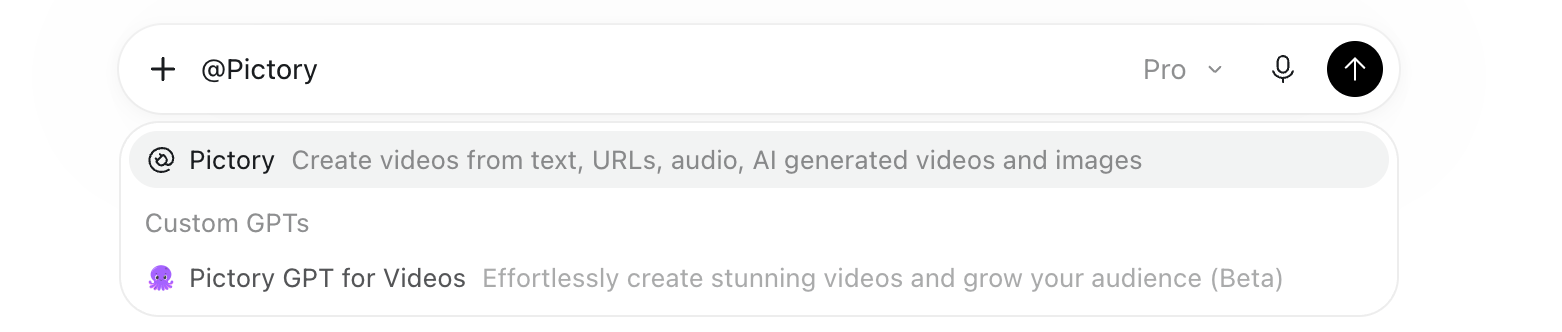
Type @Pictory in the message box. A list opens. Choose Pictory at the top of the list.
It shows the plugin icon and, if you entered one, the plugin’s description.
Do not choose Pictory GPT for Videos under Custom GPTs. It is a separate custom GPT,
not the Pictory plugin you connected.
Pictory then appears as a label at the start of your message.
Choose the Pictory plugin at the top of the list, not the custom GPT below it.
3
Ask for what you want
Write your request after the Pictory label, then send it. For example:
How many AI Credits do I have?
4
Read the answer
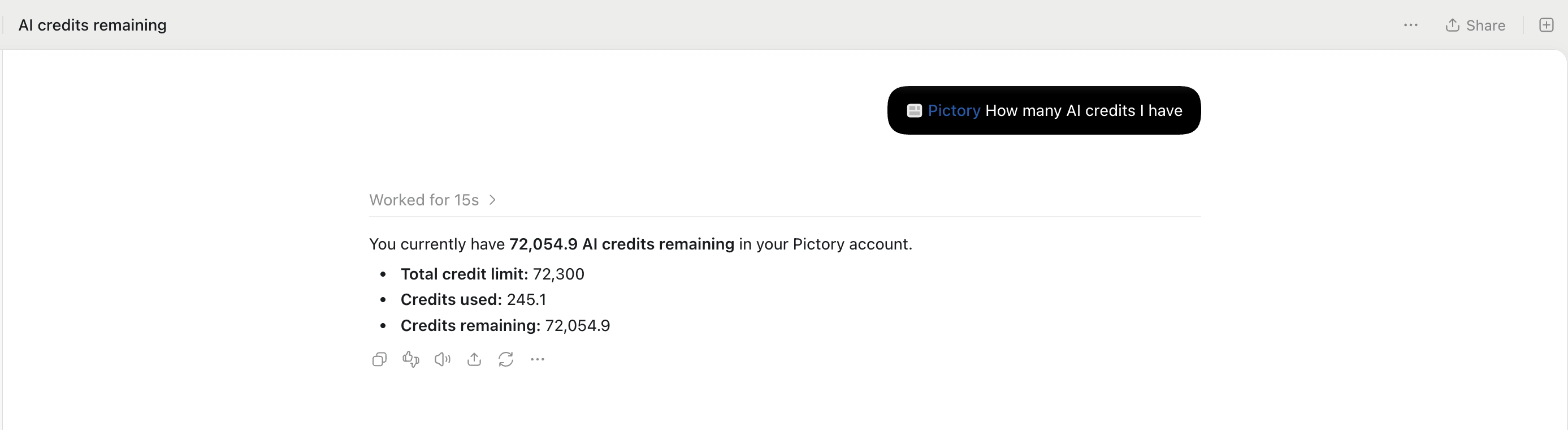
ChatGPT asks Pictory for the information, then replies in the chat. Above the reply, it
shows how long it worked, for example Worked for 15s. Select that line to see the steps
it took.
Checking your credits is a good first request. It confirms that the connection works, and it
does not change anything in your account.In this example, ChatGPT replies with three figures:
Total credit limit: all the AI Credits available on your account.
Credits used: the AI Credits you have spent so far.
Credits remaining: the AI Credits you can still use.
Ask Pictory how many AI Credits you have. ChatGPT replies with your limit, the credits used, and the credits remaining.
On a Pictory 3.0 account, every new video is a Motion Graphics video. For example:
Create a motion graphics video about the advantages of AI in a job search. Use animated
headlines and simple diagrams. Show me a preview and include the Pictory project link.
ChatGPT then helps you settle the details:
A brand kit. Choose a Brand Kit 2.0 from Pictory 3.0, or None.
The story. Agree on the narration, the narrator, the music, and the number of scenes.
Media. Choose stock media, AI-generated media, both, or none. ChatGPT asks only if you
have not already said what you want.
Transitions. Choose how one scene moves to the next, or use simple cuts.
Finalize the narration, narrator, music, and scene count before the project is created. Later
changes through the chat can refine the visual design, but they cannot change those choices.The video is saved as an editable project in your Pictory account. Open the project link to
keep editing in the Motion Studio editor in Pictory 3.0. See the
motion graphics guide for more.
On a Pictory 3.0 account, you can turn a podcast episode, a talk, or a voice memo into a Motion
Graphics video. For example:
Turn my podcast episode into a video.
Here is what happens:
ChatGPT checks your account, then opens an upload panel in the chat.
You upload one MP3, WAV, M4A, AAC, or WebM recording. It can be up to 200 MB, and from
5 seconds to 50 minutes long.
Pictory writes down what you say. ChatGPT then asks only for the choices you have not made:
the shape, brand kit, music, transitions, and visuals. Settle the brand kit and the music at
this point. You cannot change them through the chat after your project is created.
ChatGPT tells you about how many AI Credits the transcription uses, then creates your project.
You review a preview, confirm the render cost, and get your video.
Your recording is the voice-over, exactly as you recorded it. ChatGPT does not ask you to pick a
narrator. On a Pictory 2.0 account, ChatGPT explains that this feature needs Pictory 3.0.
Upload the recording through the panel. A link to an audio file does not work for this
feature.
See create videos from audio recordings for how scenes work, costs,
and troubleshooting. That page uses Claude in its examples, and the same rules apply in ChatGPT.
Stock media and music do not use AI Credits. AI-generated images and clips do. Before
generating AI media, ChatGPT shows the estimated cost and your balance, then waits for you to
agree.
Ask ChatGPT to use your own photo, logo, or video clip. For example:
Use my product photo as the background of the first scene.
An upload panel opens in the chat:
Drag your file onto the panel, or select Browse and pick it from your computer.
Select Upload.
ChatGPT receives the file and uses it in your video.
You can upload images and videos up to 100 MB each. If your file is already online, you can give
ChatGPT a public link instead. This works for Motion Graphics videos, and for Standard videos that
you design together with ChatGPT. See upload your own images and videos.
ChatGPT follows these rules to protect your account and your credits:
It checks your account first. Before a new video, ChatGPT checks which video type your
account supports and uses that type.
It asks for missing choices. ChatGPT asks about anything important you did not mention.
Say “you decide” to let it pick sensible defaults.
It shows the cost before rendering. Before making a finished Motion Graphics video,
ChatGPT shows your available credits and the render cost, then waits for you to confirm.
It does this even if you asked to render in your first message.
It does not render a preview without your go-ahead. A preview becomes a finished video
only after you approve it.
On plans that charge render credits, Motion Graphics videos made through MCP cost
200 AI Credits per video minute for the project’s first successful render. See
credits and rendering.
For Motion Graphics videos, you receive a preview and a Pictory project link. After you
confirm the render cost, you also receive the finished video with watch, share, and download
links. The project is saved automatically, so you can open it in Pictory 3.0 and keep editing.For Standard videos, rendering takes 5–15 minutes. The finished job returns the MP4 file, a
watch link, an embed link, the narration audio, and subtitles in both SRT and VTT formats.
For Standard videos, ask for a preview whenever the design matters. Fixing a preview takes
2–5 minutes, and a new render takes 5–15 minutes. Also say yes to saving the video as an
editable project if you might revise it. Without a saved project, every change needs a new
render.
Cause: Pictory was not chosen for the message, so ChatGPT answered on its own.Resolution:
Type @Pictory in the message box and choose the Pictory plugin at the top of the list.
Send your request again.
If Pictory is not in the list, check that it appears under Installed on the
Plugins page. See Connect from ChatGPT.
ChatGPT Uses Pictory GPT for Videos Instead of the Plugin
Cause:Pictory GPT for Videos was chosen from the list that opens after you type
@Pictory. It is a separate custom GPT, not the Pictory plugin you connected.Resolution:
Start a new chat.
Type @Pictory and choose Pictory at the top of the list. It shows the plugin icon
and, if you entered one, the plugin’s description.
Send your request again.
My Motion Graphics Request Is Rejected
Cause: Pictory 2.0 accounts can create only Standard Pictory videos through MCP.Resolution: Contact Pictory support to enable Pictory 3.0 for your account. After
this one-way move, you cannot switch back to Pictory 2.0. You will get Motion Graphics
by default, and it will be the only type of new video you can create through MCP.
You do not need an API subscription to use the plugin.
ChatGPT Says I Do Not Have Enough Credits
Cause: The render or the AI-generated media costs more AI Credits than your account
has left.Resolution:
Ask ChatGPT how many AI Credits you have.
Ask for a cheaper model, or use stock media instead of AI-generated media.
Every tool, video type, and option available through your connection
Motion graphics videos
What Pictory 3.0 accounts can create, and how render credits work
Was this page helpful?
{"docsConfig":{"theme":"mint","$schema":"https://mintlify.com/docs.json","name":"PictoryAI","colors":{"primary":"#842CFE","light":"#E4D0FF","dark":"#663399"},"logo":{"light":"https://mintcdn.com/pictory/rWdYILumD1sss1Ie/logo/pictory-logo.png?fit=max\u0026auto=format\u0026n=rWdYILumD1sss1Ie\u0026q=85\u0026s=26f687935ddb24220c55014e6b5ac5de","dark":"https://mintcdn.com/pictory/rWdYILumD1sss1Ie/logo/pictory-logo.png?fit=max\u0026auto=format\u0026n=rWdYILumD1sss1Ie\u0026q=85\u0026s=26f687935ddb24220c55014e6b5ac5de"},"favicon":"https://mintcdn.com/pictory/rWdYILumD1sss1Ie/pictory-octopus-logo.png?fit=max\u0026auto=format\u0026n=rWdYILumD1sss1Ie\u0026q=85\u0026s=bb67b7656488123aa973f893f3d23ec5","navbar":{"links":[{"href":"mailto:support@pictory.ai","label":"Support"}],"primary":{"type":"button","label":"Pictory App","href":"https://app.pictory.ai"}},"footer":{"socials":{"x":"https://x.com/pictoryai","linkedin":"https://www.linkedin.com/company/pictory","instagram":"https://www.instagram.com/pictoryai","youtube":"https://www.youtube.com/@Pictory","facebook":"https://www.facebook.com/groups/863439644603943?sorting_setting=CHRONOLOGICAL","reddit":"https://www.reddit.com/r/Pictory_Community","discord":"https://discord.gg/ugdAVjht"}},"contextual":{"options":["copy","view","chatgpt","claude","perplexity","mcp","cursor","vscode"],"display":"header"},"styling":{"latex":false},"navigation":{"pages":[]}},"deployment":{"deploymentMetadataValue":{"subdomain":"pictory","hasAudioNarration":false,"actualSubdomain":"pictory","customDomains":["docs.pictory.ai"],"gitSource":{"type":"github","owner":"pictoryai","repo":"public-api-documents","deployBranch":"main","contentDirectory":"","isPrivate":true,"mountPath":"","label":""},"chroma":{"liveDeploymentHistoryId":"6ae25328830df12299ad7da6","collectionId":"d37e3f28-573f-4810-a069-9535effac1af","schemaVersion":"v3","latestBuiltDeploymentHistoryId":"6ae25328830df12299ad7da6"},"feedback":{"thumbs":true},"entitlements":{"AI_CHAT":{"status":"ENABLED"},"CONTEXTUAL_FEEDBACK":{"status":"ENABLED"},"CODE_SNIPPET_FEEDBACK":{"status":"ENABLED"},"WEB_MCP":{"status":"ENABLED"},"NARRATION":{"status":"ENABLED"}},"buildId":"6aea70ebf65ade4ca97574aa","clientVersion":"0.0.4054","searchFilterCounts":[{"language":"default","tag":"Developer Guide","count":58},{"language":"default","tag":"API Reference","count":57},{"language":"default","tag":"AI Studio","count":16},{"language":"default","tag":"Advanced Features","count":10},{"language":"default","tag":"Integration","count":8},{"language":"default","tag":"Pictory for Claude","count":8},{"language":"default","tag":"Music Search","count":6},{"language":"default","tag":"AI-Generated Visuals","count":6},{"language":"default","tag":"AWS Integration","count":5},{"language":"default","tag":"Pictory Jobs","count":5}]},"assistantConfig":{"enableAskAiButton":true,"enableStarterQuestions":false,"enableAskAiSearchBar":false,"deflection":{"enabled":true,"email":"support@pictory.ai","showHelpButton":true}},"basePath":"","hasChatPermissions":true,"hasWebMcpPermissions":true,"toggles":[{"name":"kill-isr","enabled":true,"variant":{"name":"disabled","enabled":false,"feature_enabled":true},"impressionData":false},{"name":"agent-mintlify-slack","enabled":true,"variant":{"name":"disabled","enabled":false,"feature_enabled":true},"impressionData":false},{"name":"agent-integrations-settings","enabled":true,"variant":{"name":"disabled","enabled":false,"feature_enabled":true},"impressionData":false},{"name":"automations-pr-grouping","enabled":true,"variant":{"name":"disabled","enabled":false,"feature_enabled":true},"impressionData":false},{"name":"custom-prefix","enabled":true,"variant":{"name":"disabled","enabled":false,"feature_enabled":true},"impressionData":false},{"name":"analytics-v7","enabled":true,"variant":{"name":"disabled","enabled":false,"feature_enabled":true},"impressionData":false},{"name":"user-flows-analytics","enabled":true,"variant":{"name":"disabled","enabled":false,"feature_enabled":true},"impressionData":false},{"name":"no-publish-flow","enabled":true,"variant":{"name":"disabled","enabled":false,"feature_enabled":true},"impressionData":false},{"name":"workos-onboarding","enabled":true,"variant":{"name":"disabled","enabled":false,"feature_enabled":true},"impressionData":false},{"name":"llms-txt-v2","enabled":true,"variant":{"name":"disabled","enabled":false,"feature_enabled":true},"impressionData":false},{"name":"snapshot-serving-live","enabled":true,"variant":{"name":"disabled","enabled":false,"feature_enabled":true},"impressionData":false},{"name":"stripTemperatureMiddleware","enabled":true,"variant":{"name":"disabled","enabled":false,"feature_enabled":true},"impressionData":false},{"name":"support-platform-pylon-zendesk","enabled":true,"variant":{"name":"disabled","enabled":false,"feature_enabled":true},"impressionData":false},{"name":"snapshot-serving","enabled":true,"variant":{"name":"disabled","enabled":false,"feature_enabled":true},"impressionData":false},{"name":"instant-rollback","enabled":true,"variant":{"name":"disabled","enabled":false,"feature_enabled":true},"impressionData":false},{"name":"granular-notifications-server","enabled":true,"variant":{"name":"disabled","enabled":false,"feature_enabled":true},"impressionData":false},{"name":"granular-notifications","enabled":true,"variant":{"name":"disabled","enabled":false,"feature_enabled":true},"impressionData":false},{"name":"automations-fable","enabled":true,"variant":{"name":"disabled","enabled":false,"feature_enabled":true},"impressionData":false},{"name":"fixed-ai-action-pricing","enabled":true,"variant":{"name":"disabled","enabled":false,"feature_enabled":true},"impressionData":false},{"name":"automation-resolve-merge-conflict","enabled":true,"variant":{"name":"disabled","enabled":false,"feature_enabled":true},"impressionData":false},{"name":"scoped-publishing","enabled":true,"variant":{"name":"disabled","enabled":false,"feature_enabled":true},"impressionData":false},{"name":"mintql","enabled":true,"variant":{"name":"disabled","enabled":false,"feature_enabled":true},"impressionData":false},{"name":"page-level-analytics","enabled":true,"variant":{"name":"disabled","enabled":false,"feature_enabled":true},"impressionData":false},{"name":"editor-version-history-v2","enabled":true,"variant":{"name":"disabled","enabled":false,"feature_enabled":true},"impressionData":false},{"name":"billing-page-v2","enabled":true,"variant":{"name":"disabled","enabled":false,"feature_enabled":true},"impressionData":false},{"name":"full-page-search","enabled":true,"variant":{"name":"disabled","enabled":false,"feature_enabled":true},"impressionData":false},{"name":"workspace-projects","enabled":true,"variant":{"name":"disabled","enabled":false,"feature_enabled":true},"impressionData":false},{"name":"assistant-v5","enabled":true,"variant":{"name":"disabled","enabled":false,"feature_enabled":true},"impressionData":false},{"name":"byok-sep-25","enabled":true,"variant":{"name":"disabled","enabled":false,"feature_enabled":true},"impressionData":false},{"name":"fork-pr-previews","enabled":true,"variant":{"name":"disabled","enabled":false,"feature_enabled":true},"impressionData":false},{"name":"revalidation-jwt","enabled":true,"variant":{"name":"disabled","enabled":false,"feature_enabled":true},"impressionData":false},{"name":"vite-origin","enabled":true,"variant":{"name":"disabled","enabled":false,"feature_enabled":true},"impressionData":false},{"name":"billing-updated-9-15","enabled":true,"variant":{"name":"disabled","enabled":false,"feature_enabled":true},"impressionData":false},{"name":"workos-sso-scim","enabled":true,"variant":{"name":"disabled","enabled":false,"feature_enabled":true},"impressionData":false},{"name":"hobby-abuse-scan","enabled":true,"variant":{"name":"disabled","enabled":false,"feature_enabled":true},"impressionData":false},{"name":"dashboard-inbox","enabled":true,"variant":{"name":"disabled","enabled":false,"feature_enabled":true},"impressionData":false},{"name":"workos-signup","enabled":true,"variant":{"name":"disabled","enabled":false,"feature_enabled":true},"impressionData":false},{"name":"turbopuffer-dual-write","enabled":true,"variant":{"name":"disabled","enabled":false,"feature_enabled":true},"impressionData":false},{"name":"workos-enabled","enabled":true,"variant":{"name":"disabled","enabled":false,"feature_enabled":true},"impressionData":false},{"name":"approve-review-flow","enabled":true,"variant":{"name":"disabled","enabled":false,"feature_enabled":true},"impressionData":false},{"name":"sso-setup-deadline-banner","enabled":true,"variant":{"name":"disabled","enabled":false,"feature_enabled":true},"impressionData":false}],"googleFontsInlined":false},"customCss":[],"page":{"pagePath":"chatgpt/use-pictory-in-chatgpt","slug":"/chatgpt/use-pictory-in-chatgpt","pageMetadata":{"title":"Use Pictory in ChatGPT","description":"Choose Pictory in a ChatGPT chat, ask in plain language, and let ChatGPT check your account, plan your video, and create it with your Pictory account.","icon":"comments","href":"/chatgpt/use-pictory-in-chatgpt"},"description":{"compiledSource":"\"use strict\";\nconst {jsx: _jsx} = arguments[0];\nconst {useMDXComponents: _provideComponents} = arguments[0];\nfunction _createMdxContent(props) {\n const _components = {\n p: \"p\",\n ..._provideComponents(),\n ...props.components\n };\n return _jsx(_components.p, {\n children: \"Choose Pictory in a ChatGPT chat, ask in plain language, and let ChatGPT check your account, plan your video, and create it with your Pictory account.\"\n });\n}\nfunction MDXContent(props = {}) {\n const {wrapper: MDXLayout} = {\n ..._provideComponents(),\n ...props.components\n };\n return MDXLayout ? _jsx(MDXLayout, {\n ...props,\n children: _jsx(_createMdxContent, {\n ...props\n })\n }) : _createMdxContent(props);\n}\nreturn {\n default: MDXContent\n};\n","frontmatter":{},"scope":{}},"pageType":"default","mdx":{"mdxSource":{"compiledSource":"\"use strict\";const{Fragment:_Fragment,jsx:_jsx,jsxs:_jsxs}=arguments[0];const{useMDXComponents:_provideComponents}=arguments[0];function _createMdxContent(props){const _components={a:`a`,blockquote:`blockquote`,code:`code`,em:`em`,li:`li`,ol:`ol`,p:`p`,strong:`strong`,ul:`ul`,..._provideComponents(),...props.components},{Accordion,AccordionGroup,Card,CardGroup,Frame,Heading,Note,OptimizedImage,Step,Steps,Tip,Warning}=_components;if(!Accordion)_missingMdxReference(`Accordion`,true);if(!AccordionGroup)_missingMdxReference(`AccordionGroup`,true);if(!Card)_missingMdxReference(`Card`,true);if(!CardGroup)_missingMdxReference(`CardGroup`,true);if(!Frame)_missingMdxReference(`Frame`,true);if(!Heading)_missingMdxReference(`Heading`,true);if(!Note)_missingMdxReference(`Note`,true);if(!OptimizedImage)_missingMdxReference(`OptimizedImage`,true);if(!Step)_missingMdxReference(`Step`,true);if(!Steps)_missingMdxReference(`Steps`,true);if(!Tip)_missingMdxReference(`Tip`,true);if(!Warning)_missingMdxReference(`Warning`,true);return _jsxs(_Fragment,{children:[_jsxs(_components.p,{children:[`After you `,_jsx(_components.a,{href:`/chatgpt/connect-chatgpt`,children:`connect Pictory`}),`, you can use it in your ChatGPT chats.\nChoose Pictory for your message, then say what you want in everyday language. ChatGPT uses\nPictory’s tools for you and shows the result in the chat. You do not need to know the tool\nnames or write API requests.`]}),`\n`,_jsx(Heading,{level:`2`,id:`start-a-chat-with-pictory`,children:`Start a Chat with Pictory`}),`\n`,_jsxs(Steps,{children:[_jsx(Step,{title:`Open a chat`,children:_jsxs(_components.p,{children:[`Start a new chat. You can also select `,_jsx(_components.strong,{children:`…`}),` next to Pictory on the Plugins page, then\nselect `,_jsx(_components.strong,{children:`Try now`}),`.`]})}),_jsxs(Step,{title:`Choose the Pictory plugin`,children:[_jsxs(_components.p,{children:[`Type `,_jsx(_components.code,{children:`@Pictory`}),` in the message box. A list opens. Choose `,_jsx(_components.strong,{children:`Pictory`}),` at the top of the list.\nIt shows the plugin icon and, if you entered one, the plugin’s description.`]}),_jsx(Warning,{children:_jsxs(_components.p,{children:[`Do not choose `,_jsx(_components.strong,{children:`Pictory GPT for Videos`}),` under `,_jsx(_components.strong,{children:`Custom GPTs`}),`. It is a separate custom GPT,\nnot the Pictory plugin you connected.`]})}),_jsx(_components.p,{children:`Pictory then appears as a label at the start of your message.`}),_jsx(Frame,{caption:`Choose the Pictory plugin at the top of the list, not the custom GPT below it.`,children:_jsx(OptimizedImage,{src:`https://mintcdn.com/pictory/l2SkllNpxXDkx6L0/images/chatgpt-mcp/choose-pictory-plugin.png?fit=max\u0026auto=format\u0026n=l2SkllNpxXDkx6L0\u0026q=85\u0026s=d8fd7175bab64bb2cfbb6fd3abb58422`,alt:`The list that opens after typing @Pictory in ChatGPT, with the Pictory plugin at the top and Pictory GPT for Videos under Custom GPTs`,\"data-og-width\":`1562`,width:`1562`,\"data-og-height\":`332`,height:`332`,\"data-path\":`images/chatgpt-mcp/choose-pictory-plugin.png`,\"data-optimize\":`true`,\"data-opv\":`3`,srcset:`https://mintcdn.com/pictory/l2SkllNpxXDkx6L0/images/chatgpt-mcp/choose-pictory-plugin.png?w=280\u0026fit=max\u0026auto=format\u0026n=l2SkllNpxXDkx6L0\u0026q=85\u0026s=e53727af40217c145f040cbb2787701a 280w, https://mintcdn.com/pictory/l2SkllNpxXDkx6L0/images/chatgpt-mcp/choose-pictory-plugin.png?w=560\u0026fit=max\u0026auto=format\u0026n=l2SkllNpxXDkx6L0\u0026q=85\u0026s=bef6a06da88e25b0788187c19446db59 560w, https://mintcdn.com/pictory/l2SkllNpxXDkx6L0/images/chatgpt-mcp/choose-pictory-plugin.png?w=840\u0026fit=max\u0026auto=format\u0026n=l2SkllNpxXDkx6L0\u0026q=85\u0026s=b25e09284d5b8b95d4f28801d856ccc8 840w, https://mintcdn.com/pictory/l2SkllNpxXDkx6L0/images/chatgpt-mcp/choose-pictory-plugin.png?w=1100\u0026fit=max\u0026auto=format\u0026n=l2SkllNpxXDkx6L0\u0026q=85\u0026s=98467c45e09f6f12dee1cff4d6c35635 1100w, https://mintcdn.com/pictory/l2SkllNpxXDkx6L0/images/chatgpt-mcp/choose-pictory-plugin.png?w=1650\u0026fit=max\u0026auto=format\u0026n=l2SkllNpxXDkx6L0\u0026q=85\u0026s=7cef1852fe101e79bfd1a1cb4b17be29 1650w, https://mintcdn.com/pictory/l2SkllNpxXDkx6L0/images/chatgpt-mcp/choose-pictory-plugin.png?w=2500\u0026fit=max\u0026auto=format\u0026n=l2SkllNpxXDkx6L0\u0026q=85\u0026s=9236827d07727e6b7fadc8f109c1d5c2 2500w`})})]}),_jsxs(Step,{title:`Ask for what you want`,children:[_jsx(_components.p,{children:`Write your request after the Pictory label, then send it. For example:`}),_jsxs(_components.blockquote,{children:[`\n`,_jsx(_components.p,{children:`How many AI Credits do I have?`}),`\n`]})]}),_jsx(Step,{title:`Read the answer`,children:_jsxs(_components.p,{children:[`ChatGPT asks Pictory for the information, then replies in the chat. Above the reply, it\nshows how long it worked, for example `,_jsx(_components.strong,{children:`Worked for 15s`}),`. Select that line to see the steps\nit took.`]})})]}),`\n`,_jsx(Heading,{level:`2`,id:`example-check-your-ai-credits`,children:`Example: Check Your AI Credits`}),`\n`,_jsx(_components.p,{children:`Checking your credits is a good first request. It confirms that the connection works, and it\ndoes not change anything in your account.`}),`\n`,_jsx(_components.p,{children:`In this example, ChatGPT replies with three figures:`}),`\n`,_jsxs(_components.ul,{children:[`\n`,_jsxs(_components.li,{children:[_jsx(_components.strong,{children:`Total credit limit:`}),` all the AI Credits available on your account.`]}),`\n`,_jsxs(_components.li,{children:[_jsx(_components.strong,{children:`Credits used:`}),` the AI Credits you have spent so far.`]}),`\n`,_jsxs(_components.li,{children:[_jsx(_components.strong,{children:`Credits remaining:`}),` the AI Credits you can still use.`]}),`\n`]}),`\n`,_jsx(Frame,{caption:`Ask Pictory how many AI Credits you have. ChatGPT replies with your limit, the credits used, and the credits remaining.`,children:_jsx(OptimizedImage,{src:`https://mintcdn.com/pictory/l2SkllNpxXDkx6L0/images/chatgpt-mcp/ask-ai-credits.png?fit=max\u0026auto=format\u0026n=l2SkllNpxXDkx6L0\u0026q=85\u0026s=27978ef17445597058830cb904c33429`,alt:`A ChatGPT chat with the message Pictory How many AI credits I have, and a reply listing the total credit limit, credits used, and credits remaining`,\"data-og-width\":`2774`,width:`2774`,\"data-og-height\":`760`,height:`760`,\"data-path\":`images/chatgpt-mcp/ask-ai-credits.png`,\"data-optimize\":`true`,\"data-opv\":`3`,srcset:`https://mintcdn.com/pictory/l2SkllNpxXDkx6L0/images/chatgpt-mcp/ask-ai-credits.png?w=280\u0026fit=max\u0026auto=format\u0026n=l2SkllNpxXDkx6L0\u0026q=85\u0026s=9abab6e682483a931893e4ae6bdbf137 280w, https://mintcdn.com/pictory/l2SkllNpxXDkx6L0/images/chatgpt-mcp/ask-ai-credits.png?w=560\u0026fit=max\u0026auto=format\u0026n=l2SkllNpxXDkx6L0\u0026q=85\u0026s=cd58951714998a3c1ea554dd09ba2c1f 560w, https://mintcdn.com/pictory/l2SkllNpxXDkx6L0/images/chatgpt-mcp/ask-ai-credits.png?w=840\u0026fit=max\u0026auto=format\u0026n=l2SkllNpxXDkx6L0\u0026q=85\u0026s=51b8b62ea6d56220cee183afeaf71a1f 840w, https://mintcdn.com/pictory/l2SkllNpxXDkx6L0/images/chatgpt-mcp/ask-ai-credits.png?w=1100\u0026fit=max\u0026auto=format\u0026n=l2SkllNpxXDkx6L0\u0026q=85\u0026s=674b2691f02ca6f3f2f4c0c937aa0e7c 1100w, https://mintcdn.com/pictory/l2SkllNpxXDkx6L0/images/chatgpt-mcp/ask-ai-credits.png?w=1650\u0026fit=max\u0026auto=format\u0026n=l2SkllNpxXDkx6L0\u0026q=85\u0026s=09d5fc1bf3fea7d3f256245d3c866054 1650w, https://mintcdn.com/pictory/l2SkllNpxXDkx6L0/images/chatgpt-mcp/ask-ai-credits.png?w=2500\u0026fit=max\u0026auto=format\u0026n=l2SkllNpxXDkx6L0\u0026q=85\u0026s=aac2cdba767b3384a4aba5ba727f6144 2500w`})}),`\n`,_jsx(Heading,{level:`2`,id:`what-you-can-ask-for`,children:`What You Can Ask For`}),`\n`,_jsx(Heading,{level:`3`,id:`your-account-and-options`,children:`Your Account and Options`}),`\n`,_jsxs(_components.ul,{children:[`\n`,_jsx(_components.li,{children:_jsx(_components.em,{children:`“How many AI Credits do I have?”`})}),`\n`,_jsxs(_components.li,{children:[_jsx(_components.em,{children:`“How many video minutes are left on my plan?”`}),` (Pictory 2.0 accounts)`]}),`\n`,_jsx(_components.li,{children:_jsx(_components.em,{children:`“Which voices do you have? Show me English voices.”`})}),`\n`,_jsx(_components.li,{children:_jsx(_components.em,{children:`“List my brand kits.”`})}),`\n`,_jsx(_components.li,{children:_jsx(_components.em,{children:`“Which subtitle styles can I use?”`})}),`\n`]}),`\n`,_jsx(_components.p,{children:`On a Pictory 3.0 account, video creation, voice-over, and AI media all use one balance of AI\nCredits, so ask about your AI Credits.`}),`\n`,_jsx(Heading,{level:`3`,id:`motion-graphics-videos-pictory-3-0`,children:`Motion Graphics Videos: Pictory 3.0`}),`\n`,_jsx(_components.p,{children:`On a Pictory 3.0 account, every new video is a Motion Graphics video. For example:`}),`\n`,_jsxs(_components.blockquote,{children:[`\n`,_jsx(_components.p,{children:`Create a motion graphics video about the advantages of AI in a job search. Use animated\nheadlines and simple diagrams. Show me a preview and include the Pictory project link.`}),`\n`]}),`\n`,_jsx(_components.p,{children:`ChatGPT then helps you settle the details:`}),`\n`,_jsxs(_components.ol,{children:[`\n`,_jsxs(_components.li,{children:[_jsx(_components.strong,{children:`A brand kit.`}),` Choose a Brand Kit 2.0 from Pictory 3.0, or None.`]}),`\n`,_jsxs(_components.li,{children:[_jsx(_components.strong,{children:`The story.`}),` Agree on the narration, the narrator, the music, and the number of scenes.`]}),`\n`,_jsxs(_components.li,{children:[_jsx(_components.strong,{children:`Media.`}),` Choose stock media, AI-generated media, both, or none. ChatGPT asks only if you\nhave not already said what you want.`]}),`\n`,_jsxs(_components.li,{children:[_jsx(_components.strong,{children:`Transitions.`}),` Choose how one scene moves to the next, or use simple cuts.`]}),`\n`]}),`\n`,_jsx(_components.p,{children:`Finalize the narration, narrator, music, and scene count before the project is created. Later\nchanges through the chat can refine the visual design, but they cannot change those choices.`}),`\n`,_jsxs(_components.p,{children:[`The video is saved as an editable project in your Pictory account. Open the project link to\nkeep editing in the Motion Studio editor in Pictory 3.0. See the\n`,_jsx(_components.a,{href:`/claude-mcp/motion-graphics`,children:`motion graphics guide`}),` for more.`]}),`\n`,_jsx(Heading,{level:`3`,id:`standard-videos-pictory-2-0`,children:`Standard Videos: Pictory 2.0`}),`\n`,_jsx(_components.p,{children:`On a Pictory 2.0 account, every new video is a Standard video. For example:`}),`\n`,_jsxs(_components.ul,{children:[`\n`,_jsx(_components.li,{children:_jsx(_components.em,{children:`“Make a 60-second explainer about our new expense-tracking feature, professional tone, for YouTube.”`})}),`\n`,_jsx(_components.li,{children:_jsx(_components.em,{children:`“Create a vertical Instagram teaser for our coffee brand: warm, cozy, upbeat music.”`})}),`\n`,_jsx(_components.li,{children:_jsxs(_components.em,{children:[`“Turn this blog post into a video: `,_jsx(_components.a,{href:`https://example.com/post`,children:`https://example.com/post`}),`”`]})}),`\n`]}),`\n`,_jsx(_components.p,{children:`ChatGPT then asks for the choices that have no safe default:`}),`\n`,_jsxs(_components.ol,{children:[`\n`,_jsxs(_components.li,{children:[_jsx(_components.strong,{children:`Who designs the scenes.`}),` Pictory designs them, or you design them together with ChatGPT.`]}),`\n`,_jsxs(_components.li,{children:[_jsx(_components.strong,{children:`What the video includes.`}),` Narration, background music, and saving the video as an\neditable project are each off unless you ask for them.`]}),`\n`,_jsxs(_components.li,{children:[_jsx(_components.strong,{children:`The shape.`}),` 16:9 for landscape, 9:16 for vertical, or 1:1 for square.`]}),`\n`,_jsxs(_components.li,{children:[_jsx(_components.strong,{children:`The voice.`}),` If you want narration and did not name a voice, ChatGPT lists the voices on\nyour account.`]}),`\n`,_jsxs(_components.li,{children:[_jsx(_components.strong,{children:`Preview or finished video.`}),` A preview lets you check the scenes first. Edits to a preview\ncost nothing.`]}),`\n`]}),`\n`,_jsxs(_components.p,{children:[`See `,_jsx(_components.a,{href:`/claude-mcp/overview#who-designs-the-scenes`,children:`who designs the scenes`}),` for both design modes.`]}),`\n`,_jsx(Heading,{level:`3`,id:`videos-from-your-audio-recordings-pictory-3-0`,children:`Videos from Your Audio Recordings: Pictory 3.0`}),`\n`,_jsx(_components.p,{children:`On a Pictory 3.0 account, you can turn a podcast episode, a talk, or a voice memo into a Motion\nGraphics video. For example:`}),`\n`,_jsxs(_components.blockquote,{children:[`\n`,_jsx(_components.p,{children:`Turn my podcast episode into a video.`}),`\n`]}),`\n`,_jsx(_components.p,{children:`Here is what happens:`}),`\n`,_jsxs(_components.ol,{children:[`\n`,_jsx(_components.li,{children:`ChatGPT checks your account, then opens an upload panel in the chat.`}),`\n`,_jsx(_components.li,{children:`You upload one MP3, WAV, M4A, AAC, or WebM recording. It can be up to 200 MB, and from\n5 seconds to 50 minutes long.`}),`\n`,_jsx(_components.li,{children:`Pictory writes down what you say. ChatGPT then asks only for the choices you have not made:\nthe shape, brand kit, music, transitions, and visuals. Settle the brand kit and the music at\nthis point. You cannot change them through the chat after your project is created.`}),`\n`,_jsx(_components.li,{children:`ChatGPT tells you about how many AI Credits the transcription uses, then creates your project.`}),`\n`,_jsx(_components.li,{children:`You review a preview, confirm the render cost, and get your video.`}),`\n`]}),`\n`,_jsx(_components.p,{children:`Your recording is the voice-over, exactly as you recorded it. ChatGPT does not ask you to pick a\nnarrator. On a Pictory 2.0 account, ChatGPT explains that this feature needs Pictory 3.0.`}),`\n`,_jsx(Note,{children:_jsxs(_components.p,{children:[_jsx(_components.strong,{children:`Upload the recording through the panel.`}),` A link to an audio file does not work for this\nfeature.`]})}),`\n`,_jsxs(_components.p,{children:[`See `,_jsx(_components.a,{href:`/claude-mcp/audio-to-video`,children:`create videos from audio recordings`}),` for how scenes work, costs,\nand troubleshooting. That page uses Claude in its examples, and the same rules apply in ChatGPT.`]}),`\n`,_jsx(Heading,{level:`3`,id:`media-music-and-ai-generated-visuals`,children:`Media, Music, and AI-Generated Visuals`}),`\n`,_jsxs(_components.ul,{children:[`\n`,_jsx(_components.li,{children:_jsx(_components.em,{children:`“Find stock footage of a city skyline at night.”`})}),`\n`,_jsx(_components.li,{children:_jsx(_components.em,{children:`“Find calm background music for a 60-second product video.”`})}),`\n`,_jsx(_components.li,{children:_jsx(_components.em,{children:`“Generate an AI image of a modern office with natural light.”`})}),`\n`,_jsx(_components.li,{children:_jsxs(_components.em,{children:[`“Use this image as the background of the first scene: `,_jsx(_components.a,{href:`https://example.com/photo.jpg`,children:`https://example.com/photo.jpg`}),`”`]})}),`\n`]}),`\n`,_jsx(_components.p,{children:`Stock media and music do not use AI Credits. AI-generated images and clips do. Before\ngenerating AI media, ChatGPT shows the estimated cost and your balance, then waits for you to\nagree.`}),`\n`,_jsx(Heading,{level:`3`,id:`your-own-images-and-videos`,children:`Your Own Images and Videos`}),`\n`,_jsx(_components.p,{children:`Ask ChatGPT to use your own photo, logo, or video clip. For example:`}),`\n`,_jsxs(_components.blockquote,{children:[`\n`,_jsx(_components.p,{children:`Use my product photo as the background of the first scene.`}),`\n`]}),`\n`,_jsx(_components.p,{children:`An upload panel opens in the chat:`}),`\n`,_jsxs(_components.ol,{children:[`\n`,_jsxs(_components.li,{children:[`Drag your file onto the panel, or select `,_jsx(_components.strong,{children:`Browse`}),` and pick it from your computer.`]}),`\n`,_jsxs(_components.li,{children:[`Select `,_jsx(_components.strong,{children:`Upload`}),`.`]}),`\n`,_jsx(_components.li,{children:`ChatGPT receives the file and uses it in your video.`}),`\n`]}),`\n`,_jsxs(_components.p,{children:[`You can upload images and videos up to 100 MB each. If your file is already online, you can give\nChatGPT a public link instead. This works for Motion Graphics videos, and for Standard videos that\nyou design together with ChatGPT. See `,_jsx(_components.a,{href:`/claude-mcp/upload-media`,children:`upload your own images and videos`}),`.`]}),`\n`,_jsx(Heading,{level:`2`,id:`before-anything-is-created`,children:`Before Anything Is Created`}),`\n`,_jsx(_components.p,{children:`ChatGPT follows these rules to protect your account and your credits:`}),`\n`,_jsxs(_components.ul,{children:[`\n`,_jsxs(_components.li,{children:[_jsx(_components.strong,{children:`It checks your account first.`}),` Before a new video, ChatGPT checks which video type your\naccount supports and uses that type.`]}),`\n`,_jsxs(_components.li,{children:[_jsx(_components.strong,{children:`It asks for missing choices.`}),` ChatGPT asks about anything important you did not mention.\nSay `,_jsx(_components.em,{children:`“you decide”`}),` to let it pick sensible defaults.`]}),`\n`,_jsxs(_components.li,{children:[_jsx(_components.strong,{children:`It shows the cost before rendering.`}),` Before making a finished Motion Graphics video,\nChatGPT shows your available credits and the render cost, then waits for you to confirm.\nIt does this even if you asked to render in your first message.`]}),`\n`,_jsxs(_components.li,{children:[_jsx(_components.strong,{children:`It does not render a preview without your go-ahead.`}),` A preview becomes a finished video\nonly after you approve it.`]}),`\n`]}),`\n`,_jsxs(_components.p,{children:[`On plans that charge render credits, Motion Graphics videos made through MCP cost\n`,_jsx(_components.strong,{children:`200 AI Credits per video minute`}),` for the project’s first successful render. See\n`,_jsx(_components.a,{href:`/claude-mcp/motion-graphics#credits-and-rendering`,children:`credits and rendering`}),`.`]}),`\n`,_jsx(Heading,{level:`2`,id:`what-you-get-back`,children:`What You Get Back`}),`\n`,_jsx(_components.p,{children:`For Motion Graphics videos, you receive a preview and a Pictory project link. After you\nconfirm the render cost, you also receive the finished video with watch, share, and download\nlinks. The project is saved automatically, so you can open it in Pictory 3.0 and keep editing.`}),`\n`,_jsx(_components.p,{children:`For Standard videos, rendering takes 5–15 minutes. The finished job returns the MP4 file, a\nwatch link, an embed link, the narration audio, and subtitles in both SRT and VTT formats.`}),`\n`,_jsx(Tip,{children:_jsx(_components.p,{children:`For Standard videos, ask for a preview whenever the design matters. Fixing a preview takes\n2–5 minutes, and a new render takes 5–15 minutes. Also say yes to saving the video as an\neditable project if you might revise it. Without a saved project, every change needs a new\nrender.`})}),`\n`,_jsx(Heading,{level:`2`,id:`troubleshooting`,children:`Troubleshooting`}),`\n`,_jsxs(AccordionGroup,{children:[_jsxs(Accordion,{title:`ChatGPT Answers Without Using Pictory`,id:`chatgpt-answers-without-using-pictory`,children:[_jsxs(_components.p,{children:[_jsx(_components.strong,{children:`Cause:`}),` Pictory was not chosen for the message, so ChatGPT answered on its own.`]}),_jsx(_components.p,{children:_jsx(_components.strong,{children:`Resolution:`})}),_jsxs(_components.ol,{children:[`\n`,_jsxs(_components.li,{children:[`Type `,_jsx(_components.code,{children:`@Pictory`}),` in the message box and choose the `,_jsx(_components.strong,{children:`Pictory`}),` plugin at the top of the list.`]}),`\n`,_jsx(_components.li,{children:`Send your request again.`}),`\n`,_jsxs(_components.li,{children:[`If Pictory is not in the list, check that it appears under `,_jsx(_components.strong,{children:`Installed`}),` on the\nPlugins page. See `,_jsx(_components.a,{href:`/chatgpt/connect-chatgpt`,children:`Connect from ChatGPT`}),`.`]}),`\n`]})]}),_jsxs(Accordion,{title:`ChatGPT Uses Pictory GPT for Videos Instead of the Plugin`,id:`chatgpt-uses-pictory-gpt-for-videos-instead-of-the-plugin`,children:[_jsxs(_components.p,{children:[_jsx(_components.strong,{children:`Cause:`}),` `,_jsx(_components.strong,{children:`Pictory GPT for Videos`}),` was chosen from the list that opens after you type\n`,_jsx(_components.code,{children:`@Pictory`}),`. It is a separate custom GPT, not the Pictory plugin you connected.`]}),_jsx(_components.p,{children:_jsx(_components.strong,{children:`Resolution:`})}),_jsxs(_components.ol,{children:[`\n`,_jsx(_components.li,{children:`Start a new chat.`}),`\n`,_jsxs(_components.li,{children:[`Type `,_jsx(_components.code,{children:`@Pictory`}),` and choose `,_jsx(_components.strong,{children:`Pictory`}),` at the top of the list. It shows the plugin icon\nand, if you entered one, the plugin’s description.`]}),`\n`,_jsx(_components.li,{children:`Send your request again.`}),`\n`]})]}),_jsxs(Accordion,{title:`My Motion Graphics Request Is Rejected`,id:`my-motion-graphics-request-is-rejected`,children:[_jsxs(_components.p,{children:[_jsx(_components.strong,{children:`Cause:`}),` Pictory 2.0 accounts can create only Standard Pictory videos through MCP.`]}),_jsxs(_components.p,{children:[_jsx(_components.strong,{children:`Resolution:`}),` Contact Pictory support to enable Pictory 3.0 for your account. After\nthis one-way move, you cannot switch back to Pictory 2.0. You will get Motion Graphics\nby default, and it will be the only type of new video you can create through MCP.\nYou do not need an API subscription to use the plugin.`]})]}),_jsxs(Accordion,{title:`ChatGPT Says I Do Not Have Enough Credits`,id:`chatgpt-says-i-do-not-have-enough-credits`,children:[_jsxs(_components.p,{children:[_jsx(_components.strong,{children:`Cause:`}),` The render or the AI-generated media costs more AI Credits than your account\nhas left.`]}),_jsx(_components.p,{children:_jsx(_components.strong,{children:`Resolution:`})}),_jsxs(_components.ol,{children:[`\n`,_jsx(_components.li,{children:`Ask ChatGPT how many AI Credits you have.`}),`\n`,_jsx(_components.li,{children:`Ask for a cheaper model, or use stock media instead of AI-generated media.`}),`\n`,_jsxs(_components.li,{children:[`Check your plan and remaining usage at `,_jsx(_components.a,{href:`https://app.pictory.ai`,children:`app.pictory.ai`}),`.`]}),`\n`]})]}),_jsxs(Accordion,{title:`Every Request Fails`,id:`every-request-fails`,children:[_jsxs(_components.p,{children:[_jsx(_components.strong,{children:`Cause:`}),` The sign-in has expired, or the connected account does not have access to the\nrequested feature.`]}),_jsx(_components.p,{children:_jsx(_components.strong,{children:`Resolution:`})}),_jsxs(_components.ol,{children:[`\n`,_jsxs(_components.li,{children:[`Check your plan and remaining usage at `,_jsx(_components.a,{href:`https://app.pictory.ai`,children:`app.pictory.ai`}),`.`]}),`\n`,_jsxs(_components.li,{children:[`Uninstall Pictory, add it again, and sign in. See\n`,_jsx(_components.a,{href:`/chatgpt/connect-chatgpt`,children:`Connect from ChatGPT`}),`.`]}),`\n`]})]})]}),`\n`,_jsx(Heading,{level:`2`,id:`next-steps`,children:`Next Steps`}),`\n`,_jsxs(CardGroup,{cols:2,children:[_jsx(Card,{title:`Pictory MCP Server`,icon:`server`,href:`/claude-mcp/overview`,children:_jsx(_components.p,{children:`Every tool, video type, and option available through your connection`})}),_jsx(Card,{title:`Motion graphics videos`,icon:`wand-magic-sparkles`,href:`/claude-mcp/motion-graphics`,children:_jsx(_components.p,{children:`What Pictory 3.0 accounts can create, and how render credits work`})})]})]})}function MDXContent(props={}){const{wrapper:MDXLayout}={..._provideComponents(),...props.components};return MDXLayout?_jsx(MDXLayout,{...props,children:_jsx(_createMdxContent,{...props})}):_createMdxContent(props)}return{default:MDXContent};function _missingMdxReference(id,component){throw new Error(`Expected `+(component?`component`:`object`)+\" `\"+id+\"` to be defined: you likely forgot to import, pass, or provide it.\")}","frontmatter":{},"scope":{"config":{},"pageMetadata":{"title":"Use Pictory in ChatGPT","description":"Choose Pictory in a ChatGPT chat, ask in plain language, and let ChatGPT check your account, plan your video, and create it with your Pictory account.","icon":"comments","href":"/chatgpt/use-pictory-in-chatgpt"}}},"mdxSourceWithNoJs":null},"mdxExtracts":{"tableOfContents":[{"title":"Start a Chat with Pictory","slug":"start-a-chat-with-pictory","depth":2,"children":[]},{"title":"Example: Check Your AI Credits","slug":"example-check-your-ai-credits","depth":2,"children":[]},{"title":"What You Can Ask For","slug":"what-you-can-ask-for","depth":2,"children":[{"title":"Your Account and Options","slug":"your-account-and-options","depth":3,"children":[]},{"title":"Motion Graphics Videos: Pictory 3.0","slug":"motion-graphics-videos-pictory-3-0","depth":3,"children":[]},{"title":"Standard Videos: Pictory 2.0","slug":"standard-videos-pictory-2-0","depth":3,"children":[]},{"title":"Videos from Your Audio Recordings: Pictory 3.0","slug":"videos-from-your-audio-recordings-pictory-3-0","depth":3,"children":[]},{"title":"Media, Music, and AI-Generated Visuals","slug":"media-music-and-ai-generated-visuals","depth":3,"children":[]},{"title":"Your Own Images and Videos","slug":"your-own-images-and-videos","depth":3,"children":[]}]},{"title":"Before Anything Is Created","slug":"before-anything-is-created","depth":2,"children":[]},{"title":"What You Get Back","slug":"what-you-get-back","depth":2,"children":[]},{"title":"Troubleshooting","slug":"troubleshooting","depth":2,"children":[]},{"title":"Next Steps","slug":"next-steps","depth":2,"children":[]}],"codeExamples":{}},"jsLinks":[],"subdomain":"pictory","siteName":"PictoryAI","title":"Use Pictory in ChatGPT - PictoryAI","navMaps":{"firstHrefInVersion":{},"firstHrefInLanguage":{}},"lastModified":"2026-11-03T23:40:38.539Z","originalFileLocation":"chatgpt/use-pictory-in-chatgpt.mdx"},"headHtml":"\u003cscript data-mint-head>(function(){var d=document.documentElement,p=null;if(!p){try{p=localStorage.getItem(\"isDarkMode\")}catch(e){}if(p==='true')p='dark';else if(p==='false')p='light';if(p!=='light'\u0026\u0026p!=='dark'\u0026\u0026p!=='system')p=\"system\"}var r=p==='system'?(matchMedia(\"(prefers-color-scheme: dark)\").matches?'dark':'light'):p;d.classList.remove(r==='dark'?'light':'dark');d.classList.add(r);d.setAttribute(\"data-theme-preference\",p)})();\u003c/script>\u003cmeta data-mint-head name=\"description\" content=\"Choose Pictory in a ChatGPT chat, ask in plain language, and let ChatGPT check your account, plan your video, and create it with your Pictory account.\">\u003cmeta data-mint-head name=\"application-name\" content=\"PictoryAI\">\u003cmeta data-mint-head name=\"generator\" content=\"Mintlify\">\u003clink data-mint-head rel=\"icon\" type=\"image/png\" sizes=\"192x192\" href=\"/mintlify-assets/_mintlify/favicons/pictory/Ee49WLQkj1gxdfWt/_generated/favicon/android-chrome-192x192.png\" media=\"(prefers-color-scheme: light)\">\u003clink data-mint-head rel=\"apple-touch-icon\" type=\"image/png\" sizes=\"180x180\" href=\"/mintlify-assets/_mintlify/favicons/pictory/Ee49WLQkj1gxdfWt/_generated/favicon/apple-touch-icon.png\">\u003clink data-mint-head rel=\"icon\" type=\"image/png\" sizes=\"16x16\" href=\"/mintlify-assets/_mintlify/favicons/pictory/Ee49WLQkj1gxdfWt/_generated/favicon/favicon-16x16.png\" media=\"(prefers-color-scheme: light)\">\u003clink data-mint-head rel=\"icon\" type=\"image/png\" sizes=\"32x32\" href=\"/mintlify-assets/_mintlify/favicons/pictory/Ee49WLQkj1gxdfWt/_generated/favicon/favicon-32x32.png\" media=\"(prefers-color-scheme: light)\">\u003clink data-mint-head rel=\"shortcut icon\" type=\"image/x-icon\" href=\"/mintlify-assets/_mintlify/favicons/pictory/Ee49WLQkj1gxdfWt/_generated/favicon/favicon.ico\" media=\"(prefers-color-scheme: light)\">\u003clink data-mint-head rel=\"icon\" type=\"image/png\" sizes=\"192x192\" href=\"/mintlify-assets/_mintlify/favicons/pictory/Ee49WLQkj1gxdfWt/_generated/favicon-dark/android-chrome-192x192.png\" media=\"(prefers-color-scheme: dark)\">\u003clink data-mint-head rel=\"icon\" type=\"image/png\" sizes=\"16x16\" href=\"/mintlify-assets/_mintlify/favicons/pictory/Ee49WLQkj1gxdfWt/_generated/favicon-dark/favicon-16x16.png\" media=\"(prefers-color-scheme: dark)\">\u003clink data-mint-head rel=\"icon\" type=\"image/png\" sizes=\"32x32\" href=\"/mintlify-assets/_mintlify/favicons/pictory/Ee49WLQkj1gxdfWt/_generated/favicon-dark/favicon-32x32.png\" media=\"(prefers-color-scheme: dark)\">\u003clink data-mint-head rel=\"shortcut icon\" type=\"image/x-icon\" href=\"/mintlify-assets/_mintlify/favicons/pictory/Ee49WLQkj1gxdfWt/_generated/favicon-dark/favicon.ico\" media=\"(prefers-color-scheme: dark)\">\u003cmeta data-mint-head property=\"og:title\" content=\"Use Pictory in ChatGPT - PictoryAI\">\u003cmeta data-mint-head property=\"og:description\" content=\"Choose Pictory in a ChatGPT chat, ask in plain language, and let ChatGPT check your account, plan your video, and create it with your Pictory account.\">\u003cmeta data-mint-head property=\"og:site_name\" content=\"PictoryAI\">\u003cmeta data-mint-head property=\"og:url\" content=\"https://docs.pictory.ai/chatgpt/use-pictory-in-chatgpt\">\u003cmeta data-mint-head property=\"og:type\" content=\"website\">\u003cmeta data-mint-head property=\"og:image\" content=\"https://pictory.mintlify.app/_mintlify/api/og/v2?division=MCP+Server\u0026amp;title=Use+Pictory+in+ChatGPT\u0026amp;description=Choose+Pictory+in+a+ChatGPT+chat%2C+ask+in+plain+language%2C+and+let+ChatGPT+check+your+account%2C+plan+your+video%2C+and+create+it+with+your+Pictory+account.\u0026amp;theme=2f7fd1a616e2bc5bca6ba33f\u0026amp;signature=fc5dd3b2bb5b8ddcbb73ea8784dc489f9f110d258f476c0fb468bafb6c80810b\">\u003cmeta data-mint-head property=\"og:image:width\" content=\"1200\">\u003cmeta data-mint-head property=\"og:image:height\" content=\"630\">\u003cmeta data-mint-head name=\"twitter:card\" content=\"summary_large_image\">\u003cmeta data-mint-head name=\"twitter:title\" content=\"Use Pictory in ChatGPT - PictoryAI\">\u003cmeta data-mint-head name=\"twitter:description\" content=\"Choose Pictory in a ChatGPT chat, ask in plain language, and let ChatGPT check your account, plan your video, and create it with your Pictory account.\">\u003cmeta data-mint-head name=\"twitter:image\" content=\"https://pictory.mintlify.app/_mintlify/api/og/v2?division=MCP+Server\u0026amp;title=Use+Pictory+in+ChatGPT\u0026amp;description=Choose+Pictory+in+a+ChatGPT+chat%2C+ask+in+plain+language%2C+and+let+ChatGPT+check+your+account%2C+plan+your+video%2C+and+create+it+with+your+Pictory+account.\u0026amp;theme=2f7fd1a616e2bc5bca6ba33f\u0026amp;signature=fc5dd3b2bb5b8ddcbb73ea8784dc489f9f110d258f476c0fb468bafb6c80810b\">\u003cmeta data-mint-head name=\"twitter:image:width\" content=\"1200\">\u003cmeta data-mint-head name=\"twitter:image:height\" content=\"630\">\u003cmeta data-mint-head name=\"msapplication-config\" content=\"/mintlify-assets/_mintlify/favicons/pictory/Ee49WLQkj1gxdfWt/_generated/favicon/browserconfig.xml\">\u003cmeta data-mint-head name=\"apple-mobile-web-app-title\" content=\"PictoryAI\">\u003cmeta data-mint-head name=\"msapplication-TileColor\" content=\"#842CFE\">\u003clink data-mint-head rel=\"canonical\" href=\"https://docs.pictory.ai/chatgpt/use-pictory-in-chatgpt\">\u003clink data-mint-head rel=\"alternate\" type=\"application/xml\" href=\"/sitemap.xml\">\u003clink data-mint-head rel=\"alternate\" type=\"text/markdown\" href=\"/chatgpt/use-pictory-in-chatgpt.md\">\u003cscript data-mint-head type=\"application/ld+json\">{\"@context\":\"https://schema.org\",\"@graph\":[{\"@type\":\"Organization\",\"@id\":\"https://docs.pictory.ai/#organization\",\"name\":\"PictoryAI\",\"url\":\"https://docs.pictory.ai\",\"logo\":{\"@type\":\"ImageObject\",\"url\":\"https://mintcdn.com/pictory/rWdYILumD1sss1Ie/logo/pictory-logo.png?fit=max\u0026auto=format\u0026n=rWdYILumD1sss1Ie\u0026q=85\u0026s=26f687935ddb24220c55014e6b5ac5de\"}},{\"@type\":\"WebSite\",\"@id\":\"https://docs.pictory.ai#website\",\"name\":\"PictoryAI\",\"url\":\"https://docs.pictory.ai\",\"publisher\":{\"@id\":\"https://docs.pictory.ai/#organization\"}},{\"@type\":\"WebPage\",\"@id\":\"https://docs.pictory.ai/chatgpt/use-pictory-in-chatgpt#webpage\",\"url\":\"https://docs.pictory.ai/chatgpt/use-pictory-in-chatgpt\",\"name\":\"Use Pictory in ChatGPT\",\"description\":\"Choose Pictory in a ChatGPT chat, ask in plain language, and let ChatGPT check your account, plan your video, and create it with your Pictory account.\",\"dateModified\":\"2026-11-03T23:40:38.539Z\",\"isPartOf\":{\"@id\":\"https://docs.pictory.ai#website\"},\"breadcrumb\":{\"@id\":\"https://docs.pictory.ai/chatgpt/use-pictory-in-chatgpt#breadcrumb\"}},{\"@type\":\"BreadcrumbList\",\"@id\":\"https://docs.pictory.ai/chatgpt/use-pictory-in-chatgpt#breadcrumb\",\"itemListElement\":[{\"@type\":\"ListItem\",\"position\":1,\"name\":\"MCP Server\",\"item\":\"https://docs.pictory.ai/chatgpt/connect-chatgpt\"},{\"@type\":\"ListItem\",\"position\":2,\"name\":\"Use Pictory in ChatGPT\",\"item\":\"https://docs.pictory.ai/chatgpt/use-pictory-in-chatgpt\"}]},{\"@type\":[\"Article\",\"TechArticle\"],\"@id\":\"https://docs.pictory.ai/chatgpt/use-pictory-in-chatgpt#article\",\"headline\":\"Use Pictory in ChatGPT\",\"name\":\"Use Pictory in ChatGPT\",\"description\":\"Choose Pictory in a ChatGPT chat, ask in plain language, and let ChatGPT check your account, plan your video, and create it with your Pictory account.\",\"url\":\"https://docs.pictory.ai/chatgpt/use-pictory-in-chatgpt\",\"mainEntityOfPage\":{\"@id\":\"https://docs.pictory.ai/chatgpt/use-pictory-in-chatgpt#webpage\"},\"dateModified\":\"2026-11-03T23:40:38.539Z\",\"publisher\":{\"@id\":\"https://docs.pictory.ai/#organization\"},\"isPartOf\":{\"@id\":\"https://docs.pictory.ai#website\"}}]}\u003c/script>\u003cscript data-mint-head type=\"application/ld+json\">{\"@context\":\"https://schema.org\",\"@type\":\"WebSite\",\"name\":\"PictoryAI\",\"creator\":{\"@type\":\"Organization\",\"name\":\"Mintlify\",\"url\":\"https://mintlify.com\"}}\u003c/script>","siteName":"PictoryAI","nav":{"global":null,"tabs":[{"tab":"Developer Guide","pages":[{"title":"Developer Guide","href":""}]},{"tab":"API Reference","pages":[{"title":"API Reference","href":"/api-reference"}]},{"tab":"Pictory for Claude","pages":[{"title":"Pictory for Claude","href":"/claude/overview"}]},{"tab":"Pictory for ChatGPT","groups":[{"group":"Getting Started","pages":[{"title":"Pictory for ChatGPT","icon":"robot","href":"/chatgpt/overview"}]},{"group":"MCP Server","pages":[{"title":"Connect from ChatGPT","description":"Add the Pictory MCP server to ChatGPT as a plugin, sign in once with your Pictory account, and start creating videos in your chats.","icon":"plug","href":"/chatgpt/connect-chatgpt"},{"title":"Use Pictory in ChatGPT","icon":"comments","href":"/chatgpt/use-pictory-in-chatgpt"}]}]},{"tab":"Integration","pages":[{"title":"Integration","href":"/integrations/storyboard-video-preview/embed-preview-player"}]},{"tab":"Changelog","pages":[{"title":"Changelog","href":"/changelog"}]}]},"basePath":"","title":"Use Pictory in ChatGPT - PictoryAI","buildId":"dpl_345ReqzYaAjzS9QpeJemsKdb7KDj","deploymentId":"dpl_345ReqzYaAjzS9QpeJemsKdb7KDj","dynamics":["07c022d89b","a74be98ba7"],"chunks":["Frame-PS-3COT9.js","DynamicMarkdown-BcnBltEQ.js","zoom-image-lightbox-B4-wUcHm.js","lightbox-handle-r17bVUz3.js"]}