
Workflow Overview
The n8n workflow automates the full Pictory video rendering pipeline:- Trigger the workflow (manually or from a spreadsheet)
- Call the Pictory Render Storyboard Video API
- Extract the
jobIdand initialize polling variables - Poll the job status every 30 seconds
- Branch based on whether the job completed, failed, or is still in progress
- Output the video URL on success, or handle failure/timeout
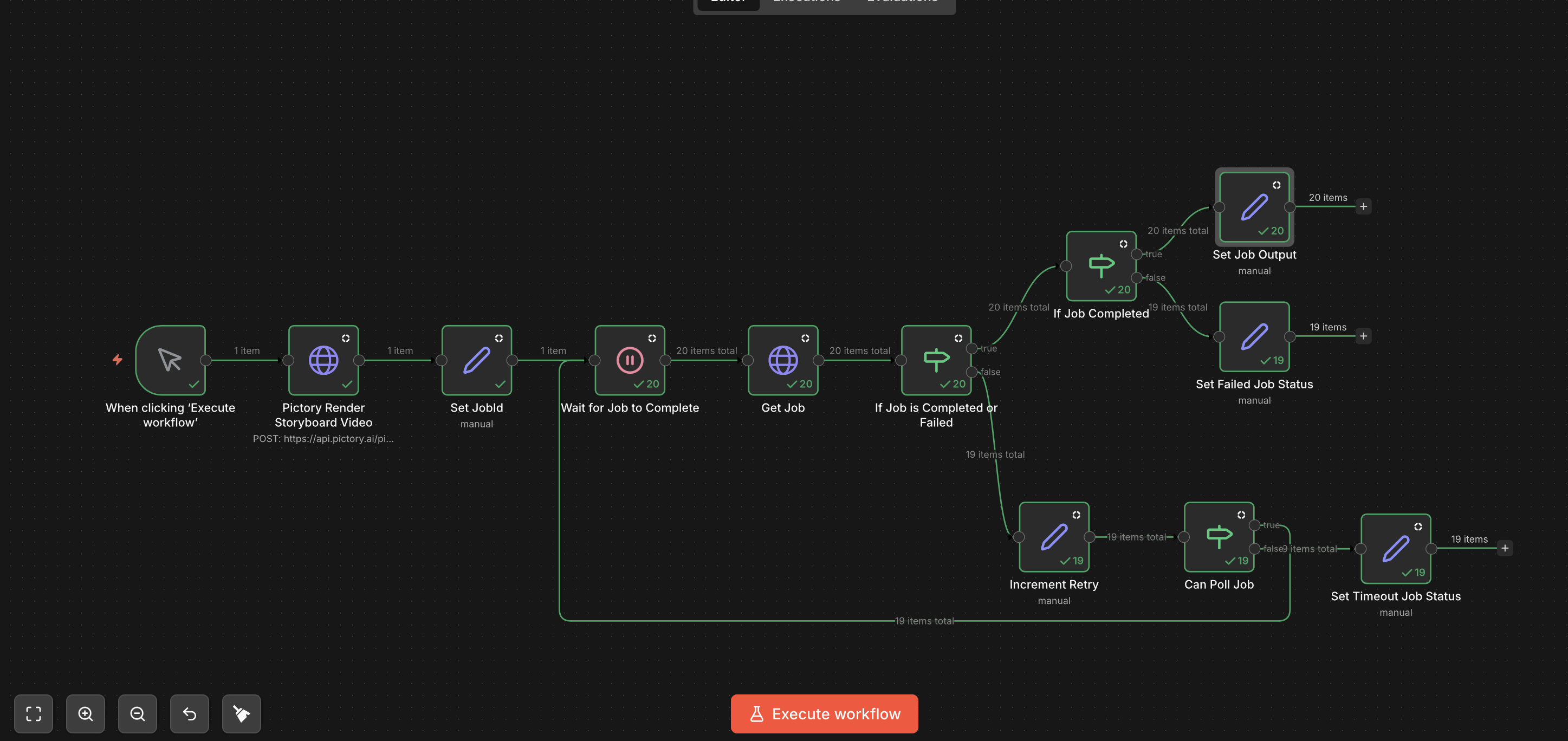
Pictory n8n workflow: render storyboard video with polling and retry logic
Before You Begin
Make sure you have:- A Pictory API key (get one here)
- An n8n instance (self-hosted or cloud)
- Basic familiarity with n8n workflow editor
Import the Workflow
You can import the ready-made workflow JSON directly into n8n:- Open your n8n instance
- Click Add workflow (or press
Ctrl+N) - Click the three-dot menu (top-right) and select Import from file…
- Upload the n8n-workflow.json file
- Replace
YOUR_PICTORY_API_KEYwith your actual Pictory API key in the Pictory Render Storyboard Video and Get Job nodes
Node-by-Node Explanation
1. When clicking ‘Execute workflow’ (Manual Trigger)
This is the entry point of the workflow. When you click Execute workflow in the n8n editor, this node triggers and passes execution to the next node. In production, you can replace this with a Schedule Trigger, Webhook Trigger, or a Google Sheets Trigger to automate execution.
2. Pictory Render Storyboard Video (HTTP Request)
This node makes a
POST request to the Pictory Render Storyboard Video API. It sends:
- Headers:
Content-Type: application/jsonandAuthorization: YOUR_PICTORY_API_KEY - Body: A JSON payload containing:
videoName: the name for the generated videosmartLayoutName: the visual layout theme (e.g.,"Wanderlust")voiceOver: AI voice configuration with speaker namebackgroundMusic: auto-selected background music at 10% volumescenes: the text story content, withcreateSceneOnNewLineandcreateSceneOnEndOfSentenceboth enabled to automatically split the story into multiple scenes
jobId in data.jobId that you use to track the rendering progress.
3. Set JobId (Set Node)
This node extracts three variables from the API response and stores them for use throughout the workflow:
With a 30-second wait between polls and 30 max retries, the workflow will wait up to 15 minutes for the video to render before timing out.
4. Wait for Job to Complete (Wait Node)
This node introduces a 30-second delay before checking the job status. Video rendering takes time, so polling immediately after submission would return an
in-progress status. This wait ensures the API has time to process.
The Wait node pauses the entire workflow execution. In n8n, this means the execution is suspended and resumed after the wait period, so it does not consume resources while waiting.
5. Get Job (HTTP Request)
This node calls the Get Job API using the
jobId extracted earlier. The URL dynamically references the jobId from the Set JobId node using n8n’s expression syntax {{ $('Set JobId').item.json.jobId }}.
Response: Returns the job status along with video URLs when completed:
in-progress, completed, failed.
6. If Job is Completed or Failed (IF Node)
This is the primary branching node:
- True branch (status is
completedorfailed): Proceeds to the If Job Completed node for further evaluation - False branch (status is still
in-progress): Proceeds to the Increment Retry node to poll again
7. If Job Completed (IF Node)
This second-level branch runs only when the job has reached a terminal state:
- True branch (completed): Routes to Set Job Output to extract video URLs
- False branch (failed): Routes to Set Failed Job Status to record the failure
8. Set Job Output (Set Node)
When the job completes successfully, this node extracts:
This is the success endpoint of the workflow. You can connect additional nodes here to send notifications, upload the video, or write results back to a spreadsheet.
9. Set Failed Job Status (Set Node)
When the job status is
failed, this node sets:
This is a failure endpoint. You can connect notification nodes here (e.g., Slack, email) to alert you when a video render fails.
10. Increment Retry (Set Node)
When the job is still in progress, this node:
- Increments
retryCountby 1:{{ $('Set JobId').item.json.retryCount + 1 }} - Preserves
jobIdandmaxRetriesfrom the original Set JobId node
11. Can Poll Job (IF Node)
This node checks if the retry limit has been reached:
- True branch (retryCount equals maxRetries): The job has timed out. Routes to Set Timeout Job Status
- False branch (retryCount is less than maxRetries): Loops back to Wait for Job to Complete to poll again
12. Set Timeout Job Status (Set Node)
When max retries are reached without the job completing, this node sets:
This is the timeout endpoint. Consider increasing
maxRetries in the Set JobId node if your videos consistently need more time to render.
Understanding alwaysOutputData
Most nodes in this workflow have alwaysOutputData set to true. This is a critical n8n node setting that controls what happens when a node produces no output items.
What it does: When alwaysOutputData is enabled, the node will always output at least one empty item ([{}]), even if the node itself produces no data. Without this setting, a node that returns no items would cause downstream nodes to be skipped entirely.
Why it matters in this workflow:
- Polling loop continuity: The polling loop (Wait -> Get Job -> IF -> Increment Retry -> Can Poll Job -> back to Wait) must never break due to an empty output. If the Get Job node returned no data (e.g., due to a network issue),
alwaysOutputDataensures the workflow still routes through the IF nodes and continues polling rather than silently stopping. - IF node branching: IF nodes with
alwaysOutputDataensure that both the true and false branches always emit an item. This prevents the workflow from stalling when a condition does not match any input items. - Error visibility: Without
alwaysOutputData, a node that fails silently (no output) would make the workflow appear to hang. With it enabled, the empty item propagates through the chain, making it easier to debug where things went wrong.
Workflow Flow Diagram
Google Sheets Integration
A common use case is reading video content from a Google Sheets spreadsheet, rendering videos for each row, and writing the results (job ID and video URL) back to the spreadsheet.Spreadsheet Structure
Set up your Google Sheet with the following columns:Modified Workflow for Spreadsheet Integration
To integrate with Google Sheets, modify the workflow with these additional nodes:Step 1: Read from Google Sheets (Replace Manual Trigger)
Replace the Manual Trigger node with a Google Sheets node:- Operation: Read Rows
- Document: Select your spreadsheet
- Sheet: Select the sheet name
- Options: Filter rows where Job ID column is empty (to only process new rows)
Step 2: Use Spreadsheet Data in the Render Request
In the Pictory Render Storyboard Video node, replace the hardcoded body with dynamic expressions referencing the spreadsheet columns:Step 3: Write Job ID to Spreadsheet
After the Set JobId node, add a Google Sheets node to write the job ID back:- Operation: Update Row
- Document: Select your spreadsheet
- Sheet: Select the sheet name
- Mapping Column: Use the row number or a unique identifier
- Values to Update:
- Job ID column:
{{ $json.jobId }} - Status column:
in-progress
- Job ID column:
Step 4: Write Video URL to Spreadsheet on Completion
After the Set Job Output node (success endpoint), add another Google Sheets node:- Operation: Update Row
- Document: Select your spreadsheet
- Sheet: Select the sheet name
- Matching Column: Match on the Job ID column with value
{{ $json.jobId }} - Values to Update:
- Status column:
completed - Video URL column:
{{ $json.videoUrl }}
- Status column:
Step 5: Write Failure Status to Spreadsheet
Similarly, after the Set Failed Job Status and Set Timeout Job Status nodes, add Google Sheets nodes to update the status:- Matching Column: Match on the Job ID column
- Values to Update:
- Status column:
failedortimed out - Video URL column: (leave empty)
- Status column:
Complete Spreadsheet Workflow Diagram
Best Practices
Secure Your API Key
Secure Your API Key
Use n8n’s Credentials feature or Environment Variables to store your Pictory API key instead of hardcoding it in HTTP Request nodes. This prevents accidental exposure when sharing or exporting workflows.
Adjust Polling Interval and Retries
Adjust Polling Interval and Retries
The default configuration polls every 30 seconds with a maximum of 30 retries (15 minutes total). For longer videos, increase
maxRetries in the Set JobId node. The recommended polling interval is 10–30 seconds.Handle Rate Limits
Handle Rate Limits
If processing many videos in batch (e.g., from a large spreadsheet), add a short delay between render requests to avoid hitting Pictory API rate limits. You can use a Wait node with a 2-5 second delay before the Render node.
Error Notifications
Error Notifications
Connect the failure endpoints (Set Failed Job Status and Set Timeout Job Status) to notification nodes such as Slack, email, or Discord to get alerted when a render fails or times out.
Idempotent Spreadsheet Processing
Idempotent Spreadsheet Processing
Filter spreadsheet rows by checking if the Job ID column is empty before processing. This ensures rows that have already been submitted are not processed again if the workflow is re-run.
Troubleshooting
Job always times out
Job always times out
Increase
maxRetries in the Set JobId node. Longer stories or higher-quality renders may take more than 15 minutes. Also verify that the initial render request returned a valid jobId.Google Sheets row not updating
Google Sheets row not updating
Ensure the Matching Column is set correctly in the Google Sheets Update Row operation. The Job ID value must exactly match what was written earlier. Check that your Google Sheets credentials have write permissions.
Workflow stops at Wait node
Workflow stops at Wait node
In n8n, the Wait node suspends workflow execution. If you are using n8n in queue mode, ensure your workers are running. For the default main mode, the workflow resumes automatically after the wait period.
Next Steps
Render Storyboard Video API
Full API reference for the render endpoint used in this workflow
Get Job Status API
API reference for polling job status
Text to Video Guide
Learn about storyboard payload options and scene configuration
AI Voiceover Guide
Configure AI voices for your automated video pipeline