
What You’ll Learn
Create Templates
Convert Pictory projects into reusable API templates
Template Variables
Use placeholder variables for personalization at scale
Override Scenes
Modify existing scene content including subtitles and layers
Add New Scenes
Insert, replace, or append new scenes to templates
Dynamic Content
Replace text, images, and videos programmatically
Combine Approaches
Use variables and overrides together for maximum flexibility
Before You Begin
Make sure you have:- A Pictory account (create one here)
- A Pictory API key
- A project created in Pictory with your desired design and layout
- Node.js or Python installed on your machine
Workflow Overview
Step-by-Step Guide
Step 1: Create a Project in Pictory App
Design your video project in the Pictory App with all the elements you want to reuse:- Open app.pictory.ai and create a new project
- Design your scenes with:
- Background visuals (images or videos)
- Text layers (headers, titles, captions)
- Subtitles for voice-over narration
- Layouts that define visual composition
- Add template variables using
{{variableName}}syntax for dynamic content - Preview and finalize your project design
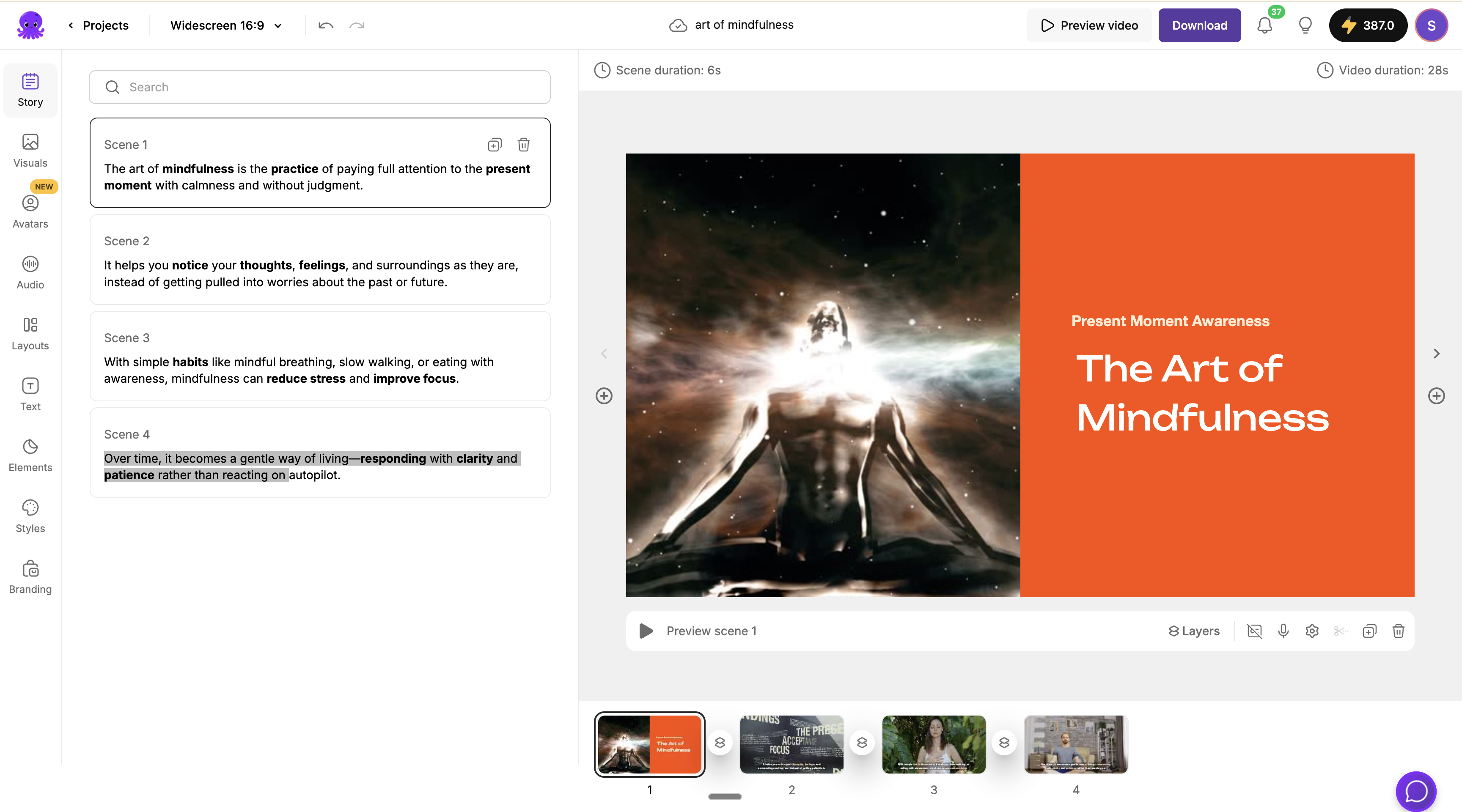
Pictory App storyboard editor showing a multi-scene project with text layers, background videos, and subtitles
- Background videos and images
- Header text layers (“Present Moment Awareness”, “The Art of Mindfulness”)
- Subtitles that will be narrated as voice-over
- Custom layouts and styling
Step 2: Download the Project File
Once your project is ready, download it as a.pictai file:
- Go to your Projects Page
- Find your project and click on it to open details
- Click the download icon next to the project file
- Save the
.pictaifile to your computer
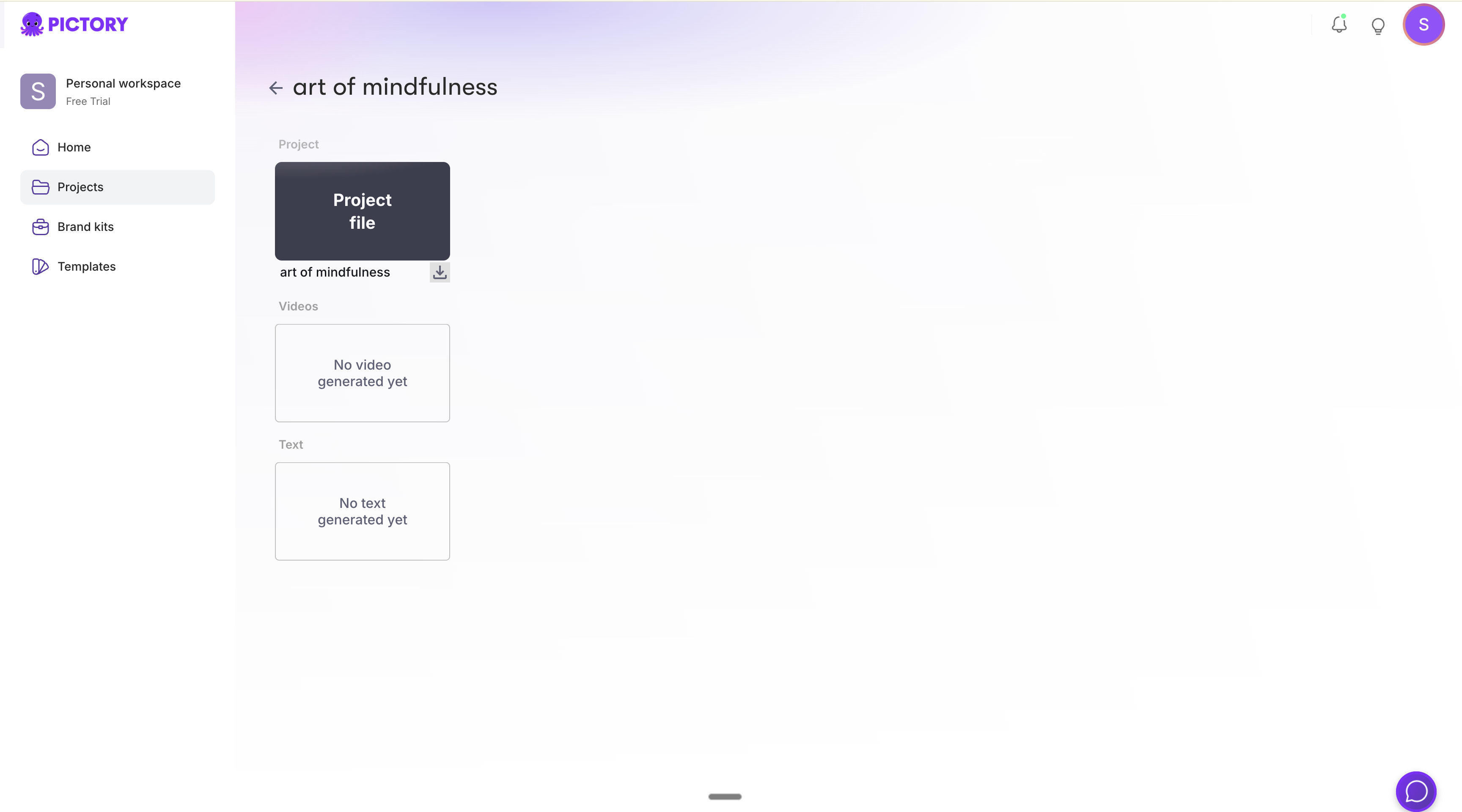
Pictory Projects page showing the download option for a project file
The
.pictai file contains your complete project configuration including scenes, layers, audio settings, and visual assets.Step 3: Create a Template from the Project
Upload your.pictai file to the Template API to create a reusable template:
Step 4: Get Template Details
Retrieve your template details to see the structure, scene IDs, layer IDs, and available customization points:Using Template Variables
Template variables provide a simple way to personalize videos without modifying the underlying structure. Variables defined in your project using{{variableName}} syntax are automatically detected and can be replaced when rendering videos.
How Template Variables Work
When you create a template from a project that contains{{variableName}} placeholders, these become customizable variables. The template response includes a variables object showing all detected placeholders.
Variable Syntax
Variables can be placed in:
- Scene subtitles/narration text
- Text layers (headers, titles, captions)
- Any text element in your project
Example: Template with Variables
If your template contains text like:Render Video with Variable Substitution
Use thevariables object to replace placeholders with actual values:
{{Name}}→John Smith{{CompanyName}}→Acme Corporation{{Date}}→January 15, 2026
Generating Personalized Videos at Scale
The real power of template variables is generating personalized videos for many recipients:Common Variable Use Cases
Personalized Greetings:Combining Variables with Template Overrides
You can use bothvariables for simple text substitution and templateOverride for structural changes in the same request:
- Replace text variables globally with the
variablesobject - Override specific layers (like logos or background videos) with
templateOverride - Add, delete, or modify scenes while maintaining personalization
Using Template Overrides
ThetemplateOverride object allows you to customize existing scenes, add new scenes, or modify layers when creating videos from your template.
Understanding Template Override Structure
Override Existing Scene Subtitles
Replace the subtitle text of an existing scene:Override Scene Layers
Replace text, images, or videos in scene layers:Layer Override Options
Override with Custom Text Styles
Delete or Copy Scenes
Delete a scene:Adding New Scenes to Templates
You can insert new scenes into your template at specific positions. New scenes require content from one of these sources:story, brief, blogUrl, pptUrl, audioUrl, or videoUrl.
Scene Positioning Options
Inherit Style from Existing Scene
When adding new scenes, you can inherit the layout and styling from an existing scene:Example: Insert a New Scene After Scene 1
Example: Replace Scene 3 with New Content
Example: Add Scene at Specific Position
New Scene Content Sources
When adding new scenes, provide content using one of these properties:
Example with an AI brief:
Complete Example: Dynamic Video Generation
Here’s a complete example that demonstrates overriding existing content and adding new scenes:Template Override Reference
Referencing Existing Scenes
Use either
sceneId or scenePosition, not both. Scene IDs are more reliable as positions can change.Adding New Scenes
Styling New Scenes
Scene Operations
Best Practices
Design Templates for Flexibility
Design Templates for Flexibility
- Create modular scenes that work independently
- Use consistent layer naming for easy identification
- Design with various content lengths in mind
- Test templates with different override combinations
Use Scene IDs over Positions
Use Scene IDs over Positions
- Scene IDs are stable identifiers that do not change
- Positions shift when scenes are added or removed
- Store and reference scene IDs from the Get Template response
- Use positions only when the template structure is fixed
Validate Before Rendering
Validate Before Rendering
- Fetch template details to verify scene and layer IDs exist
- Check that media URLs are accessible before submission
- Test with small changes before complex overrides
- Monitor job status and handle failures gracefully
Optimize Media Assets
Optimize Media Assets
- Use optimized image and video formats
- Host media on reliable CDNs with good latency
- Match video dimensions to template aspect ratio
- Keep file sizes reasonable for faster processing
Troubleshooting
Scene or Layer ID not found
Scene or Layer ID not found
Problem: API returns error about invalid scene or layer ID.Solution:
- Fetch fresh template details using Get Template API
- Verify the ID matches exactly (case-sensitive)
- Check that the scene/layer has not been removed
- Use
scenePositionif scene IDs have changed
New scene not appearing
New scene not appearing
Problem: Added scene does not show in rendered video.Solution:
- Ensure you have provided a content source (story, blogUrl, etc.)
- Verify positioning parameters are correct
- Check that
baseSceneIdorbaseScenePositionexists - Review job status for any processing errors
Layer override not applying
Layer override not applying
Problem: Text or media changes not reflected in output.Solution:
- Confirm the
layerIdmatches template exactly - Ensure
typematches the layer type in template - Check that media URLs are publicly accessible
- Verify the layer is not being deleted elsewhere
Style Inheritance Not Working
Style Inheritance Not Working
Problem: New scene does not match expected styling.Solution:
- Verify
baseSceneIdorbaseScenePositionis valid - Check that the base scene has the styling you expect
- Only one of baseSceneId or baseScenePosition should be used
- Ensure the base scene is not being deleted in the same request
Next Steps
Explore more advanced features to enhance your template-based workflows:Project as Template
Use variables for simple personalization at scale
AI Voice-Over
Add AI narration to your template videos
Smart Layouts
Apply consistent layouts across scenes
Brand Settings
Maintain brand consistency in generated videos
API Reference
Create Template
Upload .pictai files to create templates
Get Template
Retrieve template structure and IDs
Render Video
Create videos with template overrides
Get Job Status
Monitor video creation progress