> ## Documentation Index
> Fetch the complete documentation index at: https://docs.pictory.ai/llms.txt
> Use this file to discover all available pages before exploring further.
# Text to Video with Make.com and Google Sheets
> Automate video creation from Google Sheets using Pictory API and Make.com scenarios. A two-scenario approach designed for reliable execution within Make.com's free plan limits.
This guide demonstrates how to build a no-code video creation pipeline using [Make.com](https://www.make.com) (formerly Integromat) and Google Sheets. The integration uses two separate Make.com scenarios to render videos from spreadsheet data and receive completion notifications via webhook.
## Why Two Scenarios?
Make.com scenarios have a maximum execution time of **40 minutes on paid plans** and **5 minutes on the free plan**. Since video rendering can take several minutes, a single scenario that submits a render request and waits for completion could exceed these limits.
By splitting the workflow into two scenarios, each scenario completes quickly and well within the free plan's 5-minute execution limit:
1. **Scenario 1** submits the render request and writes the job ID to the spreadsheet (completes in seconds)
2. **Scenario 2** receives a webhook callback when rendering finishes and updates the spreadsheet with the video URL (completes in seconds)
This two-scenario design is ideal for **free plan users** and ensures reliable execution regardless of how long the video takes to render.
## Architecture Overview
```mermaid theme={null}
flowchart LR
subgraph Scenario1["Scenario 1: Render Video"]
A[Watch New Rows] --> B[Search Approved Rows]
B --> C[Pictory Render API]
C --> D[Write Job ID]
end
subgraph Pictory["Pictory Cloud"]
E[Video Rendering Engine]
end
subgraph Scenario2["Scenario 2: Webhook"]
F[Webhook Trigger] --> G[Search Job Row]
G --> H[Update Video URL]
H --> I[Update Review Status]
end
C -->|render request + webhook URL| E
E -->|webhook callback| F
```
## Before You Begin
Ensure you have the following:
* A Pictory API key ([get one here](https://app.pictory.ai/api-access))
* A [Make.com](https://www.make.com) account (free or paid)
* A Google account with access to Google Sheets
* A Google Sheets spreadsheet set up with the required structure (described below)
## Google Sheets Setup
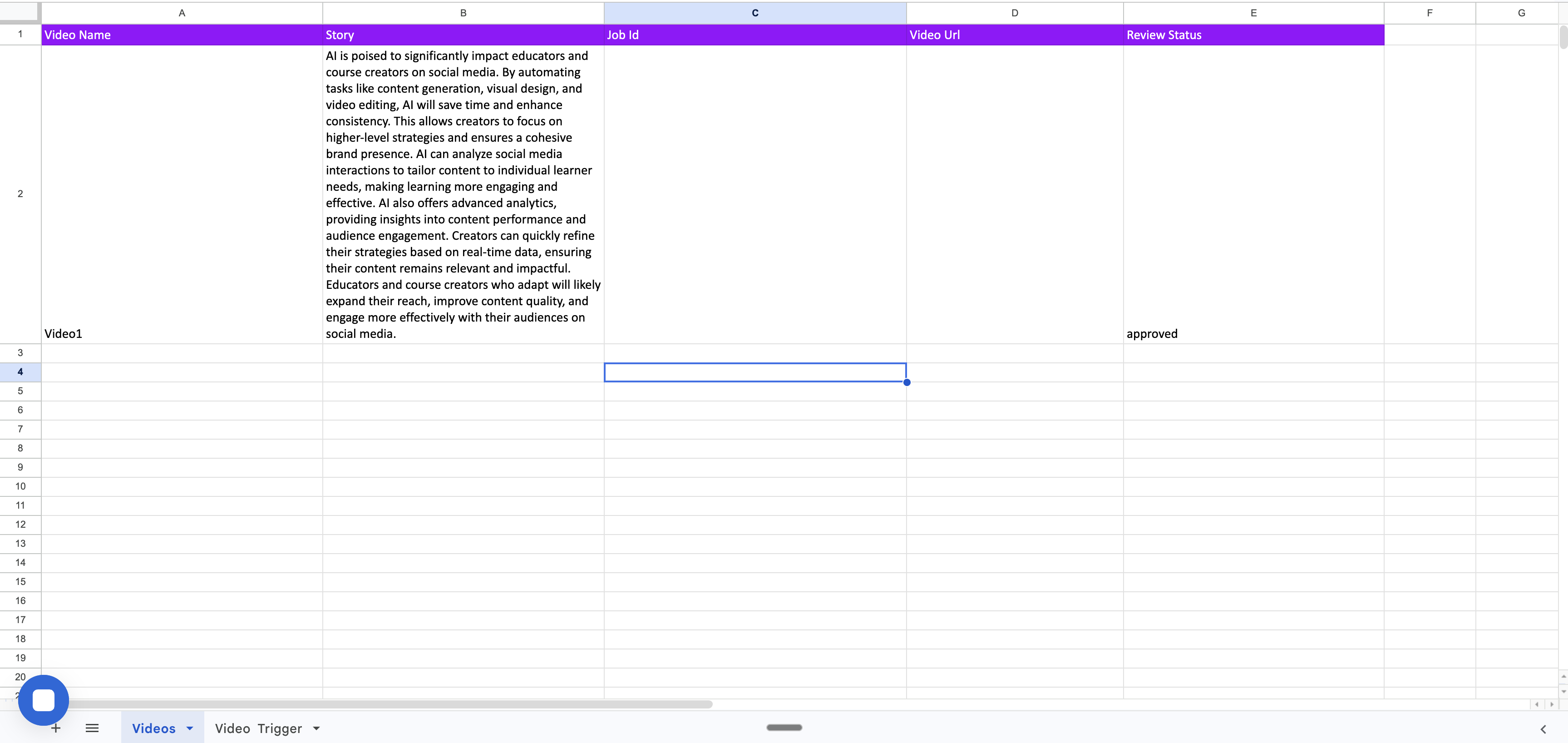
Create a Google Sheets spreadsheet with two sheets: **Videos** and **Video Trigger**.
### Sheet 1: "Videos"
This is the primary data sheet that stores video entries and their rendering results. Set up the following column headers in row 1:
| Column A | Column B | Column C | Column D | Column E |
| -------------- | --------- | ---------- | ------------- | ----------------- |
| **Video Name** | **Story** | **Job Id** | **Video Url** | **Review Status** |
For each video entry, populate the following columns:
* **Video Name**: A descriptive name for the video
* **Story**: The full story text that Pictory will convert into video scenes
* **Review Status**: Set to `approved` when the row is ready for rendering
Leave the **Job Id** and **Video Url** columns empty — these are populated automatically by the scenarios during execution.
 ### Sheet 2: "Video Trigger"
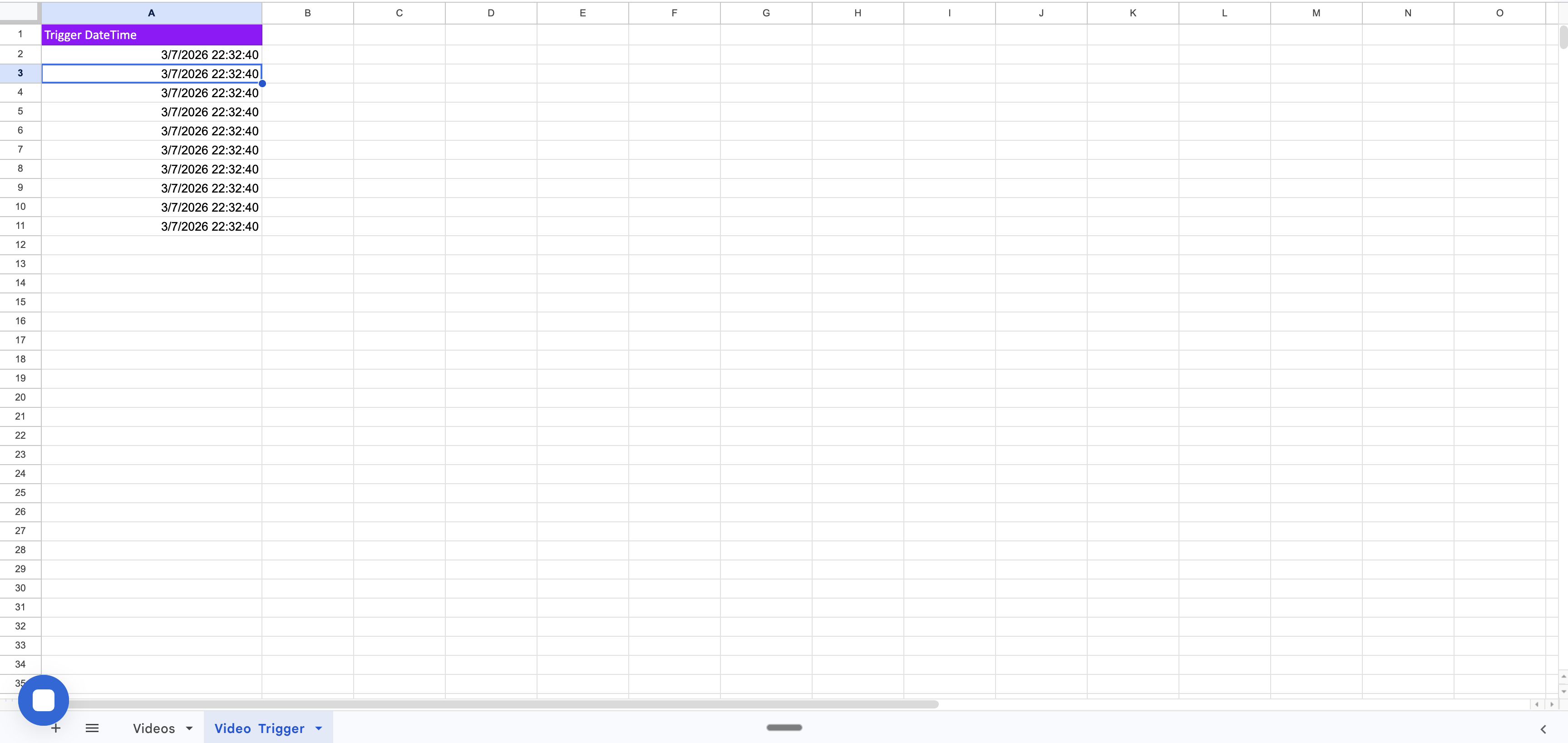
This sheet controls when Scenario 1 runs. It contains a single column:
| Column A |
| -------------------- |
| **Trigger DateTime** |
Each time you add a new datetime value to this sheet, Scenario 1 detects the new row and initiates a rendering cycle. Add the current date and time to trigger a new execution.
### Sheet 2: "Video Trigger"
This sheet controls when Scenario 1 runs. It contains a single column:
| Column A |
| -------------------- |
| **Trigger DateTime** |
Each time you add a new datetime value to this sheet, Scenario 1 detects the new row and initiates a rendering cycle. Add the current date and time to trigger a new execution.
 ## Spreadsheet Data Flow
As the two scenarios execute, the Videos sheet progresses through the following states:
### State 1: Ready for Rendering
The row contains the video name, story text, and review status set to `approved`. The Job Id and Video Url columns are empty.
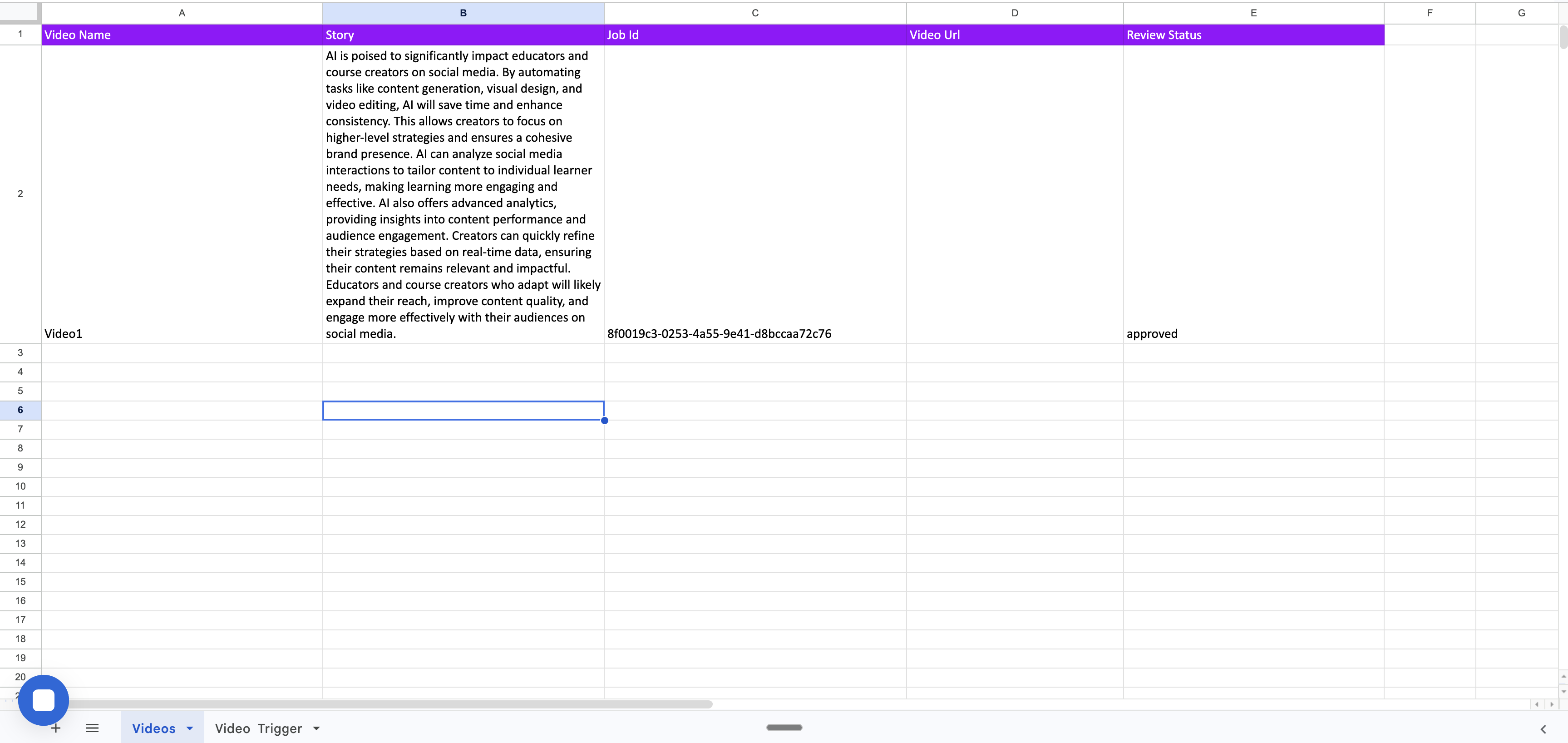
### State 2: Render Submitted (After Scenario 1)
After Scenario 1 executes, it submits the render request to Pictory and writes the returned `jobId` into the **Job Id** column. The review status remains `approved` while the video is being rendered in the Pictory cloud.
## Spreadsheet Data Flow
As the two scenarios execute, the Videos sheet progresses through the following states:
### State 1: Ready for Rendering
The row contains the video name, story text, and review status set to `approved`. The Job Id and Video Url columns are empty.
### State 2: Render Submitted (After Scenario 1)
After Scenario 1 executes, it submits the render request to Pictory and writes the returned `jobId` into the **Job Id** column. The review status remains `approved` while the video is being rendered in the Pictory cloud.
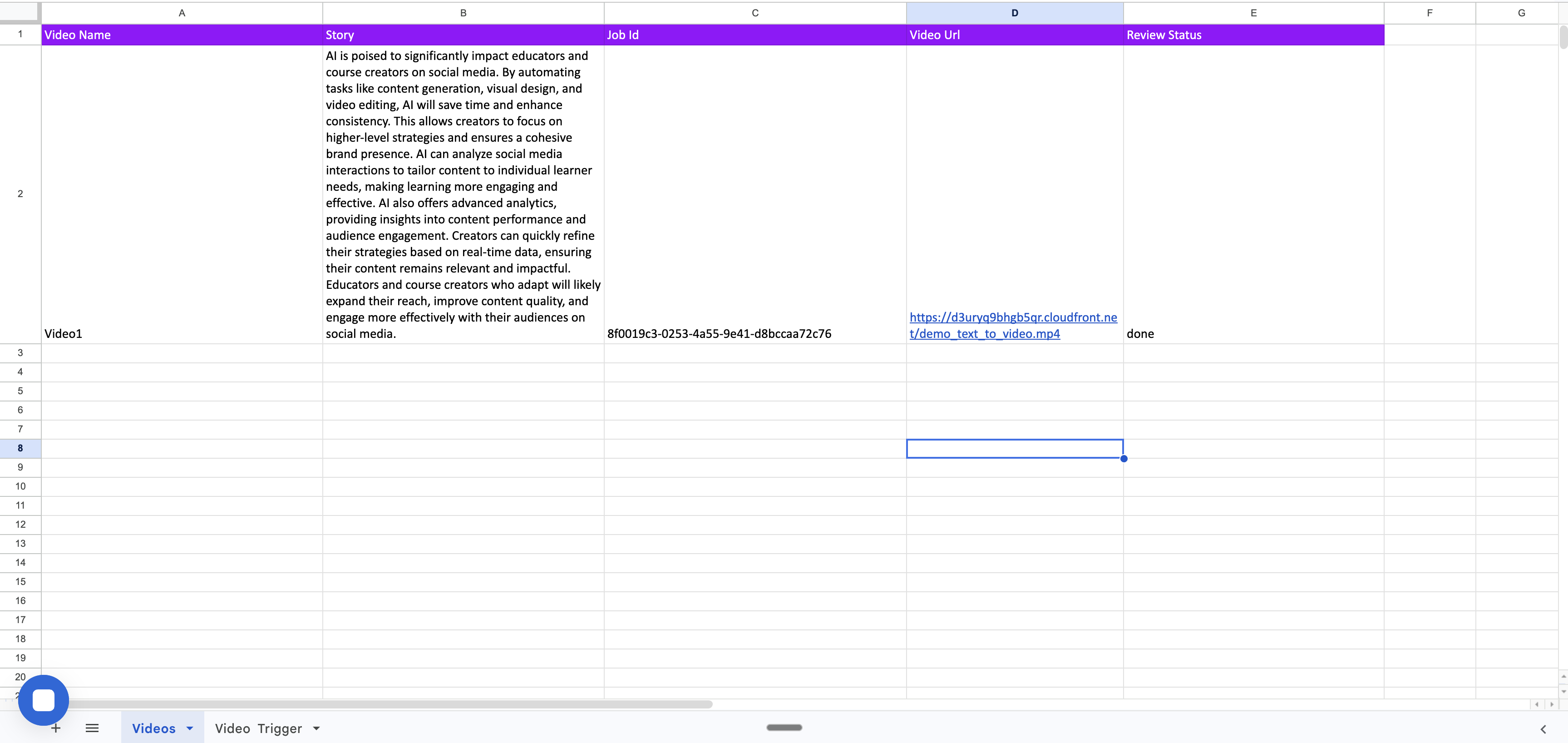
 ### State 3: Rendering Complete (After Scenario 2)
When Pictory finishes rendering the video, it sends a webhook callback to Scenario 2. The scenario locates the row by matching the job ID, writes the rendered **Video Url**, and updates the **Review Status** from `approved` to `done`.
### State 3: Rendering Complete (After Scenario 2)
When Pictory finishes rendering the video, it sends a webhook callback to Scenario 2. The scenario locates the row by matching the job ID, writes the rendered **Video Url**, and updates the **Review Status** from `approved` to `done`.
 ## Scenario 1: Render Text to Video from Google Spreadsheet
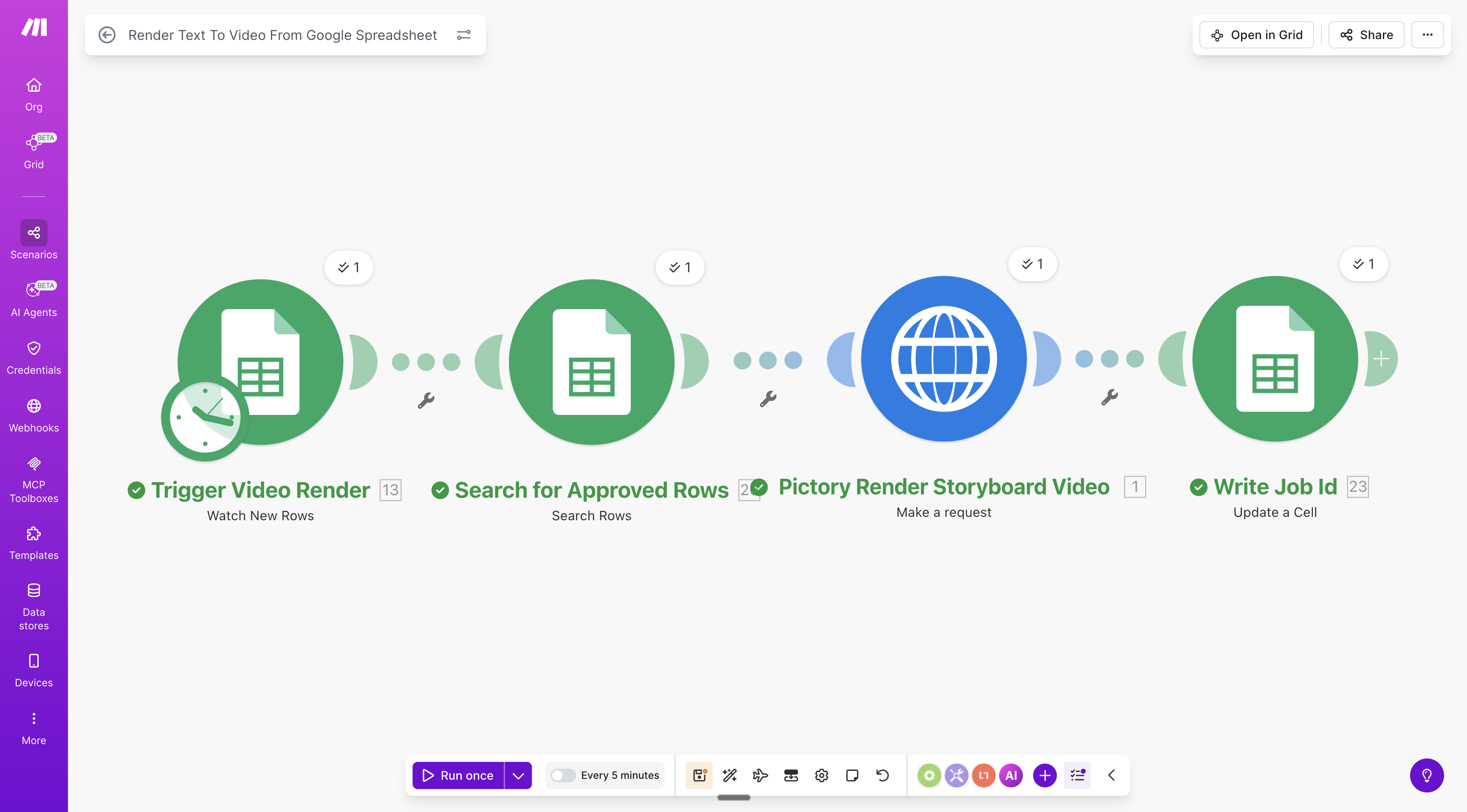
This scenario watches for new rows in the trigger sheet, finds approved video entries, submits them to the Pictory Render API, and writes the job ID back to the spreadsheet.
## Scenario 1: Render Text to Video from Google Spreadsheet
This scenario watches for new rows in the trigger sheet, finds approved video entries, submits them to the Pictory Render API, and writes the job ID back to the spreadsheet.
 ### Module Breakdown
#### 1. Trigger Video Render (Google Sheets: Watch New Rows)
| Property | Value |
| ------------ | ------------------------------------------- |
| **Module** | `google-sheets:watchRows` |
| **Sheet** | Video Trigger |
| **Schedule** | Every 5 minutes |
| **Purpose** | Detects new rows added to the trigger sheet |
This module monitors the "Video Trigger" sheet for new rows. When a new datetime value is added to a row, the module detects it and triggers the scenario execution. The polling interval can be adjusted based on your requirements.
***
#### 2. Search for Approved Rows (Google Sheets: Search Rows)
| Property | Value |
| ----------- | --------------------------------------------------- |
| **Module** | `google-sheets:filterRows` |
| **Sheet** | Videos |
| **Filter** | Column E (Review Status) equals `approved` |
| **Purpose** | Finds video entries that are approved for rendering |
This module searches the "Videos" sheet for rows where the **Review Status** column contains `approved`. Only approved entries proceed to the rendering step.
***
#### 3. Pictory Render Storyboard Video (HTTP: Make a Request)
| Property | Value |
| ----------- | --------------------------------------------------------------- |
| **Module** | `http:MakeRequest` |
| **Method** | `POST` |
| **URL** | `https://api.pictory.ai/pictoryapis/v2/video/storyboard/render` |
| **Purpose** | Submits the video rendering request to Pictory |
This module sends a `POST` request to the Pictory [Render Storyboard Video](/api-reference/videos/render-storyboard-video) API with the following configuration:
**Headers:**
* `Content-Type`: `application/json`
* `Authorization`: Your Pictory API key
**Request Body:**
```json theme={null}
{
"videoName": "demo_text_to_video",
"webhook": "YOUR_MAKE_WEBHOOK_URL",
"smartLayoutName": "Wanderlust",
"voiceOver": {
"enabled": true,
"aiVoices": [
{
"speaker": "Brian"
}
]
},
"backgroundMusic": {
"enabled": true,
"volume": 0.1,
"autoMusic": true
},
"scenes": [
{
"story": "{{story_from_spreadsheet}}",
"createSceneOnNewLine": true,
"createSceneOnEndOfSentence": true
}
]
}
```
Key fields:
| Field | Description |
| ----------------- | ------------------------------------------------------------------------------------------- |
| `videoName` | Name assigned to the generated video |
| `webhook` | The URL of your Scenario 2 webhook (Pictory sends a callback here when rendering completes) |
| `smartLayoutName` | Visual layout theme applied to the video |
| `voiceOver` | AI voice configuration with the selected speaker |
| `backgroundMusic` | Auto-selected background music at 10% volume |
| `scenes[].story` | The story text pulled from the spreadsheet's Story column |
Replace `YOUR_MAKE_WEBHOOK_URL` with the actual webhook URL from Scenario 2. This URL is generated after creating the webhook trigger in Scenario 2.
**Response:** Returns a `jobId` that uniquely identifies the rendering job.
```json theme={null}
{
"data": {
"jobId": "abc123-def456-..."
}
}
```
***
#### 4. Write Job Id (Google Sheets: Update a Cell)
| Property | Value |
| ----------- | ------------------------------------------------------- |
| **Module** | `google-sheets:updateCell` |
| **Sheet** | Videos |
| **Cell** | Column C (Job Id) at the matching row |
| **Value** | `{{data.data.jobId}}` from the API response |
| **Purpose** | Records the job ID for tracking and webhook correlation |
This module writes the `jobId` returned by the Pictory API into the **Job Id** column of the corresponding row. This value is used by Scenario 2 to locate the correct row when the webhook fires.
***
## Scenario 2: Video Rendered Webhook
This scenario listens for webhook callbacks from Pictory when a video finishes rendering, then updates the spreadsheet with the video URL and marks the row as completed.
### Module Breakdown
#### 1. Trigger Video Render (Google Sheets: Watch New Rows)
| Property | Value |
| ------------ | ------------------------------------------- |
| **Module** | `google-sheets:watchRows` |
| **Sheet** | Video Trigger |
| **Schedule** | Every 5 minutes |
| **Purpose** | Detects new rows added to the trigger sheet |
This module monitors the "Video Trigger" sheet for new rows. When a new datetime value is added to a row, the module detects it and triggers the scenario execution. The polling interval can be adjusted based on your requirements.
***
#### 2. Search for Approved Rows (Google Sheets: Search Rows)
| Property | Value |
| ----------- | --------------------------------------------------- |
| **Module** | `google-sheets:filterRows` |
| **Sheet** | Videos |
| **Filter** | Column E (Review Status) equals `approved` |
| **Purpose** | Finds video entries that are approved for rendering |
This module searches the "Videos" sheet for rows where the **Review Status** column contains `approved`. Only approved entries proceed to the rendering step.
***
#### 3. Pictory Render Storyboard Video (HTTP: Make a Request)
| Property | Value |
| ----------- | --------------------------------------------------------------- |
| **Module** | `http:MakeRequest` |
| **Method** | `POST` |
| **URL** | `https://api.pictory.ai/pictoryapis/v2/video/storyboard/render` |
| **Purpose** | Submits the video rendering request to Pictory |
This module sends a `POST` request to the Pictory [Render Storyboard Video](/api-reference/videos/render-storyboard-video) API with the following configuration:
**Headers:**
* `Content-Type`: `application/json`
* `Authorization`: Your Pictory API key
**Request Body:**
```json theme={null}
{
"videoName": "demo_text_to_video",
"webhook": "YOUR_MAKE_WEBHOOK_URL",
"smartLayoutName": "Wanderlust",
"voiceOver": {
"enabled": true,
"aiVoices": [
{
"speaker": "Brian"
}
]
},
"backgroundMusic": {
"enabled": true,
"volume": 0.1,
"autoMusic": true
},
"scenes": [
{
"story": "{{story_from_spreadsheet}}",
"createSceneOnNewLine": true,
"createSceneOnEndOfSentence": true
}
]
}
```
Key fields:
| Field | Description |
| ----------------- | ------------------------------------------------------------------------------------------- |
| `videoName` | Name assigned to the generated video |
| `webhook` | The URL of your Scenario 2 webhook (Pictory sends a callback here when rendering completes) |
| `smartLayoutName` | Visual layout theme applied to the video |
| `voiceOver` | AI voice configuration with the selected speaker |
| `backgroundMusic` | Auto-selected background music at 10% volume |
| `scenes[].story` | The story text pulled from the spreadsheet's Story column |
Replace `YOUR_MAKE_WEBHOOK_URL` with the actual webhook URL from Scenario 2. This URL is generated after creating the webhook trigger in Scenario 2.
**Response:** Returns a `jobId` that uniquely identifies the rendering job.
```json theme={null}
{
"data": {
"jobId": "abc123-def456-..."
}
}
```
***
#### 4. Write Job Id (Google Sheets: Update a Cell)
| Property | Value |
| ----------- | ------------------------------------------------------- |
| **Module** | `google-sheets:updateCell` |
| **Sheet** | Videos |
| **Cell** | Column C (Job Id) at the matching row |
| **Value** | `{{data.data.jobId}}` from the API response |
| **Purpose** | Records the job ID for tracking and webhook correlation |
This module writes the `jobId` returned by the Pictory API into the **Job Id** column of the corresponding row. This value is used by Scenario 2 to locate the correct row when the webhook fires.
***
## Scenario 2: Video Rendered Webhook
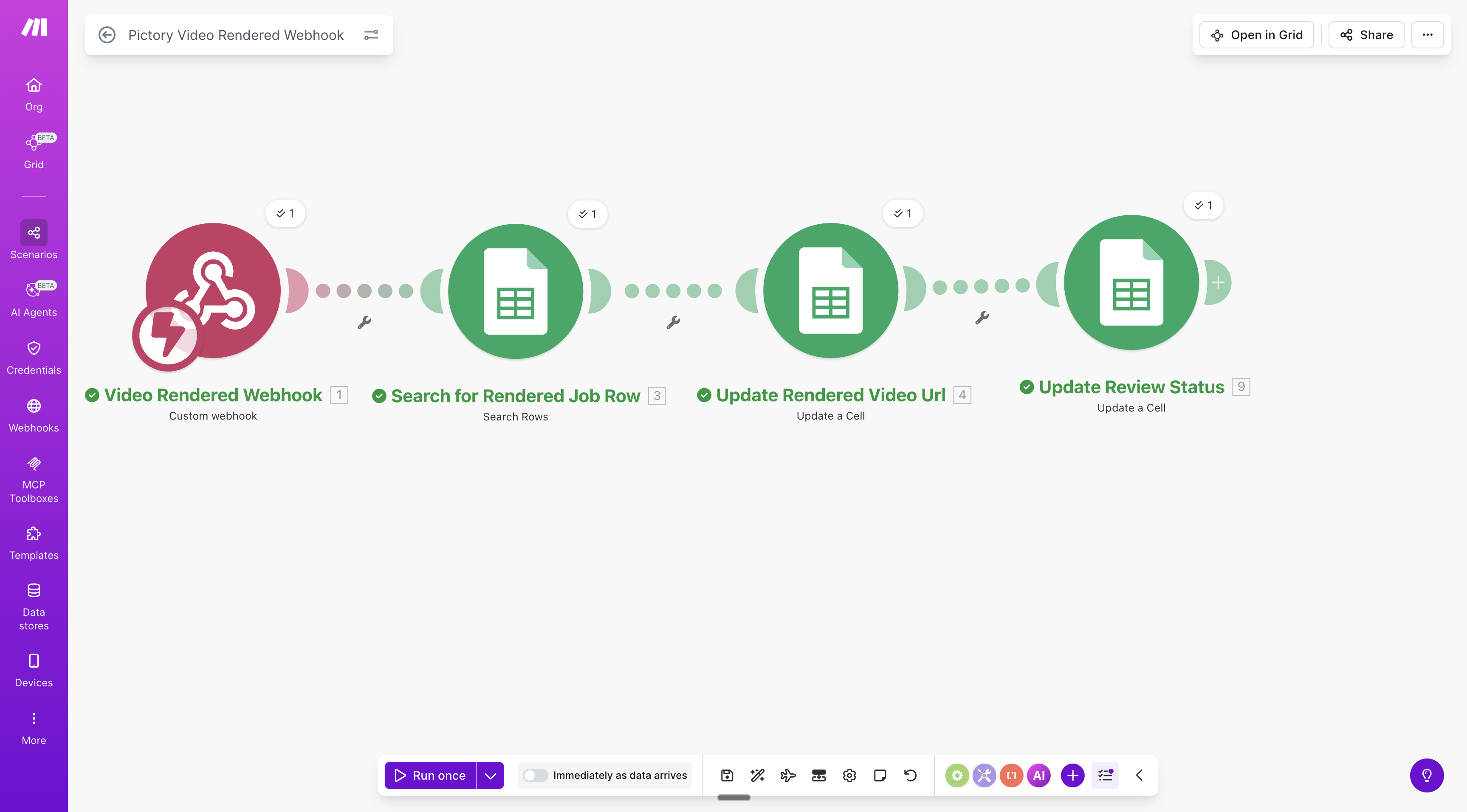
This scenario listens for webhook callbacks from Pictory when a video finishes rendering, then updates the spreadsheet with the video URL and marks the row as completed.
 ### Module Breakdown
#### 1. Video Rendered Webhook (Custom Webhook)
| Property | Value |
| ----------- | ----------------------------------------------------------------- |
| **Module** | `gateway:CustomWebHook` |
| **Trigger** | Immediately as data arrives |
| **Purpose** | Receives the callback from Pictory when video rendering completes |
This module creates a custom webhook endpoint in Make.com. When Pictory finishes rendering a video, it sends a `POST` request to this webhook URL with the following payload:
```json theme={null}
{
"job_id": "abc123-def456-...",
"success": true,
"data": {
"status": "completed",
"progress": 100,
"videoURL": "https://...",
"videoShareURL": "https://...",
"videoEmbedURL": "https://...",
"audioURL": "https://...",
"thumbnail": "https://...",
"srtFile": "https://...",
"txtFile": "https://...",
"vttFile": "https://...",
"videoDuration": 45.2,
"encodingDuration": 30.5
},
"userId": "user-id"
}
```
Copy the webhook URL generated by this module and paste it into the `webhook` field of the Pictory API request body in Scenario 1.
***
#### 2. Search for Rendered Job Row (Google Sheets: Search Rows)
| Property | Value |
| ----------- | -------------------------------------------------------- |
| **Module** | `google-sheets:filterRows` |
| **Sheet** | Videos |
| **Filter** | Column C (Job Id) equals `{{webhook.job_id}}` |
| **Purpose** | Finds the spreadsheet row that matches the completed job |
This module searches the "Videos" sheet for the row where the **Job Id** column matches the `job_id` received from the webhook. This correlates the webhook callback with the correct video entry.
***
#### 3. Update Rendered Video Url (Google Sheets: Update a Cell)
| Property | Value |
| ----------- | ------------------------------------------------ |
| **Module** | `google-sheets:updateCell` |
| **Sheet** | Videos |
| **Cell** | Column D (Video Url) at the matching row |
| **Value** | `{{webhook.data.videoURL}}` |
| **Purpose** | Writes the rendered video URL to the spreadsheet |
Once the matching row is found, this module updates the **Video Url** column with the download URL of the rendered video.
***
#### 4. Update Review Status (Google Sheets: Update a Cell)
| Property | Value |
| ----------- | -------------------------------------------- |
| **Module** | `google-sheets:updateCell` |
| **Sheet** | Videos |
| **Cell** | Column E (Review Status) at the matching row |
| **Value** | `done` |
| **Purpose** | Marks the video entry as completed |
This module updates the **Review Status** column from `approved` to `done`, indicating that the video has been successfully rendered and the URL is available.
## Import the Blueprints
Both scenarios are available as pre-configured blueprint JSON files that can be imported directly into your Make.com account. Blueprints are Make.com's format for sharing scenario configurations — they contain the complete module setup, connections, and data mappings, eliminating the need to configure each module manually.
Download the blueprint files before proceeding:
* [Render Text To Video From Google Sheet](/integrations/make/Render%20Text%20To%20Video%20From%20Google%20Sheet.blueprint.json) (Scenario 1)
* [Video Rendered Webhook](/integrations/make/Video%20Rendered%20Webhook.blueprint.json) (Scenario 2)
Never share blueprint files containing your actual API key. Always use placeholder values like `YOUR_PICTORY_API_KEY` in shared blueprints and set the real key only in your private Make.com account.
### Step-by-Step Import and Configuration
Follow this order to ensure the webhook URL is available when configuring Scenario 1. Scenario 2 must be created first because it generates the webhook URL that Scenario 1 needs.
Create a new Google Sheets spreadsheet with two sheets named **Videos** and **Video Trigger**, using the column structure described in the [Google Sheets Setup](#google-sheets-setup) section above. Add at least one video entry to the "Videos" sheet with a video name, story text, and set the **Review Status** to `approved`.
1. Log in to your [Make.com](https://www.make.com) account
2. Click **Scenarios** in the left sidebar, then click **Create a new scenario**
3. In the scenario editor, click the **three-dot menu** (⋮) at the bottom of the screen
4. Select **Import Blueprint** from the menu
5. Choose the downloaded `Video Rendered Webhook.blueprint.json` file and click **Save**
6. The scenario modules will appear in the editor, matching the layout shown in the Scenario 2 screenshot above
Each Google Sheets module in the scenario requires a connection to your Google account:
1. Click on the **Search for Rendered Job Row** module
2. Under **Connection**, click **Add** and sign in with your Google account to authorize Make.com
3. Select your spreadsheet under **Spreadsheet Name** and choose the **Videos** sheet
4. Repeat for the **Update Rendered Video Url** and **Update Review Status** modules, using the same Google connection
1. Click on the **Video Rendered Webhook** module (the first module in the scenario)
2. Under **Webhook**, click **Add** to create a new webhook
3. Assign a descriptive name (e.g., "Pictory Video Rendered Webhook") and click **Save**
4. Make.com generates a unique webhook URL. **Copy this URL** — it is required when configuring Scenario 1.
Turn on Scenario 2 by toggling the **Scheduling** switch at the bottom of the editor. The scenario is set to trigger **Immediately as data arrives**, so it will automatically run whenever Pictory sends a webhook callback.
1. Go back to **Scenarios** and click **Create a new scenario**
2. Click the **three-dot menu** (⋮) at the bottom and select **Import Blueprint**
3. Choose the downloaded `Render Text To Video From Google Sheet.blueprint.json` file and click **Save**
1. Click on the **Trigger Video Render** module
2. Under **Connection**, add your Google account (or reuse the connection created in Scenario 2)
3. Select your spreadsheet and choose the **Video Trigger** sheet
4. Repeat for the **Search for Approved Rows** module (select the **Videos** sheet) and the **Write Job Id** module (select the **Videos** sheet)
1. Click on the **Pictory Render Storyboard Video** module (the HTTP request module)
2. In the **Headers** section, locate the **Authorization** header
3. Replace `YOUR_PICTORY_API_KEY` with your actual Pictory API key (e.g., `pictai_xxxx...`)
1. Still in the **Pictory Render Storyboard Video** module, scroll down to the **Request content** (JSON body)
2. Locate the `webhook` field in the JSON body
3. Replace `YOUR_MAKE_WEBHOOK_URL` with the webhook URL you copied from Scenario 2 in Step 4
1. Turn on Scenario 1 by toggling the **Scheduling** switch. The default schedule is set to run **Every 5 minutes**.
2. To initiate your first video render, add a datetime value (e.g., the current date and time) to a new row in the **Video Trigger** sheet
3. During the next polling cycle, Scenario 1 detects the new row, identifies approved entries in the Videos sheet, submits the render request, and writes the job ID back to the spreadsheet
4. Upon rendering completion, Pictory sends a webhook callback to Scenario 2, which updates the video URL and sets the review status to `done`
After importing, click **Run once** at the bottom of the scenario editor to test each scenario before activating the automatic schedule. This verifies that all connections, spreadsheet references, and API credentials are configured correctly.
## Best Practices
Store your Pictory API key securely. In Make.com, you can use the HTTP module's built-in authentication options or store keys in a data store. Avoid hardcoding API keys directly in shared blueprints.
Use the **Webhooks** section in Make.com's left sidebar to monitor incoming webhook data. If a webhook fails to arrive, verify that the webhook URL in Scenario 1's request body matches the URL shown in Scenario 2's webhook module.
The webhook payload includes a `success` field. You can add a **Router** module after the webhook trigger to handle failed renders separately, such as sending a notification or updating the spreadsheet with an error status.
Scenario 1 processes one row per trigger execution. To render multiple videos, add multiple rows to the "Video Trigger" sheet. Each trigger cycle processes new rows and submits them for rendering.
On the Make.com free plan, you are limited to two active scenarios and 1,000 operations per month. This two-scenario architecture fits within the free plan's scenario limit. Monitor your operation usage in the Make.com dashboard.
## Troubleshooting
Verify your API key is correct in the HTTP request module's Authorization header. The value should be your complete API key (e.g., `pictai_xxxx...`). Do not add a `Bearer` prefix.
Verify that Scenario 2 is active and the webhook URL in Scenario 1's request body exactly matches the URL generated in Scenario 2. Test by running Scenario 1 manually and reviewing Scenario 2's execution history.
Confirm that all Google Sheets modules have a valid connection. Verify that the spreadsheet ID and sheet names match your Google Sheets document, and that column references (C, D, E) align with your spreadsheet structure.
The two-scenario design prevents timeouts since each scenario completes in seconds. If timeouts persist, verify that large spreadsheets are not slowing the Search Rows module. Add filters to limit the number of rows processed.
## Next Steps
Full API reference for the render endpoint used in Scenario 1
API reference for checking video rendering progress
Learn about storyboard payload options and scene configuration
Alternative workflow automation using n8n with polling-based approach
### Module Breakdown
#### 1. Video Rendered Webhook (Custom Webhook)
| Property | Value |
| ----------- | ----------------------------------------------------------------- |
| **Module** | `gateway:CustomWebHook` |
| **Trigger** | Immediately as data arrives |
| **Purpose** | Receives the callback from Pictory when video rendering completes |
This module creates a custom webhook endpoint in Make.com. When Pictory finishes rendering a video, it sends a `POST` request to this webhook URL with the following payload:
```json theme={null}
{
"job_id": "abc123-def456-...",
"success": true,
"data": {
"status": "completed",
"progress": 100,
"videoURL": "https://...",
"videoShareURL": "https://...",
"videoEmbedURL": "https://...",
"audioURL": "https://...",
"thumbnail": "https://...",
"srtFile": "https://...",
"txtFile": "https://...",
"vttFile": "https://...",
"videoDuration": 45.2,
"encodingDuration": 30.5
},
"userId": "user-id"
}
```
Copy the webhook URL generated by this module and paste it into the `webhook` field of the Pictory API request body in Scenario 1.
***
#### 2. Search for Rendered Job Row (Google Sheets: Search Rows)
| Property | Value |
| ----------- | -------------------------------------------------------- |
| **Module** | `google-sheets:filterRows` |
| **Sheet** | Videos |
| **Filter** | Column C (Job Id) equals `{{webhook.job_id}}` |
| **Purpose** | Finds the spreadsheet row that matches the completed job |
This module searches the "Videos" sheet for the row where the **Job Id** column matches the `job_id` received from the webhook. This correlates the webhook callback with the correct video entry.
***
#### 3. Update Rendered Video Url (Google Sheets: Update a Cell)
| Property | Value |
| ----------- | ------------------------------------------------ |
| **Module** | `google-sheets:updateCell` |
| **Sheet** | Videos |
| **Cell** | Column D (Video Url) at the matching row |
| **Value** | `{{webhook.data.videoURL}}` |
| **Purpose** | Writes the rendered video URL to the spreadsheet |
Once the matching row is found, this module updates the **Video Url** column with the download URL of the rendered video.
***
#### 4. Update Review Status (Google Sheets: Update a Cell)
| Property | Value |
| ----------- | -------------------------------------------- |
| **Module** | `google-sheets:updateCell` |
| **Sheet** | Videos |
| **Cell** | Column E (Review Status) at the matching row |
| **Value** | `done` |
| **Purpose** | Marks the video entry as completed |
This module updates the **Review Status** column from `approved` to `done`, indicating that the video has been successfully rendered and the URL is available.
## Import the Blueprints
Both scenarios are available as pre-configured blueprint JSON files that can be imported directly into your Make.com account. Blueprints are Make.com's format for sharing scenario configurations — they contain the complete module setup, connections, and data mappings, eliminating the need to configure each module manually.
Download the blueprint files before proceeding:
* [Render Text To Video From Google Sheet](/integrations/make/Render%20Text%20To%20Video%20From%20Google%20Sheet.blueprint.json) (Scenario 1)
* [Video Rendered Webhook](/integrations/make/Video%20Rendered%20Webhook.blueprint.json) (Scenario 2)
Never share blueprint files containing your actual API key. Always use placeholder values like `YOUR_PICTORY_API_KEY` in shared blueprints and set the real key only in your private Make.com account.
### Step-by-Step Import and Configuration
Follow this order to ensure the webhook URL is available when configuring Scenario 1. Scenario 2 must be created first because it generates the webhook URL that Scenario 1 needs.
Create a new Google Sheets spreadsheet with two sheets named **Videos** and **Video Trigger**, using the column structure described in the [Google Sheets Setup](#google-sheets-setup) section above. Add at least one video entry to the "Videos" sheet with a video name, story text, and set the **Review Status** to `approved`.
1. Log in to your [Make.com](https://www.make.com) account
2. Click **Scenarios** in the left sidebar, then click **Create a new scenario**
3. In the scenario editor, click the **three-dot menu** (⋮) at the bottom of the screen
4. Select **Import Blueprint** from the menu
5. Choose the downloaded `Video Rendered Webhook.blueprint.json` file and click **Save**
6. The scenario modules will appear in the editor, matching the layout shown in the Scenario 2 screenshot above
Each Google Sheets module in the scenario requires a connection to your Google account:
1. Click on the **Search for Rendered Job Row** module
2. Under **Connection**, click **Add** and sign in with your Google account to authorize Make.com
3. Select your spreadsheet under **Spreadsheet Name** and choose the **Videos** sheet
4. Repeat for the **Update Rendered Video Url** and **Update Review Status** modules, using the same Google connection
1. Click on the **Video Rendered Webhook** module (the first module in the scenario)
2. Under **Webhook**, click **Add** to create a new webhook
3. Assign a descriptive name (e.g., "Pictory Video Rendered Webhook") and click **Save**
4. Make.com generates a unique webhook URL. **Copy this URL** — it is required when configuring Scenario 1.
Turn on Scenario 2 by toggling the **Scheduling** switch at the bottom of the editor. The scenario is set to trigger **Immediately as data arrives**, so it will automatically run whenever Pictory sends a webhook callback.
1. Go back to **Scenarios** and click **Create a new scenario**
2. Click the **three-dot menu** (⋮) at the bottom and select **Import Blueprint**
3. Choose the downloaded `Render Text To Video From Google Sheet.blueprint.json` file and click **Save**
1. Click on the **Trigger Video Render** module
2. Under **Connection**, add your Google account (or reuse the connection created in Scenario 2)
3. Select your spreadsheet and choose the **Video Trigger** sheet
4. Repeat for the **Search for Approved Rows** module (select the **Videos** sheet) and the **Write Job Id** module (select the **Videos** sheet)
1. Click on the **Pictory Render Storyboard Video** module (the HTTP request module)
2. In the **Headers** section, locate the **Authorization** header
3. Replace `YOUR_PICTORY_API_KEY` with your actual Pictory API key (e.g., `pictai_xxxx...`)
1. Still in the **Pictory Render Storyboard Video** module, scroll down to the **Request content** (JSON body)
2. Locate the `webhook` field in the JSON body
3. Replace `YOUR_MAKE_WEBHOOK_URL` with the webhook URL you copied from Scenario 2 in Step 4
1. Turn on Scenario 1 by toggling the **Scheduling** switch. The default schedule is set to run **Every 5 minutes**.
2. To initiate your first video render, add a datetime value (e.g., the current date and time) to a new row in the **Video Trigger** sheet
3. During the next polling cycle, Scenario 1 detects the new row, identifies approved entries in the Videos sheet, submits the render request, and writes the job ID back to the spreadsheet
4. Upon rendering completion, Pictory sends a webhook callback to Scenario 2, which updates the video URL and sets the review status to `done`
After importing, click **Run once** at the bottom of the scenario editor to test each scenario before activating the automatic schedule. This verifies that all connections, spreadsheet references, and API credentials are configured correctly.
## Best Practices
Store your Pictory API key securely. In Make.com, you can use the HTTP module's built-in authentication options or store keys in a data store. Avoid hardcoding API keys directly in shared blueprints.
Use the **Webhooks** section in Make.com's left sidebar to monitor incoming webhook data. If a webhook fails to arrive, verify that the webhook URL in Scenario 1's request body matches the URL shown in Scenario 2's webhook module.
The webhook payload includes a `success` field. You can add a **Router** module after the webhook trigger to handle failed renders separately, such as sending a notification or updating the spreadsheet with an error status.
Scenario 1 processes one row per trigger execution. To render multiple videos, add multiple rows to the "Video Trigger" sheet. Each trigger cycle processes new rows and submits them for rendering.
On the Make.com free plan, you are limited to two active scenarios and 1,000 operations per month. This two-scenario architecture fits within the free plan's scenario limit. Monitor your operation usage in the Make.com dashboard.
## Troubleshooting
Verify your API key is correct in the HTTP request module's Authorization header. The value should be your complete API key (e.g., `pictai_xxxx...`). Do not add a `Bearer` prefix.
Verify that Scenario 2 is active and the webhook URL in Scenario 1's request body exactly matches the URL generated in Scenario 2. Test by running Scenario 1 manually and reviewing Scenario 2's execution history.
Confirm that all Google Sheets modules have a valid connection. Verify that the spreadsheet ID and sheet names match your Google Sheets document, and that column references (C, D, E) align with your spreadsheet structure.
The two-scenario design prevents timeouts since each scenario completes in seconds. If timeouts persist, verify that large spreadsheets are not slowing the Search Rows module. Add filters to limit the number of rows processed.
## Next Steps
Full API reference for the render endpoint used in Scenario 1
API reference for checking video rendering progress
Learn about storyboard payload options and scene configuration
Alternative workflow automation using n8n with polling-based approach