> ## Documentation Index
> Fetch the complete documentation index at: https://docs.pictory.ai/llms.txt
> Use this file to discover all available pages before exploring further.
# Introduction
> Get started with the Pictory API to create videos programmatically
Welcome to the Pictory API. This guide will help you get started with automated video creation. Whether you are building an application, automating your content workflow, or integrating video capabilities into your platform, the Pictory API makes it straightforward.
## What You Can Do
Turn written content into engaging videos with visuals
Transform blog articles into video content automatically
Convert presentations into shareable videos
Extract short clips from long videos
Add natural-sounding narration to your videos
Generate and customize subtitles in multiple languages
Maintain consistent brand styling across all your videos
Auto-upload to AWS S3, Vimeo, and more
## What You Need
Sign up for free at [app.pictory.ai](https://app.pictory.ai) if you do not have one
Choose a plan that fits your usage from the [API Subscription](https://app.pictory.ai/api-access) page
Your unique authentication credential for API access — details below
## Step 1: Create Your Account & Subscribe
Follow these steps to set up your account:
1. Get started by creating a free account at [Pictory](https://app.pictory.ai)
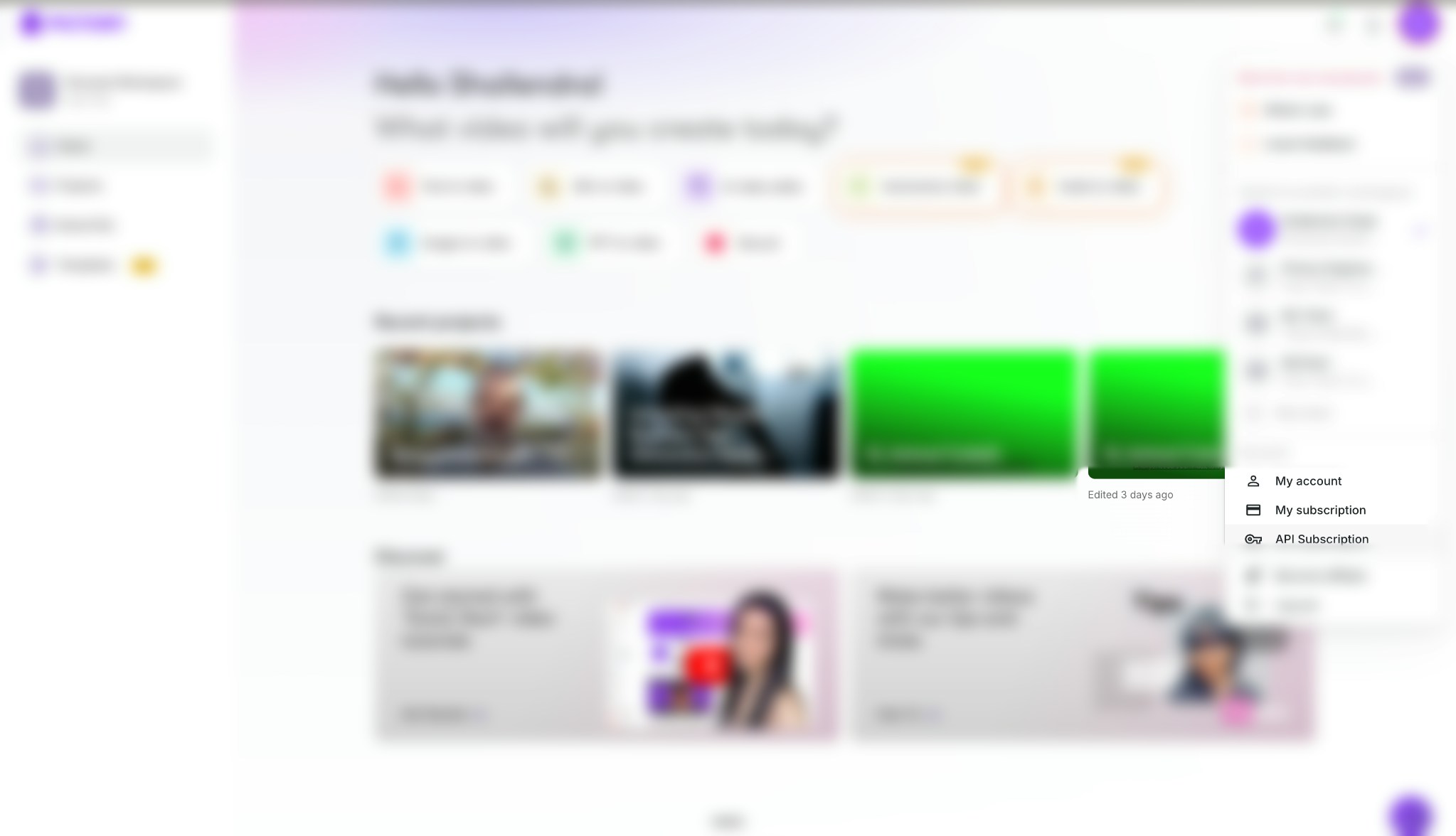
2. Click on your profile picture in the top-right corner
3. Select [API Subscription](https://app.pictory.ai/api-access) from the menu
4. Choose a plan based on how many videos you plan to create per month
5. Complete the purchase to activate your API access
 ## Step 2: Get Your API Key
Once you have an active subscription, you can find your API Key:
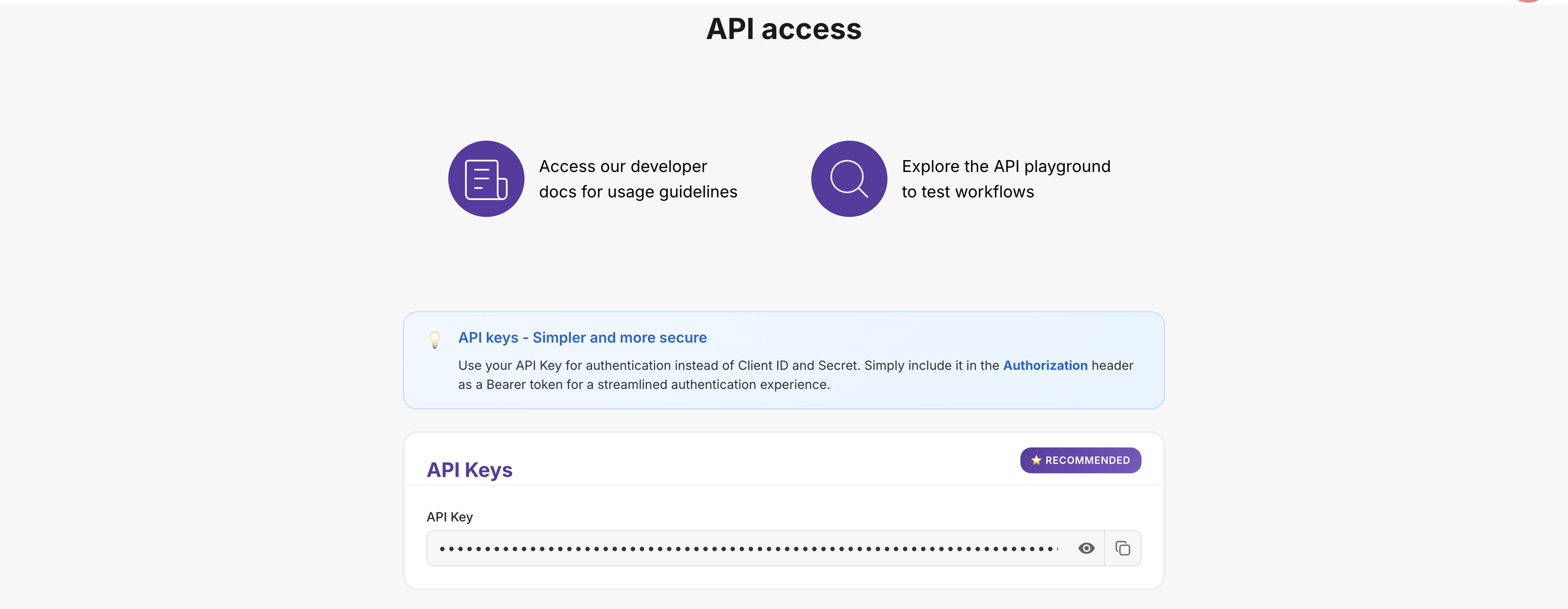
1. Go to the [API Subscription](https://app.pictory.ai/api-access) page in your Pictory account
2. Your API Key will be displayed on this page
3. Click the **Copy** button to copy it to your clipboard
4. Save it securely — you need it for every API request
## Step 2: Get Your API Key
Once you have an active subscription, you can find your API Key:
1. Go to the [API Subscription](https://app.pictory.ai/api-access) page in your Pictory account
2. Your API Key will be displayed on this page
3. Click the **Copy** button to copy it to your clipboard
4. Save it securely — you need it for every API request
 **Keep your API Key secure!**
Treat it like a password. Never share it publicly or include it in client-side code that users can see. Anyone with your API Key can create videos using your account.
## Step 3: Make Your First API Call
The following example demonstrates creating a video from text content:
1. **Include your API Key** in the `Authorization` request header for authentication
2. **Specify a video name** and provide the text content
3. **Receive a job ID** — the API returns this immediately for tracking the asynchronous rendering process
Video rendering is asynchronous. The API returns a job ID that you can use to poll for completion status.
```javascript Node.js theme={null}
import axios from "axios";
const API_BASE_URL = "https://api.pictory.ai/pictoryapis";
const API_KEY = "YOUR_API_KEY"; // Replace with your actual API Key
async function createVideo() {
try {
const response = await axios.post(
`${API_BASE_URL}/v2/video/storyboard/render`,
{
videoName: "my_first_video",
scenes: [
{
story: "Welcome to Pictory! This is my first video created with the API.",
createSceneOnNewLine: true,
createSceneOnEndOfSentence: true,
},
],
},
{
headers: {
"Content-Type": "application/json",
Authorization: API_KEY, // Use API Key directly
},
}
);
console.log("Job created:", response.data.data.jobId);
return response.data;
} catch (error) {
console.error("Error:", error.response?.data || error.message);
throw error;
}
}
createVideo();
```
```python Python theme={null}
import requests
API_BASE_URL = 'https://api.pictory.ai/pictoryapis'
API_KEY = 'YOUR_API_KEY' # Replace with your actual API Key
def create_video():
response = requests.post(
f'{API_BASE_URL}/v2/video/storyboard/render',
json={
'videoName': 'my_first_video',
'scenes': [
{
'story': 'Welcome to Pictory! This is my first video created with the API.',
'createSceneOnNewLine': True,
'createSceneOnEndOfSentence': True
}
]
},
headers={
'Content-Type': 'application/json',
'Authorization': API_KEY # Use API Key directly
}
)
response.raise_for_status()
print(f"Job created: {response.json()['data']['jobId']}")
return response.json()
if __name__ == '__main__':
create_video()
```
## Step 4: Check When Your Video is Ready
Since video rendering is asynchronous, poll the job status endpoint to determine when your video is ready:
1. **Use the job ID from Step 3** to query the current status
2. **Poll the status endpoint every 10–30 seconds** until rendering completes
3. **When status is `completed`** — the response will include your video download URL
```javascript Node.js theme={null}
async function checkJobStatus(jobId) {
const response = await axios.get(
`${API_BASE_URL}/v1/jobs/${jobId}`,
{
headers: {
Authorization: API_KEY,
},
}
);
const status = response.data.data.status;
console.log("Status:", status);
if (status === "completed") {
console.log("Video URL:", response.data.data.videoURL);
}
return response.data;
}
```
```python Python theme={null}
def check_job_status(job_id):
response = requests.get(
f'{API_BASE_URL}/v1/jobs/{job_id}',
headers={
'Authorization': API_KEY
}
)
response.raise_for_status()
status = response.json()['data']['status']
print(f'Status: {status}')
if status == 'completed':
print(f"Video URL: {response.json()['data']['videoURL']}")
return response.json()
```
**Understanding Status Values:**
| Status | What It Means | What To Do |
| ------------- | ------------------------------ | ------------------------------------------------ |
| `in-progress` | Video is still being rendered | Continue polling every 10–30 seconds |
| `completed` | Video is ready for download | Retrieve the video using the URL in the response |
| `failed` | Rendering encountered an error | Review the error message and retry |
**Tip:** Poll the status endpoint every 10–30 seconds. Polling too frequently may trigger rate limiting.
## Best Practices
Follow these recommendations to use the API securely and efficiently:
### Keep Your API Key Safe
* **Use environment variables** — Never hardcode your key directly in source code
* **Never commit to Git** — Add your key file to `.gitignore`
* **Use server-side code only** — Never expose your key in client-side applications
* **Regenerate if compromised** — Generate a new key immediately if you suspect unauthorized access
### Handle Errors Gracefully
* **Use try-catch blocks** — Wrap API calls to handle failures without crashing your application
* **Implement exponential backoff** — On failure, retry with increasing delays (2s, 4s, 8s)
* **Persist job IDs** — Store job IDs for status tracking and debugging
* **Validate inputs** — Ensure all required fields are populated before making API calls
### Optimize Performance
* **Poll at appropriate intervals** — Check job status every 10–30 seconds to avoid rate limiting
* **Cache responses** — Store frequently accessed data locally to reduce redundant API calls
* **Batch operations** — When creating multiple videos, process them concurrently rather than sequentially
## Troubleshooting Common Issues
Below are common issues and their solutions:
**Cause:** The API key is invalid, missing, or expired.
**Resolution:**
1. Verify that your API key starts with `pictai_`
2. Confirm it is included in the `Authorization` header
3. Check that your subscription is active at the [API Access page](https://app.pictory.ai/api-access)
4. If the issue persists, generate a new API key from the [API Access page](https://app.pictory.ai/api-access)
**Cause:** The specified voice name does not exist or is incorrectly formatted.
**Resolution:**
1. Voice names are case-sensitive — `"Brian"` is valid, `"brian"` is not
2. Refer to the [complete list of available voices](/api-reference/voiceovers/get-voiceover-tracks)
3. Ensure the voice name matches exactly as documented
**Cause:** A required field is missing or a parameter has an incorrect data type.
**Resolution:**
1. Review the [API documentation](/api-reference/video-storyboard/update-storyboard-elements) for required fields
2. Ensure correct data types — strings in quotes, numbers without, booleans as `true`/`false`
3. Verify field name casing — e.g., `videoName` not `VideoName`
**Cause:** API call frequency has exceeded the allowed rate.
**Resolution:**
1. Increase the interval between status checks to 10–30 seconds
2. Implement exponential backoff — wait 2s, then 4s, then 8s between retries
3. Review your [subscription limits](https://app.pictory.ai/api-access) and upgrade if necessary
**Cause:** The video is still rendering, or the job may have stalled.
**Resolution:**
1. Allow sufficient time — videos typically take 5–15 minutes depending on length
2. Continue polling every 10–30 seconds
3. If the status has not changed after 30 minutes, [contact support](https://pictory.ai/contact) with your job ID
## Build Faster with an LLM
Hand the entire Pictory API to Claude, ChatGPT, Cursor, or Windsurf in one shot — via `llms-full.txt`, the OpenAPI spec, or the Pictory MCP server. Includes a recommended system prompt and example natural-language → API-call mappings.
**Quick access:**
* **Full docs for LLMs:** [https://docs.pictory.ai/llms-full.txt](https://docs.pictory.ai/llms-full.txt)
* **OpenAPI spec:** [https://docs.pictory.ai/openapi.json](https://docs.pictory.ai/openapi.json)
* **End-to-end recipes:** [Common use cases with ready-to-run payloads](/guides/recipes/end-to-end-recipes)
## Next Steps
Now that you are familiar with the fundamentals, explore these resources to build more advanced integrations:
### Popular Guides
Learn how to turn any text into an engaging video
Add natural-sounding AI narration to your videos
Transform your blog posts into shareable videos
Apply your logo, colors, and fonts automatically
### API Reference
For complete technical details, refer to the API documentation:
Complete reference for creating videos
Monitor all your video creation jobs
Manage subtitle styles and brand presets
Auto-upload to AWS S3 and Vimeo
***
## Need Help?
Ask questions and connect with other developers
Get direct help from our support team
## Stay Connected
Join our community and stay updated with the latest features, tips, and announcements:
Get real-time updates, tips, and product announcements
Professional insights, company news, and industry trends
Visual inspiration, video tips, and creative content
Video tutorials, feature demos, and how-to guides
Join 20,000+ creators sharing tips and success stories
Join our Reddit community for discussions and updates
Chat with developers, get quick help, and share feedback
**Keep your API Key secure!**
Treat it like a password. Never share it publicly or include it in client-side code that users can see. Anyone with your API Key can create videos using your account.
## Step 3: Make Your First API Call
The following example demonstrates creating a video from text content:
1. **Include your API Key** in the `Authorization` request header for authentication
2. **Specify a video name** and provide the text content
3. **Receive a job ID** — the API returns this immediately for tracking the asynchronous rendering process
Video rendering is asynchronous. The API returns a job ID that you can use to poll for completion status.
```javascript Node.js theme={null}
import axios from "axios";
const API_BASE_URL = "https://api.pictory.ai/pictoryapis";
const API_KEY = "YOUR_API_KEY"; // Replace with your actual API Key
async function createVideo() {
try {
const response = await axios.post(
`${API_BASE_URL}/v2/video/storyboard/render`,
{
videoName: "my_first_video",
scenes: [
{
story: "Welcome to Pictory! This is my first video created with the API.",
createSceneOnNewLine: true,
createSceneOnEndOfSentence: true,
},
],
},
{
headers: {
"Content-Type": "application/json",
Authorization: API_KEY, // Use API Key directly
},
}
);
console.log("Job created:", response.data.data.jobId);
return response.data;
} catch (error) {
console.error("Error:", error.response?.data || error.message);
throw error;
}
}
createVideo();
```
```python Python theme={null}
import requests
API_BASE_URL = 'https://api.pictory.ai/pictoryapis'
API_KEY = 'YOUR_API_KEY' # Replace with your actual API Key
def create_video():
response = requests.post(
f'{API_BASE_URL}/v2/video/storyboard/render',
json={
'videoName': 'my_first_video',
'scenes': [
{
'story': 'Welcome to Pictory! This is my first video created with the API.',
'createSceneOnNewLine': True,
'createSceneOnEndOfSentence': True
}
]
},
headers={
'Content-Type': 'application/json',
'Authorization': API_KEY # Use API Key directly
}
)
response.raise_for_status()
print(f"Job created: {response.json()['data']['jobId']}")
return response.json()
if __name__ == '__main__':
create_video()
```
## Step 4: Check When Your Video is Ready
Since video rendering is asynchronous, poll the job status endpoint to determine when your video is ready:
1. **Use the job ID from Step 3** to query the current status
2. **Poll the status endpoint every 10–30 seconds** until rendering completes
3. **When status is `completed`** — the response will include your video download URL
```javascript Node.js theme={null}
async function checkJobStatus(jobId) {
const response = await axios.get(
`${API_BASE_URL}/v1/jobs/${jobId}`,
{
headers: {
Authorization: API_KEY,
},
}
);
const status = response.data.data.status;
console.log("Status:", status);
if (status === "completed") {
console.log("Video URL:", response.data.data.videoURL);
}
return response.data;
}
```
```python Python theme={null}
def check_job_status(job_id):
response = requests.get(
f'{API_BASE_URL}/v1/jobs/{job_id}',
headers={
'Authorization': API_KEY
}
)
response.raise_for_status()
status = response.json()['data']['status']
print(f'Status: {status}')
if status == 'completed':
print(f"Video URL: {response.json()['data']['videoURL']}")
return response.json()
```
**Understanding Status Values:**
| Status | What It Means | What To Do |
| ------------- | ------------------------------ | ------------------------------------------------ |
| `in-progress` | Video is still being rendered | Continue polling every 10–30 seconds |
| `completed` | Video is ready for download | Retrieve the video using the URL in the response |
| `failed` | Rendering encountered an error | Review the error message and retry |
**Tip:** Poll the status endpoint every 10–30 seconds. Polling too frequently may trigger rate limiting.
## Best Practices
Follow these recommendations to use the API securely and efficiently:
### Keep Your API Key Safe
* **Use environment variables** — Never hardcode your key directly in source code
* **Never commit to Git** — Add your key file to `.gitignore`
* **Use server-side code only** — Never expose your key in client-side applications
* **Regenerate if compromised** — Generate a new key immediately if you suspect unauthorized access
### Handle Errors Gracefully
* **Use try-catch blocks** — Wrap API calls to handle failures without crashing your application
* **Implement exponential backoff** — On failure, retry with increasing delays (2s, 4s, 8s)
* **Persist job IDs** — Store job IDs for status tracking and debugging
* **Validate inputs** — Ensure all required fields are populated before making API calls
### Optimize Performance
* **Poll at appropriate intervals** — Check job status every 10–30 seconds to avoid rate limiting
* **Cache responses** — Store frequently accessed data locally to reduce redundant API calls
* **Batch operations** — When creating multiple videos, process them concurrently rather than sequentially
## Troubleshooting Common Issues
Below are common issues and their solutions:
**Cause:** The API key is invalid, missing, or expired.
**Resolution:**
1. Verify that your API key starts with `pictai_`
2. Confirm it is included in the `Authorization` header
3. Check that your subscription is active at the [API Access page](https://app.pictory.ai/api-access)
4. If the issue persists, generate a new API key from the [API Access page](https://app.pictory.ai/api-access)
**Cause:** The specified voice name does not exist or is incorrectly formatted.
**Resolution:**
1. Voice names are case-sensitive — `"Brian"` is valid, `"brian"` is not
2. Refer to the [complete list of available voices](/api-reference/voiceovers/get-voiceover-tracks)
3. Ensure the voice name matches exactly as documented
**Cause:** A required field is missing or a parameter has an incorrect data type.
**Resolution:**
1. Review the [API documentation](/api-reference/video-storyboard/update-storyboard-elements) for required fields
2. Ensure correct data types — strings in quotes, numbers without, booleans as `true`/`false`
3. Verify field name casing — e.g., `videoName` not `VideoName`
**Cause:** API call frequency has exceeded the allowed rate.
**Resolution:**
1. Increase the interval between status checks to 10–30 seconds
2. Implement exponential backoff — wait 2s, then 4s, then 8s between retries
3. Review your [subscription limits](https://app.pictory.ai/api-access) and upgrade if necessary
**Cause:** The video is still rendering, or the job may have stalled.
**Resolution:**
1. Allow sufficient time — videos typically take 5–15 minutes depending on length
2. Continue polling every 10–30 seconds
3. If the status has not changed after 30 minutes, [contact support](https://pictory.ai/contact) with your job ID
## Build Faster with an LLM
Hand the entire Pictory API to Claude, ChatGPT, Cursor, or Windsurf in one shot — via `llms-full.txt`, the OpenAPI spec, or the Pictory MCP server. Includes a recommended system prompt and example natural-language → API-call mappings.
**Quick access:**
* **Full docs for LLMs:** [https://docs.pictory.ai/llms-full.txt](https://docs.pictory.ai/llms-full.txt)
* **OpenAPI spec:** [https://docs.pictory.ai/openapi.json](https://docs.pictory.ai/openapi.json)
* **End-to-end recipes:** [Common use cases with ready-to-run payloads](/guides/recipes/end-to-end-recipes)
## Next Steps
Now that you are familiar with the fundamentals, explore these resources to build more advanced integrations:
### Popular Guides
Learn how to turn any text into an engaging video
Add natural-sounding AI narration to your videos
Transform your blog posts into shareable videos
Apply your logo, colors, and fonts automatically
### API Reference
For complete technical details, refer to the API documentation:
Complete reference for creating videos
Monitor all your video creation jobs
Manage subtitle styles and brand presets
Auto-upload to AWS S3 and Vimeo
***
## Need Help?
Ask questions and connect with other developers
Get direct help from our support team
## Stay Connected
Join our community and stay updated with the latest features, tips, and announcements:
Get real-time updates, tips, and product announcements
Professional insights, company news, and industry trends
Visual inspiration, video tips, and creative content
Video tutorials, feature demos, and how-to guides
Join 20,000+ creators sharing tips and success stories
Join our Reddit community for discussions and updates
Chat with developers, get quick help, and share feedback