> ## Documentation Index
> Fetch the complete documentation index at: https://docs.pictory.ai/llms.txt
> Use this file to discover all available pages before exploring further.
# Project as Template
> Use your Pictory projects as templates to create personalized videos at scale with variable substitution
This guide shows you how to use an existing Pictory project as a template to generate personalized videos programmatically. Create a project once in the Pictory App with placeholder variables, then use the API to generate unlimited variations by substituting different values.
## What You'll Learn
Add placeholder variables to your project using double curly brackets
Find the project ID from the Pictory App URL
Use the API to render videos with variable substitution
Generate personalized videos for different audiences
## Before You Begin
Make sure you have:
* A Pictory account with an existing project ([create one here](https://app.pictory.ai))
* A Pictory API key ([get one here](https://app.pictory.ai/api-access))
* Node.js or Python installed on your machine
* Basic understanding of API calls
```bash npm theme={null}
npm install axios
```
```bash pip theme={null}
pip install requests
```
## How Template Variables Work
Template variables are placeholders in your project that get replaced with actual values when you render the video. You define them using double curly brackets syntax: `{{variableName}}`.
### Variable Syntax
| Syntax | Description |
| ----------------- | ------------------------------------------------- |
| `{{Name}}` | Simple variable that will be replaced with a name |
| `{{Year}}` | Variable for dynamic year content |
| `{{CompanyName}}` | Variable for company-specific content |
| `{{ProductName}}` | Variable for product names |
Variables can be placed in:
* Scene subtitles/text
* Any text element in your project
## Step-by-Step Guide
### Step 1: Create a Template Project in Pictory App
1. Open the [Pictory App](https://app.pictory.ai) and create a new project or open an existing one
2. In your scene text, add template variables using double curly brackets
3. Design your video with visuals, transitions, and any other elements you want
**Example template text with variables:**
```
Scene 1: Wishing you a wonderful {{Year}}, {{Name}}!
Scene 2: May this year bring you peace, growth, and beautiful memories.
```
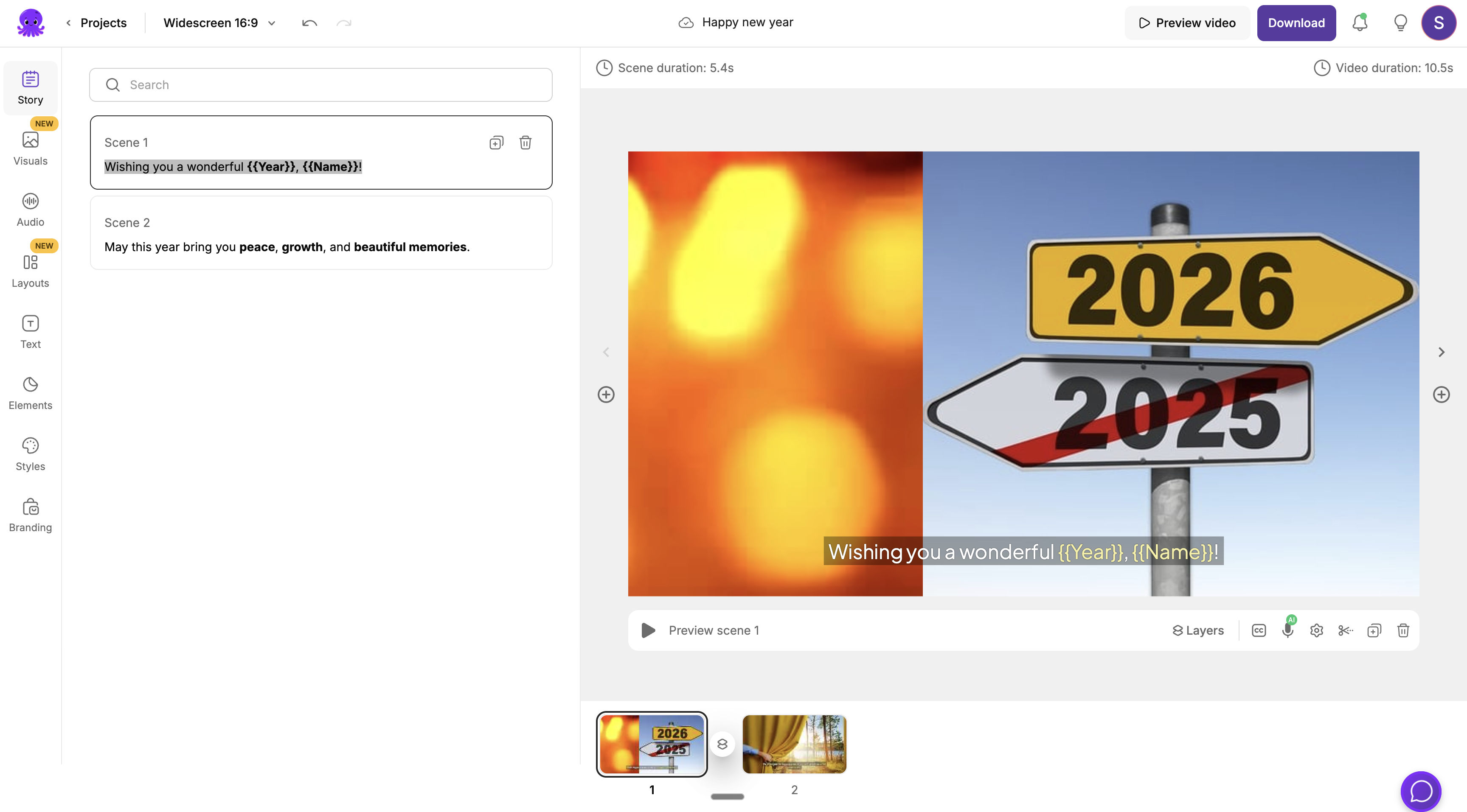 In this example, the project contains two template variables:
* `{{Year}}` - Will be replaced with the target year (e.g., "2026")
* `{{Name}}` - Will be replaced with the recipient's name (e.g., "James Thomas")
**Variable Naming Tips:**
* Use descriptive names like `{{CustomerName}}` instead of `{{n}}`
* Variables are case-sensitive: `{{Name}}` and `{{name}}` are different
* Avoid spaces in variable names: use `{{FirstName}}` not `{{First Name}}`
### Step 2: Get the Project ID
Once your template project is ready, you need to get its project ID to use with the API.
1. Open your project in the Pictory App
2. Look at the browser address bar - the URL will look like:
```
https://app.pictory.ai/story/20260108050148221f72c80c778d14153b2d1628cf4f3cb72
```
3. The project ID is the long string after `/story/`:
```
20260108050148221f72c80c778d14153b2d1628cf4f3cb72
```
In this example, the project contains two template variables:
* `{{Year}}` - Will be replaced with the target year (e.g., "2026")
* `{{Name}}` - Will be replaced with the recipient's name (e.g., "James Thomas")
**Variable Naming Tips:**
* Use descriptive names like `{{CustomerName}}` instead of `{{n}}`
* Variables are case-sensitive: `{{Name}}` and `{{name}}` are different
* Avoid spaces in variable names: use `{{FirstName}}` not `{{First Name}}`
### Step 2: Get the Project ID
Once your template project is ready, you need to get its project ID to use with the API.
1. Open your project in the Pictory App
2. Look at the browser address bar - the URL will look like:
```
https://app.pictory.ai/story/20260108050148221f72c80c778d14153b2d1628cf4f3cb72
```
3. The project ID is the long string after `/story/`:
```
20260108050148221f72c80c778d14153b2d1628cf4f3cb72
```
 The project ID is a unique identifier for your project. Copy this ID exactly as shown — it is case-sensitive and must be complete.
### Step 3: Render Video from Template via API
Now use the API to create videos from your template by providing the project ID as `templateId` and the variable values:
```javascript Node.js theme={null}
import axios from "axios";
const API_BASE_URL = "https://api.pictory.ai/pictoryapis";
const API_KEY = "YOUR_API_KEY"; // Replace with your actual API key
// Your template project ID from the Pictory App URL
const TEMPLATE_ID = "20260108050148221f72c80c778d14153b2d1628cf4f3cb72";
async function createVideoFromTemplate() {
try {
console.log("Creating video from template...");
const response = await axios.post(
`${API_BASE_URL}/v2/video/storyboard/render`,
{
templateId: TEMPLATE_ID,
videoName: "happy_new_year_james",
variables: {
Name: "James Thomas",
Year: "2026"
}
},
{
headers: {
"Content-Type": "application/json",
Authorization: API_KEY,
},
}
);
const jobId = response.data.data.jobId;
console.log("✓ Video creation started!");
console.log("Job ID:", jobId);
return jobId;
} catch (error) {
console.error("Error creating video:", error.response?.data || error.message);
throw error;
}
}
async function waitForVideo(jobId) {
console.log("\nMonitoring video creation...");
while (true) {
const statusResponse = await axios.get(
`${API_BASE_URL}/v1/jobs/${jobId}`,
{
headers: { Authorization: API_KEY },
}
);
const status = statusResponse.data.data.status;
console.log("Status:", status);
if (status === "completed") {
console.log("\n✓ Video is ready!");
console.log("Video URL:", statusResponse.data.data.videoURL);
return statusResponse.data;
} else if (status === "failed") {
throw new Error("Video creation failed: " + JSON.stringify(statusResponse.data));
}
// Wait 5 seconds before checking again
await new Promise(resolve => setTimeout(resolve, 5000));
}
}
// Run the complete workflow
createVideoFromTemplate()
.then(jobId => waitForVideo(jobId))
.then(result => console.log("\nDone!"))
.catch(error => console.error("Error:", error));
```
```python Python theme={null}
import requests
import time
API_BASE_URL = 'https://api.pictory.ai/pictoryapis'
API_KEY = 'YOUR_API_KEY' # Replace with your actual API key
# Your template project ID from the Pictory App URL
TEMPLATE_ID = '20260108050148221f72c80c778d14153b2d1628cf4f3cb72'
def create_video_from_template():
try:
print("Creating video from template...")
response = requests.post(
f'{API_BASE_URL}/v2/video/storyboard/render',
json={
'templateId': TEMPLATE_ID,
'videoName': 'happy_new_year_james',
'variables': {
'Name': 'James Thomas',
'Year': '2026'
}
},
headers={
'Content-Type': 'application/json',
'Authorization': API_KEY
}
)
response.raise_for_status()
job_id = response.json()['data']['jobId']
print("✓ Video creation started!")
print(f"Job ID: {job_id}")
return job_id
except requests.exceptions.RequestException as error:
print(f"Error creating video: {error}")
raise
def wait_for_video(job_id):
print("\nMonitoring video creation...")
while True:
response = requests.get(
f'{API_BASE_URL}/v1/jobs/{job_id}',
headers={'Authorization': API_KEY}
)
response.raise_for_status()
status = response.json()['data']['status']
print(f"Status: {status}")
if status == 'completed':
print("\n✓ Video is ready!")
print(f"Video URL: {response.json()['data']['videoURL']}")
return response.json()
elif status == 'failed':
raise Exception(f"Video creation failed: {response.json()}")
# Wait 5 seconds before checking again
time.sleep(5)
# Run the complete workflow
if __name__ == '__main__':
job_id = create_video_from_template()
result = wait_for_video(job_id)
print("\nDone!")
```
## Understanding the API Request
### Request Parameters
| Parameter | Type | Required | Description |
| ------------ | ------ | -------- | -------------------------------------------------- |
| `templateId` | string | Yes | The project ID from the Pictory App URL |
| `name` | string | Yes | Name for the generated video |
| `variables` | object | Yes | Key-value pairs for template variable substitution |
### Variables Object
The `variables` object contains key-value pairs where:
* **Key**: The variable name (without curly brackets) - must match exactly what you used in your template
* **Value**: The string to replace the variable with
```json theme={null}
{
"variables": {
"Name": "James Thomas",
"Year": "2026"
}
}
```
This will transform:
* `{{Name}}` → `James Thomas`
* `{{Year}}` → `2026`
### Response
```json theme={null}
{
"success": true,
"data": {
"jobId": "9eb2bbbb-9e0b-42ff-81d7-f701094880b3"
}
}
```
## Generating Personalized Videos at Scale
The real power of template-based video creation is generating personalized videos for many recipients:
```javascript Node.js theme={null}
import axios from "axios";
const API_BASE_URL = "https://api.pictory.ai/pictoryapis";
const API_KEY = "YOUR_API_KEY";
const TEMPLATE_ID = "your_template_project_id";
// List of recipients for personalized videos
const recipients = [
{ name: "James Thomas", email: "james@example.com" },
{ name: "Sarah Wilson", email: "sarah@example.com" },
{ name: "Michael Brown", email: "michael@example.com" },
];
async function createPersonalizedVideos() {
const jobs = [];
for (const recipient of recipients) {
console.log(`Creating video for ${recipient.name}...`);
const response = await axios.post(
`${API_BASE_URL}/v2/video/storyboard/render`,
{
templateId: TEMPLATE_ID,
videoName: `new_year_greeting_${recipient.name.toLowerCase().replace(" ", "_")}`,
variables: {
Name: recipient.name,
Year: "2026"
}
},
{
headers: {
"Content-Type": "application/json",
Authorization: API_KEY,
},
}
);
jobs.push({
recipient: recipient,
jobId: response.data.data.jobId
});
console.log(`✓ Started job: ${response.data.data.jobId}`);
}
return jobs;
}
createPersonalizedVideos()
.then(jobs => {
console.log("\n✓ All video creation jobs started!");
console.log("Jobs:", jobs);
})
.catch(error => console.error("Error:", error));
```
```python Python theme={null}
import requests
import time
API_BASE_URL = 'https://api.pictory.ai/pictoryapis'
API_KEY = 'YOUR_API_KEY'
TEMPLATE_ID = 'your_template_project_id'
# List of recipients for personalized videos
recipients = [
{'name': 'James Thomas', 'email': 'james@example.com'},
{'name': 'Sarah Wilson', 'email': 'sarah@example.com'},
{'name': 'Michael Brown', 'email': 'michael@example.com'},
]
def create_personalized_videos():
jobs = []
for recipient in recipients:
print(f"Creating video for {recipient['name']}...")
response = requests.post(
f'{API_BASE_URL}/v2/video/storyboard/render',
json={
'templateId': TEMPLATE_ID,
'videoName': f"new_year_greeting_{recipient['name'].lower().replace(' ', '_')}",
'variables': {
'Name': recipient['name'],
'Year': '2026'
}
},
headers={
'Content-Type': 'application/json',
'Authorization': API_KEY
}
)
response.raise_for_status()
job_id = response.json()['data']['jobId']
jobs.append({
'recipient': recipient,
'jobId': job_id
})
print(f"✓ Started job: {job_id}")
return jobs
if __name__ == '__main__':
jobs = create_personalized_videos()
print("\n✓ All video creation jobs started!")
print("Jobs:", jobs)
```
## Common Use Cases
### Personalized Greetings
```json theme={null}
{
"templateId": "your_greeting_template_id",
"videoName": "birthday_greeting_john",
"variables": {
"RecipientName": "John",
"Occasion": "Birthday",
"SenderName": "The Marketing Team"
}
}
```
### Product Promotions
```json theme={null}
{
"templateId": "your_promo_template_id",
"videoName": "product_promo_winter",
"variables": {
"ProductName": "Winter Collection",
"Discount": "25%",
"PromoCode": "WINTER25"
}
}
```
### Event Invitations
```json theme={null}
{
"templateId": "your_event_template_id",
"videoName": "webinar_invite_march",
"variables": {
"EventName": "AI in Marketing Webinar",
"EventDate": "March 15, 2026",
"SpeakerName": "Dr. Sarah Johnson"
}
}
```
### Customer Onboarding
```json theme={null}
{
"templateId": "your_onboarding_template_id",
"videoName": "onboarding_acme_corp",
"variables": {
"CompanyName": "Acme Corp",
"AccountManager": "Mike Wilson",
"TrialDays": "14"
}
}
```
## Best Practices
* Keep variable names generic and reusable
* Use placeholders that make sense for your use case
* Test your template with different variable values to ensure proper text fitting
* Consider text length limits when designing scenes with variables
* Document all variables used in your template
* Use consistent naming conventions across templates
* Validate variable values before sending to API
* Handle special characters appropriately in variable values
* Use webhooks for notification when videos complete
* Process videos in batches for large campaigns
* Store job IDs for tracking and retrieval
* Implement retry logic for failed jobs
* Create test videos with sample data before mass generation
* Verify all variables are replaced correctly
* Check video quality and timing with different text lengths
* Confirm the output meets your quality standards
## Troubleshooting
**Problem:** Template variable appears as `{{Name}}` instead of the actual value.
**Solution:**
* Ensure the variable name in your `variables` object matches exactly (case-sensitive)
* Check for typos in the variable name
* Verify the variable exists in the template project
* Make sure there are no extra spaces in the variable name
**Problem:** API returns an error about invalid template ID.
**Solution:**
* Verify you copied the complete project ID from the URL
* Check that the project exists in your Pictory account
* Ensure you are using the correct API key associated with the account
* Confirm the project is accessible (not deleted or archived)
**Problem:** Replaced variable text is too long and gets cut off.
**Solution:**
* Design templates with maximum expected text length in mind
* Use shorter variable values or abbreviations
* Adjust font size in the template to accommodate longer text
* Consider using multiple scenes for longer content
**Problem:** Video job remains in-progress for extended time.
**Solution:**
* Check the job status using the Get Job API
* Verify your API subscription is active
* Contact support if job is stuck for over 30 minutes
* Retry with a new request if needed
## Next Steps
Enhance your template-based workflows with these features:
Add AI narration to your template videos
Consistent brand styling across all generated videos
Add background music to enhance your videos
Save generated videos as editable projects
## API Reference
For complete technical details, see:
Create preview from template
Render video directly from template
Monitor video creation progress
List your template projects
The project ID is a unique identifier for your project. Copy this ID exactly as shown — it is case-sensitive and must be complete.
### Step 3: Render Video from Template via API
Now use the API to create videos from your template by providing the project ID as `templateId` and the variable values:
```javascript Node.js theme={null}
import axios from "axios";
const API_BASE_URL = "https://api.pictory.ai/pictoryapis";
const API_KEY = "YOUR_API_KEY"; // Replace with your actual API key
// Your template project ID from the Pictory App URL
const TEMPLATE_ID = "20260108050148221f72c80c778d14153b2d1628cf4f3cb72";
async function createVideoFromTemplate() {
try {
console.log("Creating video from template...");
const response = await axios.post(
`${API_BASE_URL}/v2/video/storyboard/render`,
{
templateId: TEMPLATE_ID,
videoName: "happy_new_year_james",
variables: {
Name: "James Thomas",
Year: "2026"
}
},
{
headers: {
"Content-Type": "application/json",
Authorization: API_KEY,
},
}
);
const jobId = response.data.data.jobId;
console.log("✓ Video creation started!");
console.log("Job ID:", jobId);
return jobId;
} catch (error) {
console.error("Error creating video:", error.response?.data || error.message);
throw error;
}
}
async function waitForVideo(jobId) {
console.log("\nMonitoring video creation...");
while (true) {
const statusResponse = await axios.get(
`${API_BASE_URL}/v1/jobs/${jobId}`,
{
headers: { Authorization: API_KEY },
}
);
const status = statusResponse.data.data.status;
console.log("Status:", status);
if (status === "completed") {
console.log("\n✓ Video is ready!");
console.log("Video URL:", statusResponse.data.data.videoURL);
return statusResponse.data;
} else if (status === "failed") {
throw new Error("Video creation failed: " + JSON.stringify(statusResponse.data));
}
// Wait 5 seconds before checking again
await new Promise(resolve => setTimeout(resolve, 5000));
}
}
// Run the complete workflow
createVideoFromTemplate()
.then(jobId => waitForVideo(jobId))
.then(result => console.log("\nDone!"))
.catch(error => console.error("Error:", error));
```
```python Python theme={null}
import requests
import time
API_BASE_URL = 'https://api.pictory.ai/pictoryapis'
API_KEY = 'YOUR_API_KEY' # Replace with your actual API key
# Your template project ID from the Pictory App URL
TEMPLATE_ID = '20260108050148221f72c80c778d14153b2d1628cf4f3cb72'
def create_video_from_template():
try:
print("Creating video from template...")
response = requests.post(
f'{API_BASE_URL}/v2/video/storyboard/render',
json={
'templateId': TEMPLATE_ID,
'videoName': 'happy_new_year_james',
'variables': {
'Name': 'James Thomas',
'Year': '2026'
}
},
headers={
'Content-Type': 'application/json',
'Authorization': API_KEY
}
)
response.raise_for_status()
job_id = response.json()['data']['jobId']
print("✓ Video creation started!")
print(f"Job ID: {job_id}")
return job_id
except requests.exceptions.RequestException as error:
print(f"Error creating video: {error}")
raise
def wait_for_video(job_id):
print("\nMonitoring video creation...")
while True:
response = requests.get(
f'{API_BASE_URL}/v1/jobs/{job_id}',
headers={'Authorization': API_KEY}
)
response.raise_for_status()
status = response.json()['data']['status']
print(f"Status: {status}")
if status == 'completed':
print("\n✓ Video is ready!")
print(f"Video URL: {response.json()['data']['videoURL']}")
return response.json()
elif status == 'failed':
raise Exception(f"Video creation failed: {response.json()}")
# Wait 5 seconds before checking again
time.sleep(5)
# Run the complete workflow
if __name__ == '__main__':
job_id = create_video_from_template()
result = wait_for_video(job_id)
print("\nDone!")
```
## Understanding the API Request
### Request Parameters
| Parameter | Type | Required | Description |
| ------------ | ------ | -------- | -------------------------------------------------- |
| `templateId` | string | Yes | The project ID from the Pictory App URL |
| `name` | string | Yes | Name for the generated video |
| `variables` | object | Yes | Key-value pairs for template variable substitution |
### Variables Object
The `variables` object contains key-value pairs where:
* **Key**: The variable name (without curly brackets) - must match exactly what you used in your template
* **Value**: The string to replace the variable with
```json theme={null}
{
"variables": {
"Name": "James Thomas",
"Year": "2026"
}
}
```
This will transform:
* `{{Name}}` → `James Thomas`
* `{{Year}}` → `2026`
### Response
```json theme={null}
{
"success": true,
"data": {
"jobId": "9eb2bbbb-9e0b-42ff-81d7-f701094880b3"
}
}
```
## Generating Personalized Videos at Scale
The real power of template-based video creation is generating personalized videos for many recipients:
```javascript Node.js theme={null}
import axios from "axios";
const API_BASE_URL = "https://api.pictory.ai/pictoryapis";
const API_KEY = "YOUR_API_KEY";
const TEMPLATE_ID = "your_template_project_id";
// List of recipients for personalized videos
const recipients = [
{ name: "James Thomas", email: "james@example.com" },
{ name: "Sarah Wilson", email: "sarah@example.com" },
{ name: "Michael Brown", email: "michael@example.com" },
];
async function createPersonalizedVideos() {
const jobs = [];
for (const recipient of recipients) {
console.log(`Creating video for ${recipient.name}...`);
const response = await axios.post(
`${API_BASE_URL}/v2/video/storyboard/render`,
{
templateId: TEMPLATE_ID,
videoName: `new_year_greeting_${recipient.name.toLowerCase().replace(" ", "_")}`,
variables: {
Name: recipient.name,
Year: "2026"
}
},
{
headers: {
"Content-Type": "application/json",
Authorization: API_KEY,
},
}
);
jobs.push({
recipient: recipient,
jobId: response.data.data.jobId
});
console.log(`✓ Started job: ${response.data.data.jobId}`);
}
return jobs;
}
createPersonalizedVideos()
.then(jobs => {
console.log("\n✓ All video creation jobs started!");
console.log("Jobs:", jobs);
})
.catch(error => console.error("Error:", error));
```
```python Python theme={null}
import requests
import time
API_BASE_URL = 'https://api.pictory.ai/pictoryapis'
API_KEY = 'YOUR_API_KEY'
TEMPLATE_ID = 'your_template_project_id'
# List of recipients for personalized videos
recipients = [
{'name': 'James Thomas', 'email': 'james@example.com'},
{'name': 'Sarah Wilson', 'email': 'sarah@example.com'},
{'name': 'Michael Brown', 'email': 'michael@example.com'},
]
def create_personalized_videos():
jobs = []
for recipient in recipients:
print(f"Creating video for {recipient['name']}...")
response = requests.post(
f'{API_BASE_URL}/v2/video/storyboard/render',
json={
'templateId': TEMPLATE_ID,
'videoName': f"new_year_greeting_{recipient['name'].lower().replace(' ', '_')}",
'variables': {
'Name': recipient['name'],
'Year': '2026'
}
},
headers={
'Content-Type': 'application/json',
'Authorization': API_KEY
}
)
response.raise_for_status()
job_id = response.json()['data']['jobId']
jobs.append({
'recipient': recipient,
'jobId': job_id
})
print(f"✓ Started job: {job_id}")
return jobs
if __name__ == '__main__':
jobs = create_personalized_videos()
print("\n✓ All video creation jobs started!")
print("Jobs:", jobs)
```
## Common Use Cases
### Personalized Greetings
```json theme={null}
{
"templateId": "your_greeting_template_id",
"videoName": "birthday_greeting_john",
"variables": {
"RecipientName": "John",
"Occasion": "Birthday",
"SenderName": "The Marketing Team"
}
}
```
### Product Promotions
```json theme={null}
{
"templateId": "your_promo_template_id",
"videoName": "product_promo_winter",
"variables": {
"ProductName": "Winter Collection",
"Discount": "25%",
"PromoCode": "WINTER25"
}
}
```
### Event Invitations
```json theme={null}
{
"templateId": "your_event_template_id",
"videoName": "webinar_invite_march",
"variables": {
"EventName": "AI in Marketing Webinar",
"EventDate": "March 15, 2026",
"SpeakerName": "Dr. Sarah Johnson"
}
}
```
### Customer Onboarding
```json theme={null}
{
"templateId": "your_onboarding_template_id",
"videoName": "onboarding_acme_corp",
"variables": {
"CompanyName": "Acme Corp",
"AccountManager": "Mike Wilson",
"TrialDays": "14"
}
}
```
## Best Practices
* Keep variable names generic and reusable
* Use placeholders that make sense for your use case
* Test your template with different variable values to ensure proper text fitting
* Consider text length limits when designing scenes with variables
* Document all variables used in your template
* Use consistent naming conventions across templates
* Validate variable values before sending to API
* Handle special characters appropriately in variable values
* Use webhooks for notification when videos complete
* Process videos in batches for large campaigns
* Store job IDs for tracking and retrieval
* Implement retry logic for failed jobs
* Create test videos with sample data before mass generation
* Verify all variables are replaced correctly
* Check video quality and timing with different text lengths
* Confirm the output meets your quality standards
## Troubleshooting
**Problem:** Template variable appears as `{{Name}}` instead of the actual value.
**Solution:**
* Ensure the variable name in your `variables` object matches exactly (case-sensitive)
* Check for typos in the variable name
* Verify the variable exists in the template project
* Make sure there are no extra spaces in the variable name
**Problem:** API returns an error about invalid template ID.
**Solution:**
* Verify you copied the complete project ID from the URL
* Check that the project exists in your Pictory account
* Ensure you are using the correct API key associated with the account
* Confirm the project is accessible (not deleted or archived)
**Problem:** Replaced variable text is too long and gets cut off.
**Solution:**
* Design templates with maximum expected text length in mind
* Use shorter variable values or abbreviations
* Adjust font size in the template to accommodate longer text
* Consider using multiple scenes for longer content
**Problem:** Video job remains in-progress for extended time.
**Solution:**
* Check the job status using the Get Job API
* Verify your API subscription is active
* Contact support if job is stuck for over 30 minutes
* Retry with a new request if needed
## Next Steps
Enhance your template-based workflows with these features:
Add AI narration to your template videos
Consistent brand styling across all generated videos
Add background music to enhance your videos
Save generated videos as editable projects
## API Reference
For complete technical details, see:
Create preview from template
Render video directly from template
Monitor video creation progress
List your template projects