> ## Documentation Index
> Fetch the complete documentation index at: https://docs.pictory.ai/llms.txt
> Use this file to discover all available pages before exploring further.
# Pictory MCP Server
> Create Pictory videos from a conversation in Claude or Claude Code. The MCP server exposes the Text-to-Video API as tools; sign in with your Pictory account, no API key needed
The Pictory MCP server lets Claude create videos through your Pictory account. It exposes the
Text-to-Video API as a set of tools that Claude calls on your behalf, so you describe the video
in plain English and Claude writes the script, designs the scenes, finds the visuals and music,
submits the render, and hands you the link.
There is nothing to install. You add the server to Claude once, sign in with your Pictory
account, and it is available in every conversation. Every action runs against your own account,
so your plan, quota and AI Credits apply exactly as they do for a direct API call.
| | |
| ---------- | ----------------------------------------------------------------------------------------------------------------------------------------------------------- |
| Server URL | `https://mcp.pictory.ai/mcp` |
| Sign-in | Your Pictory account (email and password, or Google). No API key. |
| Billing | The Pictory API subscription on the account you sign in with. Video minutes, premium voice minutes, transcription minutes and AI Credits are drawn from it. |
| Works in | Claude on the web, desktop and mobile, and Claude Code |
## Two ways to connect
Add the server as a custom connector in Claude on the web. It follows your account to the desktop and mobile apps.
One command in the terminal, then sign in. For developers and for a project-wide setup shared with a team.
## What you can ask for
Once connected, you can say things like:
* *"Make a 60-second explainer about our new expense-tracking feature, professional tone, for YouTube."*
* *"Create a vertical Instagram teaser for our coffee brand: warm, cozy, upbeat music."*
* *"Turn this blog post into a video: [https://example.com/post](https://example.com/post)"*
* *"Show me a preview first."* Claude builds the storyboard and gives you a preview link before anything is rendered.
* *"Make the title smaller and swap the clip on scene 2."* After a preview, edits are applied in place; the same preview link shows the change.
* *"Which voices do you have?"*, *"How much quota do I have left?"*
Claude settles a few things with you before it starts: what the video is about, whether it is
narrated and in which voice, whether it has music, what shape it is, and whether to save it as a
project in your Pictory workspace. It never renders a preview into a final video without your
go-ahead.
## Who designs the scenes
This is the first question Claude asks, and the most consequential. It decides what you
supply, how much control you keep, and which tools come into play. There is no default, so
Claude always asks; the choice applies to the whole video, not to individual scenes.
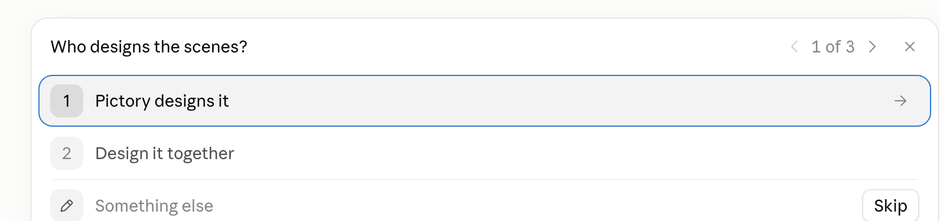 ### Pictory designs it
Pictory's AI Storyboard lays out every scene: the visuals, the on-screen text, the colors and
the pacing. You supply the source material only, as any one of:
* **A brief.** A plain-language prompt for a video Pictory writes the script for. Claude asks
what the video is about, what it is for (an explainer, marketing, internal communication, a
tutorial or a product video), how long it should run (8–500 seconds) and how it should
sound. It asks where the video will be published too, because that settles the shape.
* **A script you already have.** The storyboard splits it into scenes and designs each one
around your words.
* **A blog or article URL.** Pictory reads the page and turns it into a video.
* **Scene-by-scene narration.** You give the narration for each scene, with an optional
background per scene.
Beyond the source, you still choose the narration voice, the music, the shape, a brand kit
and a subtitle style. A background you name for a scene is honored; everything else about the
layout is the storyboard's to decide, which is the point of this mode. Templates, smart
layouts and the 4:5 ratio are not available here.
Best for speed, for turning existing written content into video, and for anyone who does not
want to art-direct. Searching for media is unnecessary, because the storyboard sources its own
visuals.
### Design it together
You and Claude compose each scene explicitly, then send the finished design. Per scene you
control:
* **Narration.** It becomes both the voice-over and the burned-in subtitles. A title or
call-to-action card may omit it, but then needs a minimum duration.
* **Background.** Exactly one of a stock clip or image (from a search, or your own URL), a
solid color, or an AI-generated visual. Plus an optional color tint, a slow pan on stills,
and loop or mute on footage. A stock clip loops by default, so a short clip still covers the
narration over it.
* **Elements**, up to 20 per scene, drawn in order:
* *Text overlays* with control over font, size, color, case, alignment, wrap width,
placement and entry or exit animation. Every text element enters with an animation unless
you ask for none: a heading drifts up, other text fades in.
* *Shape overlays* from a library of badges, arrows, quote marks, underlines, blobs and
speech bubbles, plus plain rectangles, circles and lines that can be drawn to any width
and height. A rectangle with both is a bar, a panel or a divider, which is how bar charts,
stat rings and stat tiles are built. A filled shape placed before a text element gives the
text its own panel.
* *Extra image or video panels*, from a search, your own URL, or an AI prompt.
* **Placement.** An anchor preset (nine positions relative to the scene, kept clear of the
edges) or an exact top and left offset in percent.
* **Scene transition, minimum duration**, and the option to hide subtitles where your own text
elements already carry the words.
The natural rhythm is draft, preview, adjust, render. A preview takes 2–5 minutes; Claude can
estimate the layout before that and flag anything that overlaps. Once the preview is up, edits
to wording, size, color, placement, a clip, a tint or the music are applied in place at the
same URL. Only a new scene or a new element needs a fresh preview, and when a design is resent
the narration already voiced is reused: visual and layout changes never cost a new voice, and
only scenes whose wording changed, or a change of voice, speed or volume, are voiced again.
Best for branded, precisely laid out or template-like videos, and for data and infographic
scenes. Stock media and music are free; AI-generated visuals draw AI Credits.
### Which to choose
| You have | Choose |
| ------------------------------------------------------------------------------- | ---------------------------------------- |
| A topic, a script or an article, and you want it made well without directing it | Pictory designs it |
| A clear picture of what each scene should look like | Design it together |
| Figures to show as a chart, or a layout the brand guidelines dictate | Design it together |
| A quick first cut you may refine later | Pictory designs it, with a preview first |
You can ask for a preview in either mode, and in Design it together you can keep editing that
preview until it is right before anything is rendered.
## Tools
Thirteen tools, in four groups.
### Creating and rendering
| Tool | What it does |
| ------------------------- | -------------------------------------------------------------------------------------------------------------------------- |
| `create_video_from_text` | Creates the video and starts rendering immediately. Returns a job ID; rendering takes 5–15 minutes. |
| `preview_video_from_text` | Builds the storyboard without rendering, so the scenes can be reviewed first. Takes 2–5 minutes and returns a preview URL. |
| `render_preview` | Renders a preview you have seen and approved. Everything carries over from the preview. |
| `get_job_status` | Checks a running job. On completion returns the video URL, thumbnail, subtitle files and duration. |
### Refining a preview
| Tool | What it does |
| ------------------------- | ----------------------------------------------------------------------------------------------------------------------------------------------------------------------------------------------------------------------------------------------------------------- |
| `list_preview_elements` | Reads a completed preview as a list of its parts: backgrounds, titles, text, subtitles, media, shapes, music and voice-over, each with its scene, current content and resolved position, plus any overlapping pairs. |
| `update_preview_elements` | Changes those parts in place: wording, font size and color, case, wrap width, placement, a different clip, a background tint, a different music track or volume. The preview updates at the same URL. A new scene or a new element needs a fresh preview instead. |
| `estimate_layout` | Predicts where each element of a designed scene will land and flags overlaps before a preview is built. |
### Finding assets
| Tool | What it does |
| -------------- | ------------------------------------------------------------------------------------------------------------------------------------------------------------------------ |
| `search_media` | Searches Pictory's stock library for a clip or still, with an optional category filter. Results carry previews, descriptions and orientation. Stock media costs nothing. |
| `search_music` | Finds a specific background track by mood, purpose, genre, instrument, keyword and duration. Left alone, Pictory selects one that suits the video. |
### Account and options
| Tool | What it does |
| ------------------- | ------------------------------------------------------------------------------------------------------------ |
| `list_voices` | Lists the premium AI narration voices on your account, filterable by language, gender or name. |
| `list_video_brands` | Lists your brand kits by name. Applying one carries its logo, colors and fonts into the video. |
| `list_text_styles` | Lists your subtitle and caption styles by name. |
| `get_quota` | Reports usage against your plan: video minutes, transcription minutes, premium voice minutes and AI Credits. |
## What you get back
A finished job returns the MP4, a watch link, an embed link, the narration audio, and subtitles
in both SRT and VTT.
Two habits worth forming. Ask for a preview whenever the design matters: correcting a storyboard
costs 2–5 minutes, re-rendering costs 5–15. And say yes to saving the video as an editable
project if there is any chance you will revise it; without that, the video is not kept in your
Pictory account, so every revision means a fresh render rather than a tweak in the editor.
## Quick reference
| | |
| ------------------- | ------------------------------------------------------------------------------------------------------------------------------------------------------------------------------------- |
| Narration languages | Arabic, Chinese, Dutch, English, French, German, Hindi, Indonesian, Italian, Japanese, Korean, Malay, Marathi, Polish, Portuguese, Russian, Spanish, Tamil, Turkish, Urdu, Vietnamese |
| Aspect ratios | 16:9, 9:16, 1:1 |
| Duration | 8–500 seconds when working from a brief |
| Limits | Up to 100 scenes, and up to 20 elements per scene |
| Timing | A preview takes 2–5 minutes, a render 5–15 |
| Costs | Stock media and music are free; generated visuals draw AI Credits; premium narration draws premium voice minutes |
## What you need
Two things must be in place, or the connection fails at sign-in.
| Requirement | Details |
| ------------------------------------ | ---------------------------------------------------------------------------------------------------------------------------------------------- |
| A Pictory account | This is what you sign in with when authorizing the connector: [app.pictory.ai](https://app.pictory.ai) |
| A purchased Pictory API subscription | The server runs on Pictory's API, so an active API subscription on that account is required. A standard Pictory plan on its own is not enough. |
| Claude | A Claude plan that supports custom connectors, or Claude Code |
## MCP server or Claude Skill?
Both let you create videos by describing them. The MCP server works wherever you use Claude and
signs in with your Pictory account. The [Text-to-Video skill](/claude-skills/text-to-video-setup)
runs in Claude Code with your API key and carries its own design playbook for developers who
want to script the process. The [Pictory for Claude overview](/claude-skills/overview) compares
the two.
### Pictory designs it
Pictory's AI Storyboard lays out every scene: the visuals, the on-screen text, the colors and
the pacing. You supply the source material only, as any one of:
* **A brief.** A plain-language prompt for a video Pictory writes the script for. Claude asks
what the video is about, what it is for (an explainer, marketing, internal communication, a
tutorial or a product video), how long it should run (8–500 seconds) and how it should
sound. It asks where the video will be published too, because that settles the shape.
* **A script you already have.** The storyboard splits it into scenes and designs each one
around your words.
* **A blog or article URL.** Pictory reads the page and turns it into a video.
* **Scene-by-scene narration.** You give the narration for each scene, with an optional
background per scene.
Beyond the source, you still choose the narration voice, the music, the shape, a brand kit
and a subtitle style. A background you name for a scene is honored; everything else about the
layout is the storyboard's to decide, which is the point of this mode. Templates, smart
layouts and the 4:5 ratio are not available here.
Best for speed, for turning existing written content into video, and for anyone who does not
want to art-direct. Searching for media is unnecessary, because the storyboard sources its own
visuals.
### Design it together
You and Claude compose each scene explicitly, then send the finished design. Per scene you
control:
* **Narration.** It becomes both the voice-over and the burned-in subtitles. A title or
call-to-action card may omit it, but then needs a minimum duration.
* **Background.** Exactly one of a stock clip or image (from a search, or your own URL), a
solid color, or an AI-generated visual. Plus an optional color tint, a slow pan on stills,
and loop or mute on footage. A stock clip loops by default, so a short clip still covers the
narration over it.
* **Elements**, up to 20 per scene, drawn in order:
* *Text overlays* with control over font, size, color, case, alignment, wrap width,
placement and entry or exit animation. Every text element enters with an animation unless
you ask for none: a heading drifts up, other text fades in.
* *Shape overlays* from a library of badges, arrows, quote marks, underlines, blobs and
speech bubbles, plus plain rectangles, circles and lines that can be drawn to any width
and height. A rectangle with both is a bar, a panel or a divider, which is how bar charts,
stat rings and stat tiles are built. A filled shape placed before a text element gives the
text its own panel.
* *Extra image or video panels*, from a search, your own URL, or an AI prompt.
* **Placement.** An anchor preset (nine positions relative to the scene, kept clear of the
edges) or an exact top and left offset in percent.
* **Scene transition, minimum duration**, and the option to hide subtitles where your own text
elements already carry the words.
The natural rhythm is draft, preview, adjust, render. A preview takes 2–5 minutes; Claude can
estimate the layout before that and flag anything that overlaps. Once the preview is up, edits
to wording, size, color, placement, a clip, a tint or the music are applied in place at the
same URL. Only a new scene or a new element needs a fresh preview, and when a design is resent
the narration already voiced is reused: visual and layout changes never cost a new voice, and
only scenes whose wording changed, or a change of voice, speed or volume, are voiced again.
Best for branded, precisely laid out or template-like videos, and for data and infographic
scenes. Stock media and music are free; AI-generated visuals draw AI Credits.
### Which to choose
| You have | Choose |
| ------------------------------------------------------------------------------- | ---------------------------------------- |
| A topic, a script or an article, and you want it made well without directing it | Pictory designs it |
| A clear picture of what each scene should look like | Design it together |
| Figures to show as a chart, or a layout the brand guidelines dictate | Design it together |
| A quick first cut you may refine later | Pictory designs it, with a preview first |
You can ask for a preview in either mode, and in Design it together you can keep editing that
preview until it is right before anything is rendered.
## Tools
Thirteen tools, in four groups.
### Creating and rendering
| Tool | What it does |
| ------------------------- | -------------------------------------------------------------------------------------------------------------------------- |
| `create_video_from_text` | Creates the video and starts rendering immediately. Returns a job ID; rendering takes 5–15 minutes. |
| `preview_video_from_text` | Builds the storyboard without rendering, so the scenes can be reviewed first. Takes 2–5 minutes and returns a preview URL. |
| `render_preview` | Renders a preview you have seen and approved. Everything carries over from the preview. |
| `get_job_status` | Checks a running job. On completion returns the video URL, thumbnail, subtitle files and duration. |
### Refining a preview
| Tool | What it does |
| ------------------------- | ----------------------------------------------------------------------------------------------------------------------------------------------------------------------------------------------------------------------------------------------------------------- |
| `list_preview_elements` | Reads a completed preview as a list of its parts: backgrounds, titles, text, subtitles, media, shapes, music and voice-over, each with its scene, current content and resolved position, plus any overlapping pairs. |
| `update_preview_elements` | Changes those parts in place: wording, font size and color, case, wrap width, placement, a different clip, a background tint, a different music track or volume. The preview updates at the same URL. A new scene or a new element needs a fresh preview instead. |
| `estimate_layout` | Predicts where each element of a designed scene will land and flags overlaps before a preview is built. |
### Finding assets
| Tool | What it does |
| -------------- | ------------------------------------------------------------------------------------------------------------------------------------------------------------------------ |
| `search_media` | Searches Pictory's stock library for a clip or still, with an optional category filter. Results carry previews, descriptions and orientation. Stock media costs nothing. |
| `search_music` | Finds a specific background track by mood, purpose, genre, instrument, keyword and duration. Left alone, Pictory selects one that suits the video. |
### Account and options
| Tool | What it does |
| ------------------- | ------------------------------------------------------------------------------------------------------------ |
| `list_voices` | Lists the premium AI narration voices on your account, filterable by language, gender or name. |
| `list_video_brands` | Lists your brand kits by name. Applying one carries its logo, colors and fonts into the video. |
| `list_text_styles` | Lists your subtitle and caption styles by name. |
| `get_quota` | Reports usage against your plan: video minutes, transcription minutes, premium voice minutes and AI Credits. |
## What you get back
A finished job returns the MP4, a watch link, an embed link, the narration audio, and subtitles
in both SRT and VTT.
Two habits worth forming. Ask for a preview whenever the design matters: correcting a storyboard
costs 2–5 minutes, re-rendering costs 5–15. And say yes to saving the video as an editable
project if there is any chance you will revise it; without that, the video is not kept in your
Pictory account, so every revision means a fresh render rather than a tweak in the editor.
## Quick reference
| | |
| ------------------- | ------------------------------------------------------------------------------------------------------------------------------------------------------------------------------------- |
| Narration languages | Arabic, Chinese, Dutch, English, French, German, Hindi, Indonesian, Italian, Japanese, Korean, Malay, Marathi, Polish, Portuguese, Russian, Spanish, Tamil, Turkish, Urdu, Vietnamese |
| Aspect ratios | 16:9, 9:16, 1:1 |
| Duration | 8–500 seconds when working from a brief |
| Limits | Up to 100 scenes, and up to 20 elements per scene |
| Timing | A preview takes 2–5 minutes, a render 5–15 |
| Costs | Stock media and music are free; generated visuals draw AI Credits; premium narration draws premium voice minutes |
## What you need
Two things must be in place, or the connection fails at sign-in.
| Requirement | Details |
| ------------------------------------ | ---------------------------------------------------------------------------------------------------------------------------------------------- |
| A Pictory account | This is what you sign in with when authorizing the connector: [app.pictory.ai](https://app.pictory.ai) |
| A purchased Pictory API subscription | The server runs on Pictory's API, so an active API subscription on that account is required. A standard Pictory plan on its own is not enough. |
| Claude | A Claude plan that supports custom connectors, or Claude Code |
## MCP server or Claude Skill?
Both let you create videos by describing them. The MCP server works wherever you use Claude and
signs in with your Pictory account. The [Text-to-Video skill](/claude-skills/text-to-video-setup)
runs in Claude Code with your API key and carries its own design playbook for developers who
want to script the process. The [Pictory for Claude overview](/claude-skills/overview) compares
the two.